




Summary of the article
Voicy: Best for case notes and client summaries that happen across forms, docs, browser tabs, and AI tools.
Dragon by Nuance: Best for heavy daily dictation where accuracy and commands matter more than price.
Microsoft Word Dictate: Best if your client summaries already live in Word and Microsoft 365.
Google Docs Voice Typing: Best free starting point for simple case notes in Google Docs.
Philips SpeechLive: Best for teams that need dictation plus workflow and transcription support.
SimplePractice Note Taker: Best for therapy practices that want dictated client notes inside the same platform.
The best dictation software for case notes and client summaries depends on where the work happens. If you just need a free place to speak into a document, Google Docs or Word may be enough. If your day jumps between intake forms, follow-up emails, CRM notes, and AI cleanup, a cross-app tool like Voicy is a better fit.
The best dictation software for case notes and client summaries should help you capture details fast, clean them up fast, and move on. That matters if you are a therapist writing progress notes, a consultant summarizing a client call, a recruiter logging a debrief, or a lawyer drafting a quick matter update.
A lot of ranking pages for this topic are not really about this topic. They are either broad dictation roundups, or narrow pages for one profession like legal or therapy. Useful, yes. Direct, not really.
This guide is tighter. I looked at the tools that keep showing up across current dictation search results, legal dictation pages, and client-note workflows, then filtered them for one real-world job: turning spoken thoughts into usable case notes and client summaries without creating a cleanup mess later.
How I picked the best dictation software for case notes and client summaries
Fast capture: You should be able to speak right after a meeting or call, while the details are still fresh.
Low cleanup: Raw transcripts are not enough. The text needs to be usable.
Workflow fit: Notes rarely stay in one app. They end up in docs, forms, CRMs, case systems, or client emails.
Reasonable tradeoffs: Some tools are great for free drafts. Others earn their price when documentation is a daily burden.
Professional use: I favored tools that make sense for client-facing work, not just casual voice typing.
Search intent here is mostly comparison intent. People are not asking what speech-to-text is. They want to know which tool will actually help them write cleaner notes in less time.
What makes a tool good for case notes and client summaries
It works right after the conversation ends. That is when facts are sharpest.
It handles names, jargon, and short corrections well. Client work gets messy fast.
It fits your note destination. Word, Google Docs, browser forms, and practice systems all behave differently.
It saves wrists and time. Speaking 2 minutes of notes is very different from typing 2 minutes of notes.
It does not trap you in one narrow workflow. That is where many free tools fall short.
If you want broader speech-to-text options beyond this use case, start with our guide to voice typing apps. If your workflow already lives in Docs, ChatGPT, or Notion, these guides on Google Docs speech to text, speech to text in ChatGPT, and Notion speech to text are also useful.
1. Voicy, best for cross-app case notes and client summaries
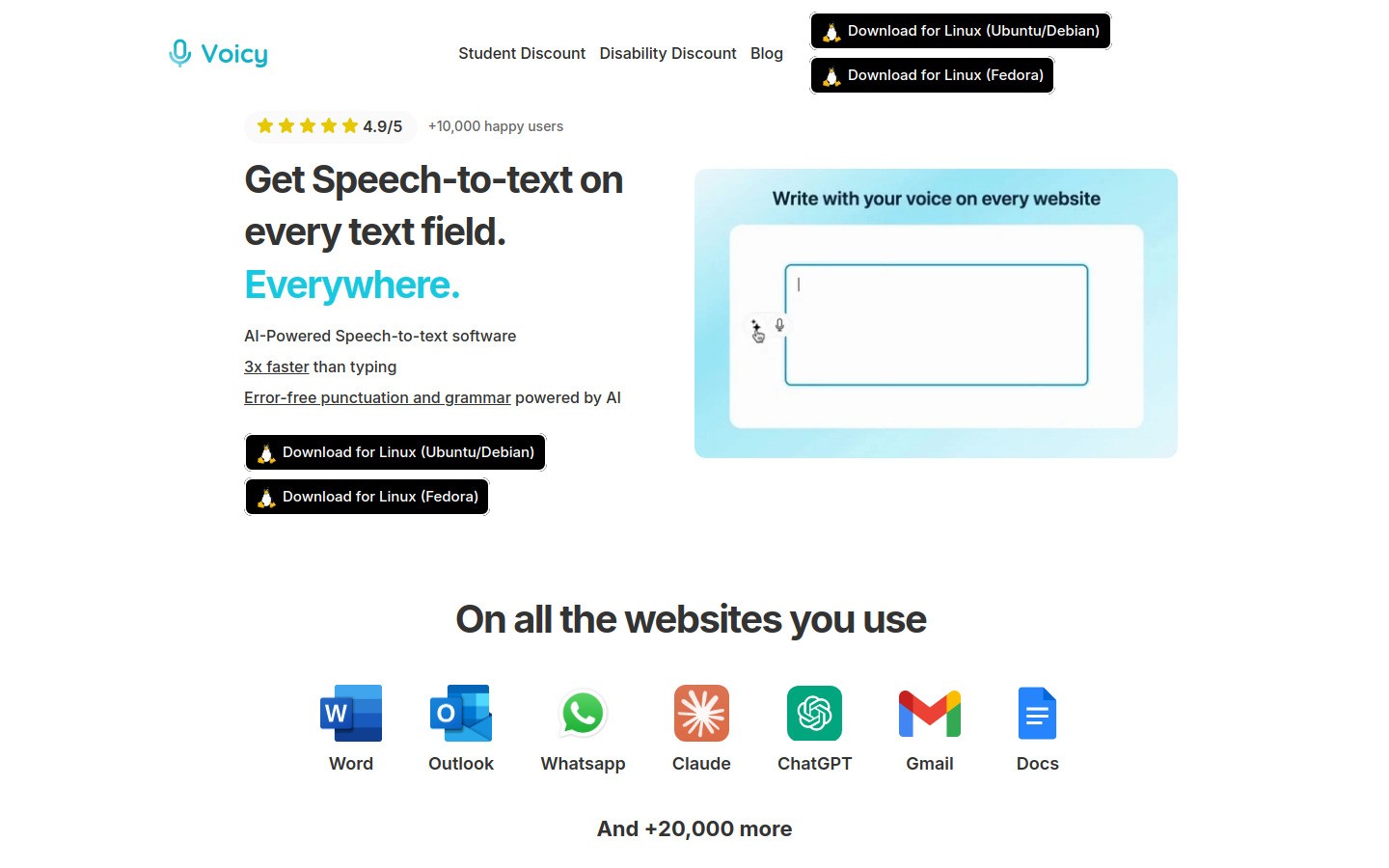
Voicy is the best fit when your case notes and client summaries do not stay in one place. That is common now. You might capture quick notes after a call, clean them up in an AI tool, paste them into a CRM, then send a summary email.
That is where Voicy feels stronger than built-in dictation. It works on Mac, Windows, and as a browser extension, so you can keep the same voice workflow across forms, tabs, and documents. The output is also cleaner than what you usually get from older built-in voice typing tools.
Best for: Professionals who write client documentation across many apps, not just one document editor.
What stands out:
Works on Mac, Windows, and browser extension
Free trial available
Useful for CRMs, intake forms, summaries, and follow-up emails
Cloud-based transcription with cleaner draft output than many basic tools
Limits: It is not fully free, and it is not the right pick if you need a strict offline-only workflow.
Pricing: $8.49/month, $82/year, or $220 lifetime.
Helpful internal links: If you also dictate into AI tools, see speech to text in Claude and speech to text in ChatGPT.
2. Dragon by Nuance, best for heavy professional dictation
Dragon is still the serious pick for people who dictate a lot. If case notes are a core part of your job and you want deep voice control, custom vocabulary, and a tool that has been used in professional settings for years, Dragon still deserves a hard look.
It is not the lightest option. That is also why it works. Dragon makes more sense when dictation is part of your daily operating system, not just a small convenience feature.
Best for: High-volume dictation, especially in legal, healthcare, and documentation-heavy roles.
What stands out:
Strong reputation for professional dictation
Helpful when jargon and repeated terminology matter
Better fit for long sessions than casual free tools
Limits: More setup, more cost, and more commitment. Many people do not need this much tool.
3. Microsoft Word Dictate, best for Microsoft 365 documentation workflows
If your team already writes client summaries in Word, this is the obvious built-in option. Microsoft Word Dictate is simple, familiar, and good enough for a lot of note-taking use cases.
That matters more than people admit. A tool you will actually use inside your existing workflow often beats a fancier tool you never fully adopt.
Best for: Teams and solo professionals already centered on Microsoft 365.
What stands out:
Built into a tool many offices already use
Easy to start with for summaries, reports, and follow-up notes
Low friction for shared editing and revision in Word
Limits: It solves the Word problem, not the whole workday. Once your notes move into browser fields, CRMs, and non-Microsoft apps, the convenience drops.
4. Google Docs Voice Typing, best free option for simple case notes
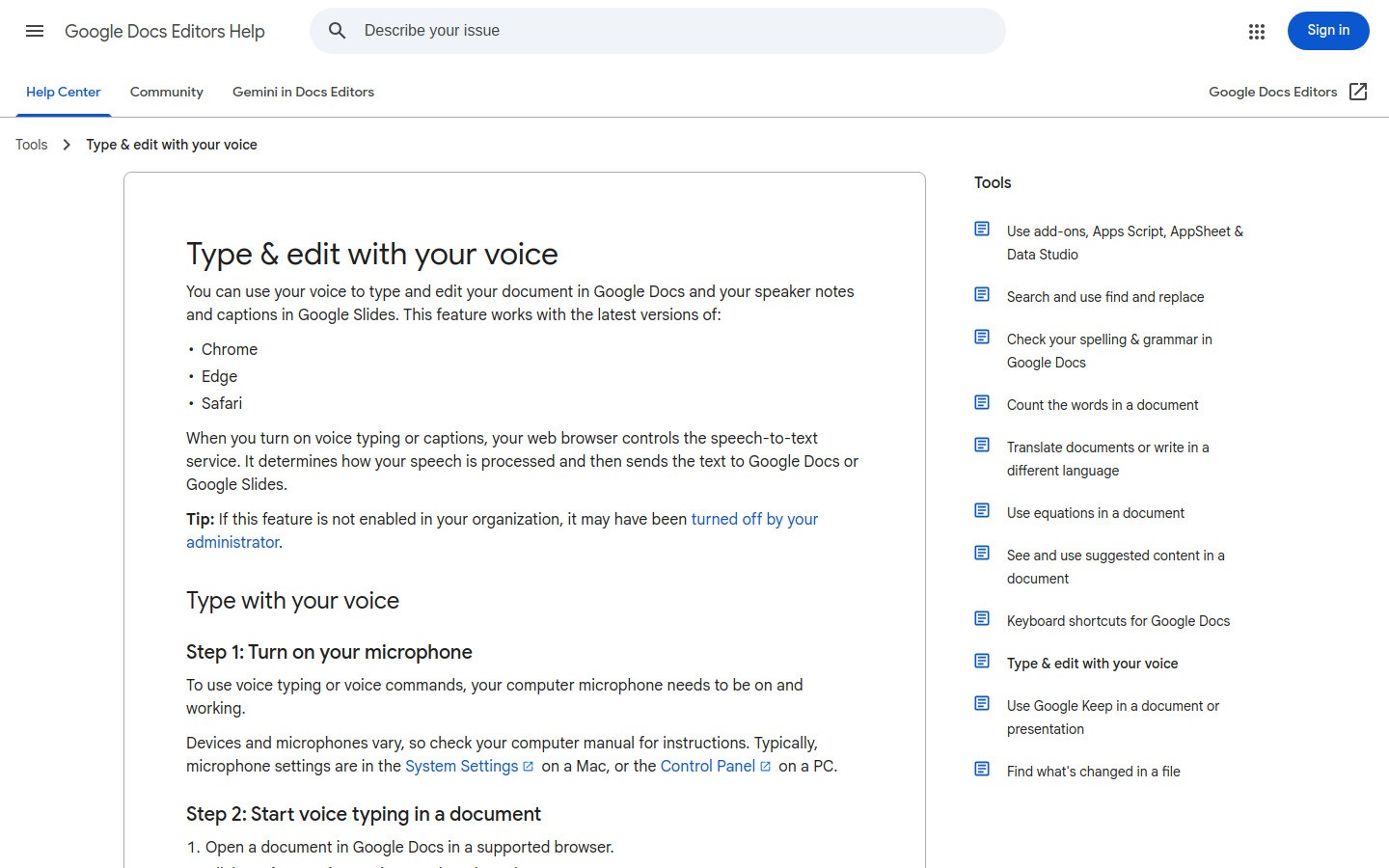
Google Docs Voice Typing is still the easiest free test for a lot of people. If you already keep client summaries in Docs, there is almost no setup cost in trying it.
I would not call it the best long-term option for every workflow. I would call it the best free place to start. That is a different question, and it matters.
Best for: Solo users or small teams who already write notes in Google Docs and want a free starting point.
What stands out:
Free and familiar
Fast to test after calls or meetings
Easy for collaborative note drafts in shared docs
Limits: Mostly useful inside Docs. Cleanup can also take more work than with newer AI-assisted dictation tools.
5. Philips SpeechLive, best for dictation workflow and transcription support
Philips SpeechLive is less about casual voice typing and more about managed dictation workflow. That makes it a better fit for teams that need routing, transcription support, mobile dictation, and a more formal documentation process.
This is the kind of tool that makes sense when notes are part of a larger operational pipeline. Legal teams are a natural fit, but it can also work for any service business that documents client interactions at scale.
Best for: Teams that want more structure around dictation, transcription, and document turnaround.
What stands out:
Designed for professional dictation workflows
Useful when multiple people touch the documentation process
Stronger operational fit than lightweight consumer tools
Limits: It is more workflow software than quick plug-and-play dictation. If you just want to speak into a few fields each day, it may feel too heavy.
6. SimplePractice Note Taker, best for therapy practices that want in-platform client notes
SimplePractice Note Taker is the most niche tool on this list, but it earns the spot because the search intent behind case notes often overlaps with therapy and counseling workflows. If your notes live inside SimplePractice already, keeping dictation and draft generation in the same system is a real advantage.
This is not the right choice for broad cross-app dictation. It is the right choice if your client note workflow is tightly tied to one practice platform and you want less copy-paste work.
Best for: Therapists and mental health practices using SimplePractice for client documentation.
What stands out:
Fits directly into a therapy documentation workflow
Useful for turning spoken details into draft notes faster
Good match when your records already live in SimplePractice
Limits: Too narrow for most other professions. If you need one dictation tool that works across your whole computer, choose something broader.
Quick comparison table
Tool | Best for | Main drawback |
|---|---|---|
Cross-app case notes and summaries | Paid after free trial, cloud-based | |
Heavy daily dictation | Higher cost and setup | |
Word-based documentation | Limited outside Microsoft apps | |
Free simple drafting | Mostly limited to Docs | |
Team dictation workflow | Can feel heavy for solo users | |
Therapy practice notes | Too niche for general use |
Which dictation software should you choose for case notes and client summaries?
Here is the short version.
Pick Google Docs Voice Typing if you want the easiest free starting point.
Pick Word Dictate if your documentation already lives in Microsoft 365.
Pick Voicy if your notes move across forms, tabs, docs, and AI tools all day.
Pick Dragon if dictation is central to your workload and you want a more serious setup.
Pick Philips SpeechLive if your team needs workflow and transcription support, not just speech-to-text.
Pick SimplePractice Note Taker if you are a therapist and want note drafting inside the same platform you already use.
Final take
The best dictation software for case notes and client summaries is the tool that fits the place where you actually write. That sounds obvious, but most frustration starts when the software only works in one small corner of the workflow.
If you want a free test, start with Google Docs Voice Typing or Word Dictate. If you need a stronger cross-app workflow with cleaner output, Voicy is the better fit. If documentation is a huge part of your job and you want a deeper professional setup, Dragon and Philips SpeechLive are stronger long-term options.
If you want more ideas for voice-first writing, start with our guide to voice typing apps.


