




5 Best Voice Typing Tools for Writers Using Microsoft Word (2026)
Writers on PC often need more than Word support alone. Here is our breakdown of the best dictation software for Windows if you want one setup for drafts, notes, email, and editing.
Summary of the article
Voicy is the best fit for writers who live in Microsoft Word and want cleaner drafts fast. It works across Mac, Windows, and the browser, adds punctuation automatically, and gives you a free trial.
Microsoft Word Dictate is fine if you already pay for Microsoft 365 and just need basic built-in dictation.
Dragon Professional is still powerful, but it is pricey and feels heavier than most solo writers need.
Google Docs Voice Typing is useful for rough drafts, but it is not a Word-first workflow.
Windows Voice Access is the budget fallback for Windows users, not the smoothest option for serious long-form writing.
Want the short version? If you write books, articles, essays, or client work in Word, start with Voicy for Microsoft Word. It is the cleanest way to get from idea to first draft without fighting your tools.
Best Voice Typing Tools for Writers Using Microsoft Word
If you write in Word every day, you do not need another generic speech-to-text list.
You need a tool that fits how writers actually work in Microsoft Word. That means long sessions, messy first drafts, rewrites, and a lot of back-and-forth between thinking and editing.
The best voice typing tools for writers using Microsoft Word help you draft faster without creating a cleanup disaster. Below are the five tools worth knowing, plus who each one is really for.
How we picked these tools
I narrowed this list to tools writers can realistically use with Microsoft Word, not every speech-to-text app on the internet.
Word fit: Does it work well with Microsoft Word, not just random text boxes?
Draft quality: Can you get readable paragraphs with punctuation, not a wall of broken text?
Writer workflow: Is it good for articles, reports, essays, scenes, and notes?
Setup friction: Can you start fast, or do you need a weekend to configure it?
Value: Does the time saved feel worth the price?
1. Voicy, best overall for writers using Microsoft Word
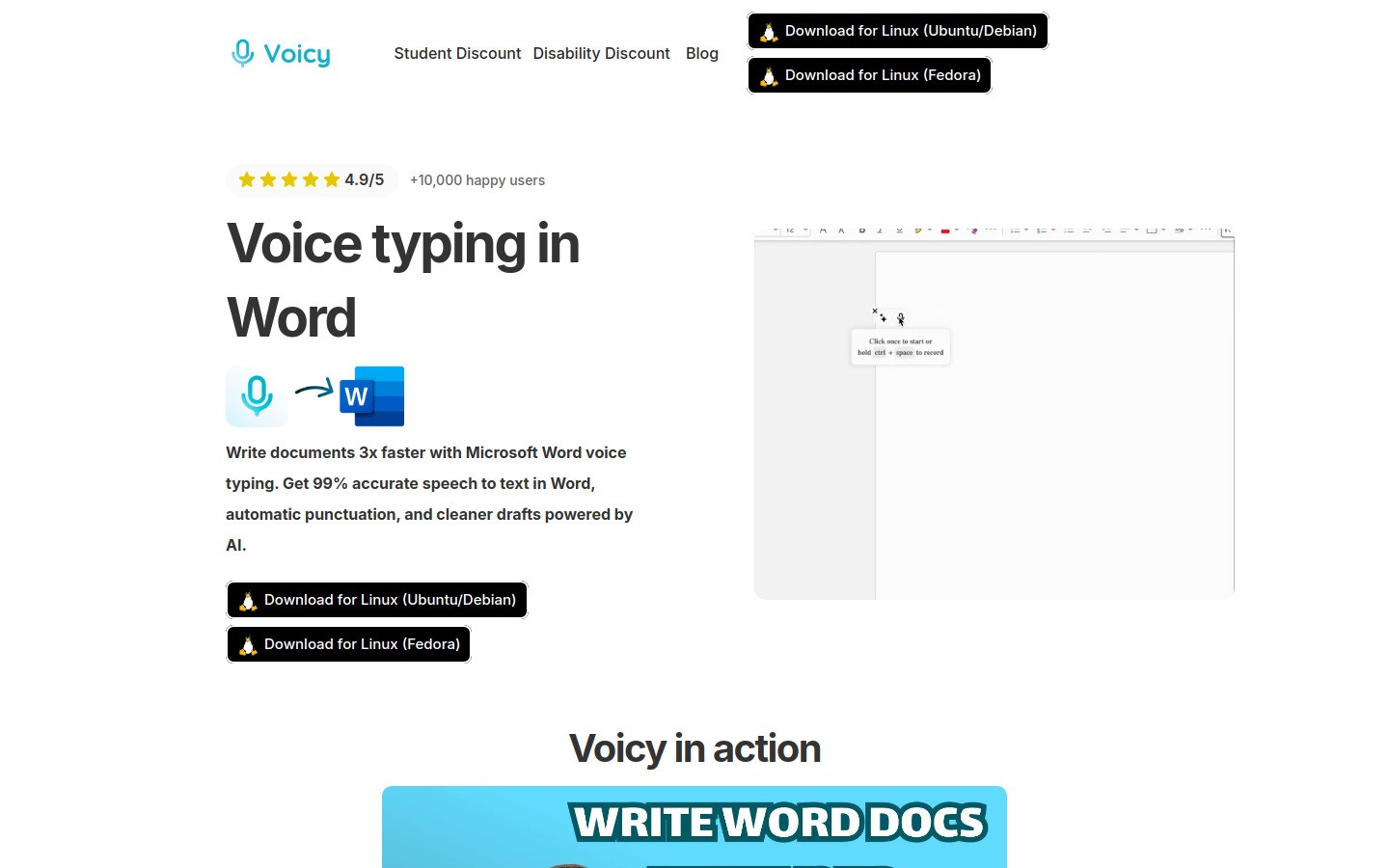
Voicy is the best option here for most writers who use Microsoft Word a lot. It is built for fast dictation, clean punctuation, and less cleanup after the draft lands on the page.
That matters more than people think. A speech tool can be very accurate on paper and still feel awful if it drops weird formatting, misses sentence flow, or makes you spend twenty minutes repairing each page.
Voicy works on Mac, Windows, and as a browser extension. If your writing life jumps between Word, Docs, email, and research tabs, that flexibility helps. You are not boxed into one editor.
Best for: writers who draft in Word often and want speed without ugly output
Why writers like it: strong accuracy, automatic punctuation, simple setup, and AI cleanup options
Tradeoff: it is cloud-based, so it is not the right fit if you need an offline-only workflow
Pricing: $8.49/month, $82/year, or $260 lifetime, with a free trial
If you want a deeper Word-specific walkthrough, read Voice Typing in Microsoft Word. If you are comparing broader writing tools, also see dictation software for writers.
2. Microsoft Word Dictate, best built-in option if you already pay for Microsoft 365
Word Dictate is the default choice for a lot of people because it is already there. If you have Microsoft 365, the Dictate button inside Word is the easiest place to start.
For quick notes, rough paragraphs, and short drafts, it does the job. You click the mic, speak, and text appears in the document. No extra app to install. No research spiral. That is a real advantage.
Still, it is better for casual dictation than heavy writer workflows. Long sessions can feel less consistent, and many writers end up doing more cleanup than they expected.
Best for: Microsoft 365 users who want basic Word dictation with no extra setup
Why it works: built into Word, easy to find, decent punctuation support
Tradeoff: tied to the Microsoft ecosystem and not always the cleanest for long-form drafting
Pricing: included with Microsoft 365
If you only write in Word once in a while, this may be enough. If Word is your main writing desk, you will probably want something sharper.
3. Dragon Professional, best for power users with specialized vocabulary
Dragon still has a serious reputation for a reason. It offers strong customization, voice commands, and support for specialized language. If you write legal, medical, or technical content inside Word, that can matter.
It is also the heaviest tool on this list. Setup is more involved. Pricing is much steeper. The whole experience feels more like buying a system than trying a lightweight writer tool.
For some people, that is worth it. For most solo writers, it is overkill.
Best for: professional users with niche vocabulary and a budget
Why it works: deep commands, customization, long history in dictation
Tradeoff: expensive, heavier setup, less friendly for people who just want to start writing today
If you are comparing alternatives because Dragon feels too bulky or too expensive, check these Dragon alternatives.
4. Google Docs Voice Typing, best free draft pad before moving into Word
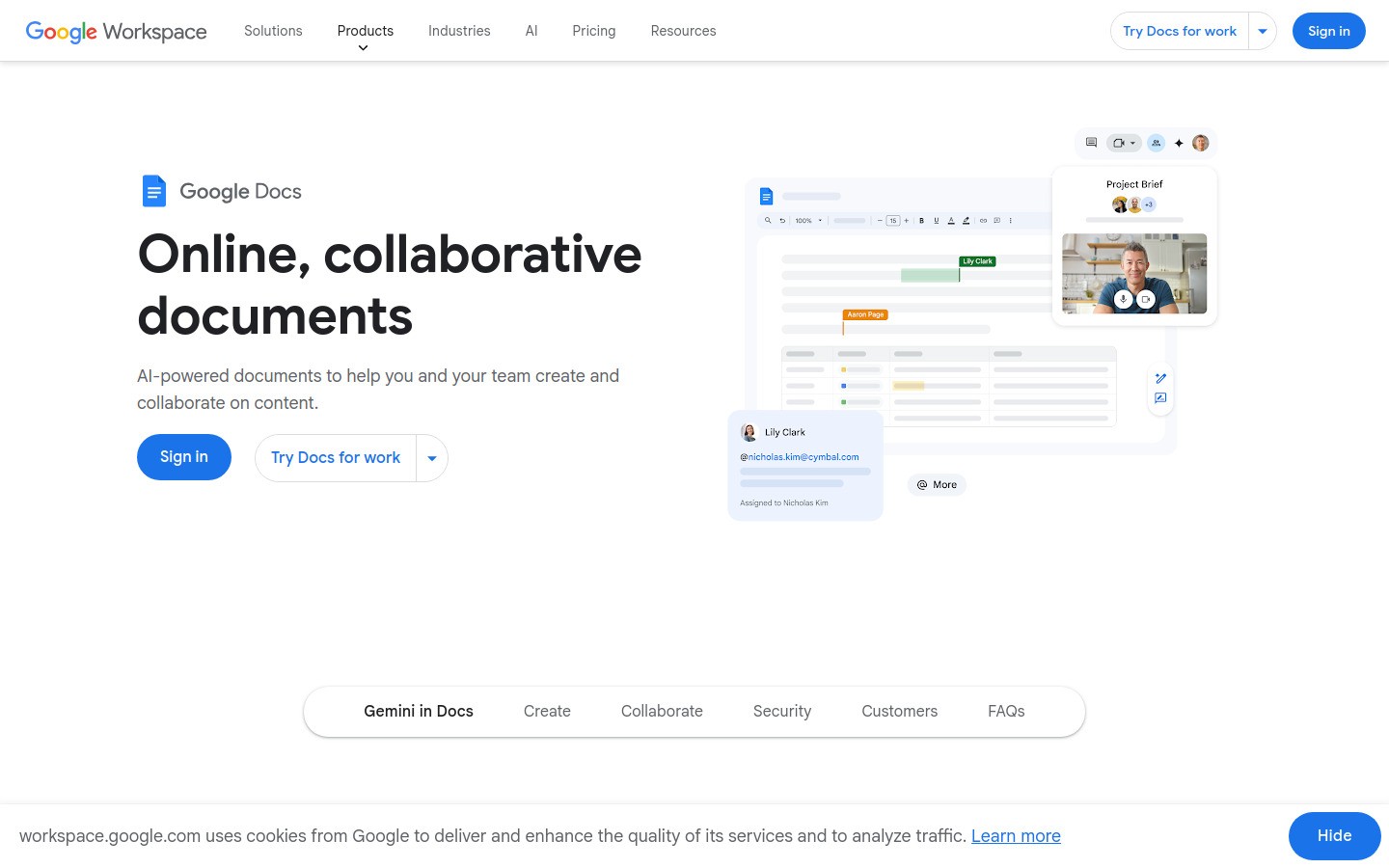
Google Docs Voice Typing is not a true Microsoft Word tool, but writers still use it as a free drafting lane. Speak in Docs, clean it up a bit, then paste the draft into Word.
That workflow can work surprisingly well for brainstorming, journaling, outlines, and ugly first drafts. It is less ideal if your entire editing and formatting process lives in Word and you want to stay there.
Best for: writers who want a free place to dictate before editing in Word
Why it works: free, simple, familiar for many people
Tradeoff: not Word-native, which adds an extra step to your workflow
Pricing: free with a Google account
If you are mostly a Docs user instead, read speech-to-text for Google Docs.
5. Windows Voice Access, best free fallback on Windows
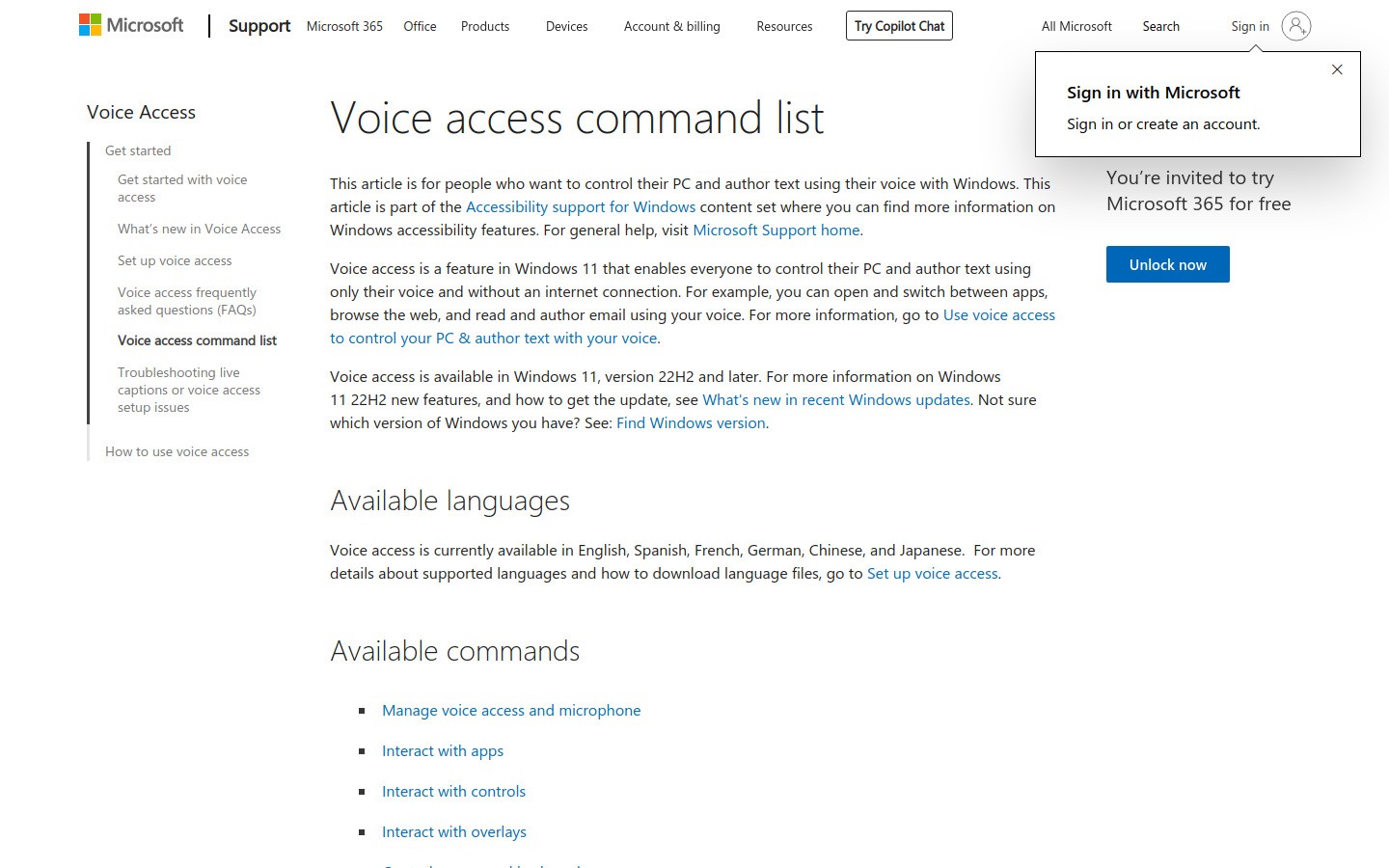
Windows Voice Access is the practical fallback if you want a free built-in Windows option and do not mind a rougher experience.
It can help with basic authoring and system control, and it matters a lot for accessibility. But for writers trying to stay in flow inside Word, it usually feels more functional than enjoyable.
Best for: Windows users who need a free fallback or accessibility support
Why it works: built into Windows, no extra purchase, useful system-wide control
Tradeoff: not as smooth or writer-friendly as dedicated dictation tools
Pricing: free on supported Windows devices
For more Windows-specific options, see Windows speech-to-text and how to use speech-to-text on Windows 10 and 11.
Quick comparison for Word writers
Tool | Best for | Main downside |
|---|---|---|
Voicy | Writers who want the best all-around Word drafting experience | Needs internet, cloud-based workflow |
Word Dictate | People already paying for Microsoft 365 | Less polished for long-form drafts |
Dragon Professional | Power users with specialized vocabulary | Expensive and heavier to set up |
Google Docs Voice Typing | Free rough drafting before moving to Word | Not native to Word |
Windows Voice Access | Free Windows fallback | Not the smoothest writing experience |
Which tool should writers choose?
Here is the honest answer.
If you are a casual user and already pay for Microsoft 365, start with Word Dictate. It is the fastest test.
If you are a serious writer using Word for real output, drafts, revisions, freelance work, reports, or chapters, Voicy is the better pick. It is faster to live with, not just faster to install.
If you need niche vocabulary and deep command control, Dragon can still make sense. If you want free and simple, Google Docs or Windows Voice Access can get you moving.
Tips for getting better Word drafts with voice typing
Draft first, edit second. Speaking works best when you stop trying to perfect every sentence live.
Use a decent mic. You do not need a studio setup, but laptop mics in noisy rooms create avoidable mess.
Speak in paragraphs. Most writers get better results by dictating one idea at a time instead of one sentence at a time.
Keep Word for editing. Voice typing is best at generating the draft. Word is still excellent for shaping it.
Final verdict
The best voice typing tools for writers using Microsoft Word are not all trying to do the same job.
Some are basic built-in tools. Some are free workarounds. Some are heavy enterprise-style dictation systems. For most writers, the sweet spot is a tool that gives you a cleaner first draft inside your real workflow without slowing you down somewhere else.
That is why Voicy is my top pick here. It fits the way writers actually use Word, not the way software demos pretend they do.
Ready to try it? Start with voice typing in Microsoft Word or try Voicy free.


