




How to Transcribe Audio to Text in Word
Want to write Word documents with your voice?
In this article, we'll show you how to transcribe audio to text in Microsoft Word.
Works in every version of Word
Over 99% accuracy in 50 languages
Instant conversions from audio to text
2 approaches to convert audio to text in Word
Using an external transcription service
✅ Extremely accurate
✅ Automatically adds punctuation
✅ Works in every version of Word
❌ Not always free
Using Word's own dictation software
✅ Free
❌ Inaccurate
❌ Not in every version of Word
Step by Step: How to transcribe audio to text in Word
For this article, we'll use a speech-to-text app called Voicy.
It's super accurate, fast, and works in all versions of Word.
Step 1: Install the Voicy app (free trial)
Simply visit this link and click on download.

Step 2: Open a document in Word
When you open Word, you will see the Voicy element next to your document.
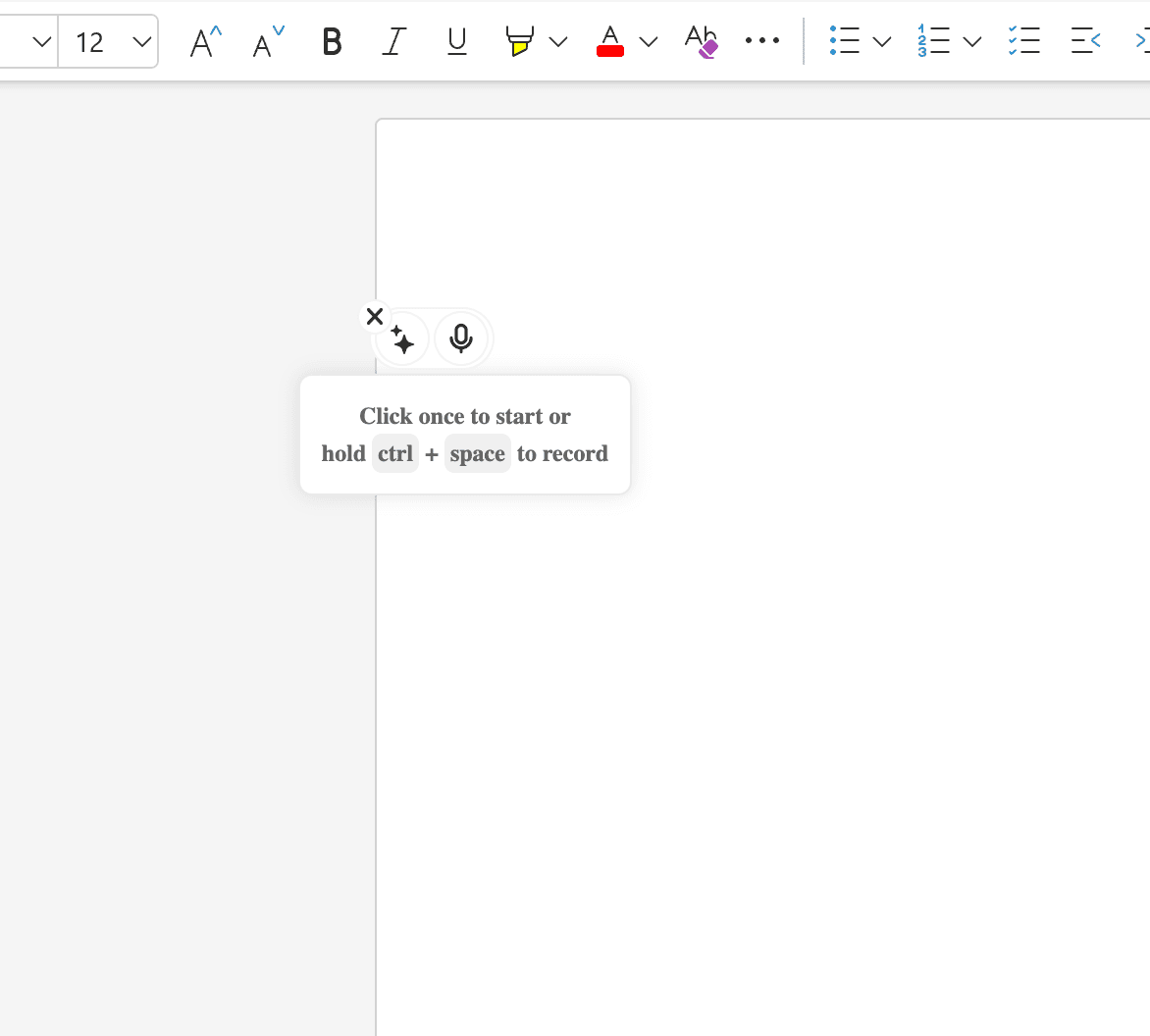
A screenshot showing the Voicy element on a Word document.
Step 3: Click on the mic to start recording
Hover over the element to reveal the microphone button.
Click on the button to start recording.
Click again to end your recording.
Your text will appear instantly.
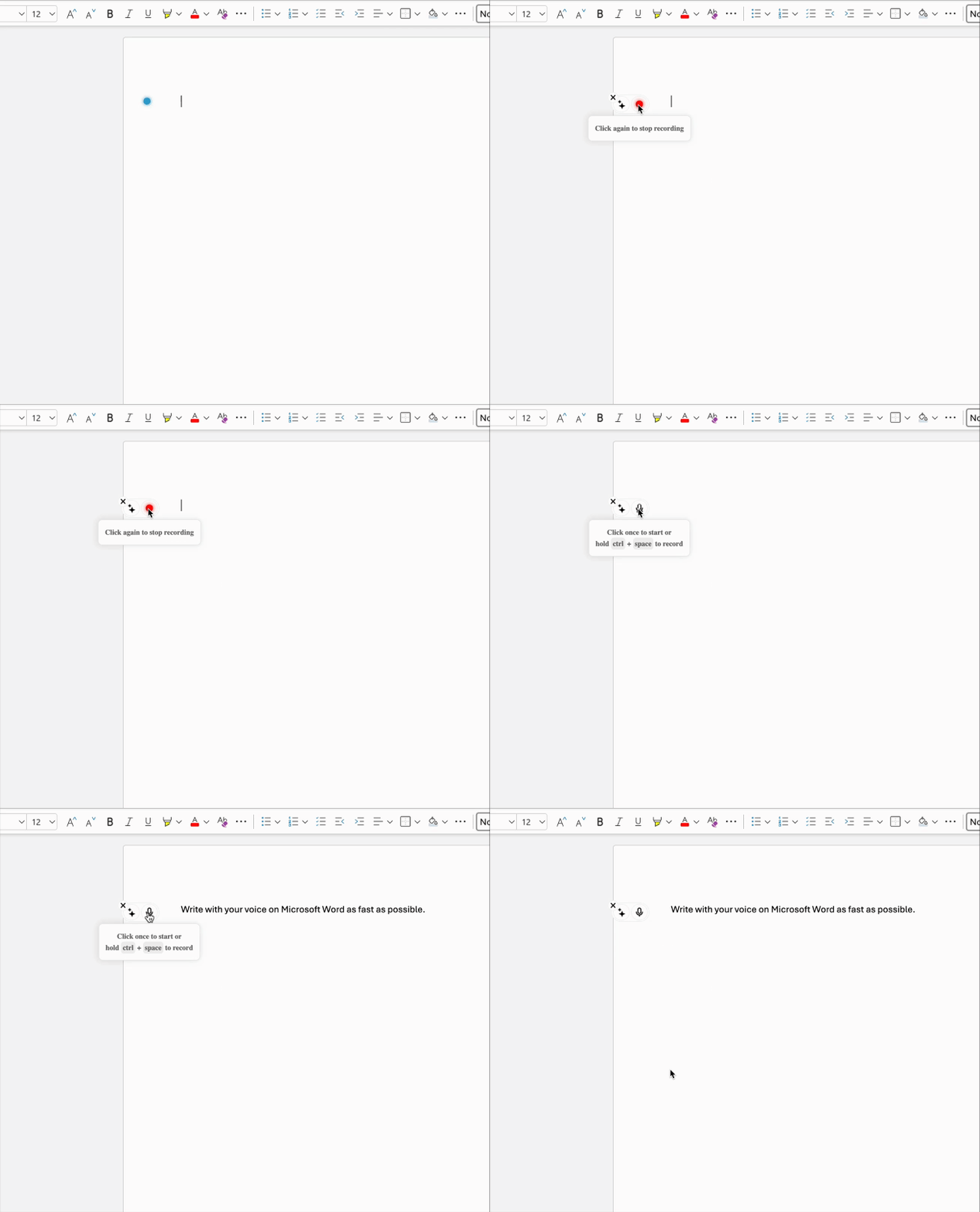
A gif showing how to use Voice to Text on Microsoft word using the Voicy extension
How to use Word's own dictation tool
Please note: This isn't available in every Word version. Requires Microsoft 365.
Open Word
Go to the Home tab from the top menu bar
Click on the microphone icon to Dictate.
Start speaking
You have to say things like 'comma', 'new line', etc. for any punctuation
Want all the details on every voice typing option in Word? Read our full guide to voice typing in Microsoft Word — covering shortcuts, Word for Web, mobile, troubleshooting, and the best tools for every Word version.
When to use an external app vs when to use Word's own dictation
Use Word dictation if:
You rarely write documents in Word
You only dictate short pieces of text and don't mind manually correcting mistakes
Use an external app if:
You work in Word nearly daily
You write professional reports for your school or job and require perfect grammar & punctuation
You don't mind spending a small amount for a solid app
Amazing Benefits of Dictation in Word
Using dictation in Microsoft Word isn't just about saving time. Here's what makes it awesome:
Save Your Hands and Wrists Typing too much can hurt you. It can cause carpal tunnel and other injuries. Voice dictation in Word lets your hands rest.
Perfect Grammar and Punctuation Good dictation tools fix your text automatically. You get clean, professional documents without extra work.
Natural Writing Style We make writing too complicated. Speaking feels more natural than typing. Even Mark Twain used early recording tools to write his books!
Troubleshooting: Dictation Not Working in Word
Having problems with dictation in Microsoft Word? Here are quick fixes:
Check your microphone permissions
On both Mac and Windows you need to go to your privacy and security settings and enable the use of your microphone
Make sure your internet connection is stable
You can check this by going to a network speed checking page like Google's Page Speed Insights or fast.com
Try refreshing your browser (for Word online)
A good old on and off
Restart Word if using the desktop app
Check your microphone's input audio volume
Ensure that your microphone is taking in audio at a high enough volume for Word to work.
Frequently Asked Questions (FAQ)
What's the shortcut key for dictation in Word?
Microsoft Word's built-in dictation uses Alt + ' (apostrophe) on Windows or Option + F1 on Mac as the shortcut. For third-party tools like Voicy, you click the microphone button to start or you set your own keyboard shortcut.
How do you use dictation in Word?
First, turn on dictation in Word by finding the microphone icon or using an extension. Then click to start recording, speak clearly, and click again to stop. Your speech becomes text automatically.
Where is dictation in Word?
In newer Word versions (Microsoft 365 and Word 2021), find dictation in the Home tab. Look for a microphone icon. If you don't see it, your Word version might not support it — try Voicy or Windows Voice Typing (Win+H) instead.
Does dictation work in Word on Mac?
Yes! You can use dictation in Word Mac. Press Fn twice to use Mac's built-in dictation. Or use Microsoft 365's built-in Dictate button (Option + F1). See our full Word voice typing guide for step-by-step instructions.
Why is my dictation not working in Word?
Common fixes include checking microphone permissions, testing your internet connection, and restarting Word. Make sure your microphone works in other apps first.
How do I turn on dictation in Microsoft Word?
Go to the Home tab and click the microphone icon (Dictate). Requires Microsoft 365. For older Word versions, use Windows Voice Typing (Win+H) or a browser extension like Voicy.
What's the best dictation feature in Word?
Microsoft's built-in tool works well for basic needs. Browser extensions like Voicy offer better accuracy and work with all Word versions. See our comparison in the Microsoft Word voice typing guide.
Can I use voice dictation in Word offline?
Microsoft's built-in dictation needs internet. Windows Voice Typing (Win+H) works offline on Windows 11. See our guide for more options.
How accurate is dictation in Microsoft Word?
Accuracy depends on your speech clarity and the tool you use. Modern AI-powered tools like Voicy achieve 99%+ accuracy. Word's built-in dictation is around 85-95%. Speaking clearly in a quiet room gives the best results.


