





How to Use AI to Write Emails: 5 Tools + Voice Commands for 2026
TL;DR: AI Email Writing Made Simple
🤖 Two types of AI email tools exist: tools that replace your email app (Superhuman, Shortwave, Spark) and tools that work alongside it (Grammarly, Lavender, Compose AI)
✍️ AI writing assistants fit every budget: Compose AI is free, Grammarly starts free, and Superhuman is $30/mo for power users
⚡ Voice + AI is the fastest method: Voicy lets you speak your email out loud — AI formats and polishes it in seconds
📧 Works for all email types: Cold outreach, follow-ups, apologies, meeting requests, and more
💡 Smart prompting is key: Tell AI exactly what tone, length, and purpose you want
✅ Always review before sending: AI gets you 90% there, but the human touch matters
Writing emails eats up a huge chunk of your day. Research shows the average office worker spends 28% of their workweek managing email. That's over 11 hours every week — just typing messages.
AI can change this. Instead of staring at a blank compose window, you can have a polished draft in under 30 seconds. There are now dozens of AI tools built specifically for email — not just generic chatbots, but tools designed to work inside your inbox.
This guide covers them all. You'll find email clients with built-in AI, writing assistants that plug into Gmail and Outlook, chatbots for complex drafts, and voice tools that skip typing entirely. By the end, you'll know exactly which tool fits your workflow.
Why Use AI to Write Emails?
AI email writing isn't about cutting corners. It's about spending your energy where it counts — on thinking, not typing.
Speed Without Sacrifice
AI drafts an email in 10–15 seconds. Most people spend 5–10 minutes writing a business email. That time adds up fast across dozens of emails a day.
Perfect Tone Every Time
Worried your email sounds too blunt? Or too casual? AI adjusts tone instantly. Ask for "professional but warm" and that's what you get.
No More Blank Page
Starting is often the hardest part. AI gives you a solid first draft to work from. Even if you rewrite most of it, having something on screen beats staring at nothing.
Consistent Quality
Your emails stay polished even when you're tired, stressed, or rushing. AI doesn't have off days — you do.
Best AI Tools for Email Writing
There are four categories of AI email tools. Each one fits a different kind of person and workflow. Let's go through them.
Category 1: AI Email Clients (Replace Your Whole Email App)
These tools are full email applications with AI baked in from the start. If you want AI to be part of every email you touch — searching, replying, organizing — consider switching to one of these.
Superhuman — $30/month
Superhuman is built for people who live in their inbox. It works on top of Gmail and Outlook, and it learns how you write over time.
The AI drafts replies based on previous emails you've sent. It also sets follow-up reminders and has one of the fastest email search experiences available. The keyboard shortcuts alone will change how you work.
Best for: Executives, salespeople, and power users who send 50+ emails a day
Honest caveat: $30/month is steep. The speed gains are real, but you need to send a lot of emails to feel the value.
Shortwave — Free / $24/month
Shortwave is an AI-native Gmail client. It replaces the standard Gmail interface with something faster and smarter.
The AI can summarize long email threads, draft replies with one click, and surface the emails that need your attention most. The search is excellent — you can ask plain-language questions like "find Sarah's invoice from last month" and it finds it.
Best for: Gmail users who want AI built into their inbox without paying Superhuman prices
Honest caveat: Only works with Gmail. Outlook users need to look elsewhere.
Spark Mail — Free / $8/month
Spark is available on Mac, iOS, Android, and Windows. It connects to Gmail, Outlook, Yahoo, and most other email providers.
The AI writing assistant helps you draft emails, adjust tone, and shorten or expand text. The smart inbox bundles newsletters, notifications, and personal emails separately so the important stuff isn't buried. Teams can also collaborate on drafts together.
Best for: People who want a solid all-rounder that works across all email providers
Honest caveat: AI features are good but not best-in-class. It's more of a well-rounded tool than a specialist.
Category 2: AI Writing Assistants (Work Alongside Your Email)
These tools don't replace your email app. They sit on top of Gmail, Outlook, or wherever you already work — and help you write better.
Grammarly — Free / $12/month
Grammarly is the most widely used writing assistant in the world. It checks grammar, spelling, tone, and clarity as you type — in Gmail, Outlook, and basically everywhere else.
The free version catches most errors. The paid version goes further: it rewrites whole sentences, detects how your tone will land with the reader, and suggests ways to be more direct. It also has an AI drafting feature that generates emails from a short description.
Best for: Anyone who wants to improve their writing quality across every app they use
Honest caveat: It can be overly cautious with suggestions. Some rewrites make emails sound flatter than the original.
Lavender — $29/month
Lavender is built for sales email specifically. It works inside Gmail and Outlook as a Chrome extension and coaches you on how to improve your emails before you hit send.
It scores your email out of 100 and tells you exactly what to fix — too long, too many links, weak subject line, wrong reading level. It also uses LinkedIn data to personalize your first line automatically.
Best for: Sales reps who want to improve reply rates on cold and warm outreach
Honest caveat: Overkill if you're not doing sales. The price reflects the sales-focused feature set.
Compose AI — Free Chrome Extension
Compose AI autocompletes your sentences as you type, similar to how Google suggests search queries. It works in Gmail, Google Docs, LinkedIn, and other web apps.
You can also use it to generate full emails from a short prompt. Because it's free and lightweight, it's one of the easiest ways to try AI email writing with zero commitment.
Best for: Anyone who wants to try AI email writing without spending anything
Honest caveat: The autocomplete suggestions aren't always on point. It takes a bit of time to get useful results.
MailMaestro — Free / $15/month
MailMaestro drafts full email replies based on context from the thread you're reading. It works as a Chrome extension inside Gmail and Outlook.
You give it a short instruction like "decline politely and suggest next month" and it writes the full reply. It's fast, works in multiple languages, and the free tier is generous enough to use daily.
Best for: People who reply to a lot of emails and want fast, context-aware drafts
Honest caveat: Drafts can sometimes be too formal. You'll often need to loosen the tone a bit.
Category 3: Voice + AI (Dictate Emails Instead of Typing)
This is a different approach entirely. Instead of typing prompts into a chatbot, you just speak. The AI listens, formats your words, and delivers a polished email — ready to paste or send.
Voicy — $8.49/month · $82/year · $260 lifetime
Voicy is the fastest way to write emails. You speak naturally — "Hey, draft an email to my client apologizing for the delay and suggesting a new call next Thursday" — and Voicy transcribes it, then an AI layer formats and polishes the result.
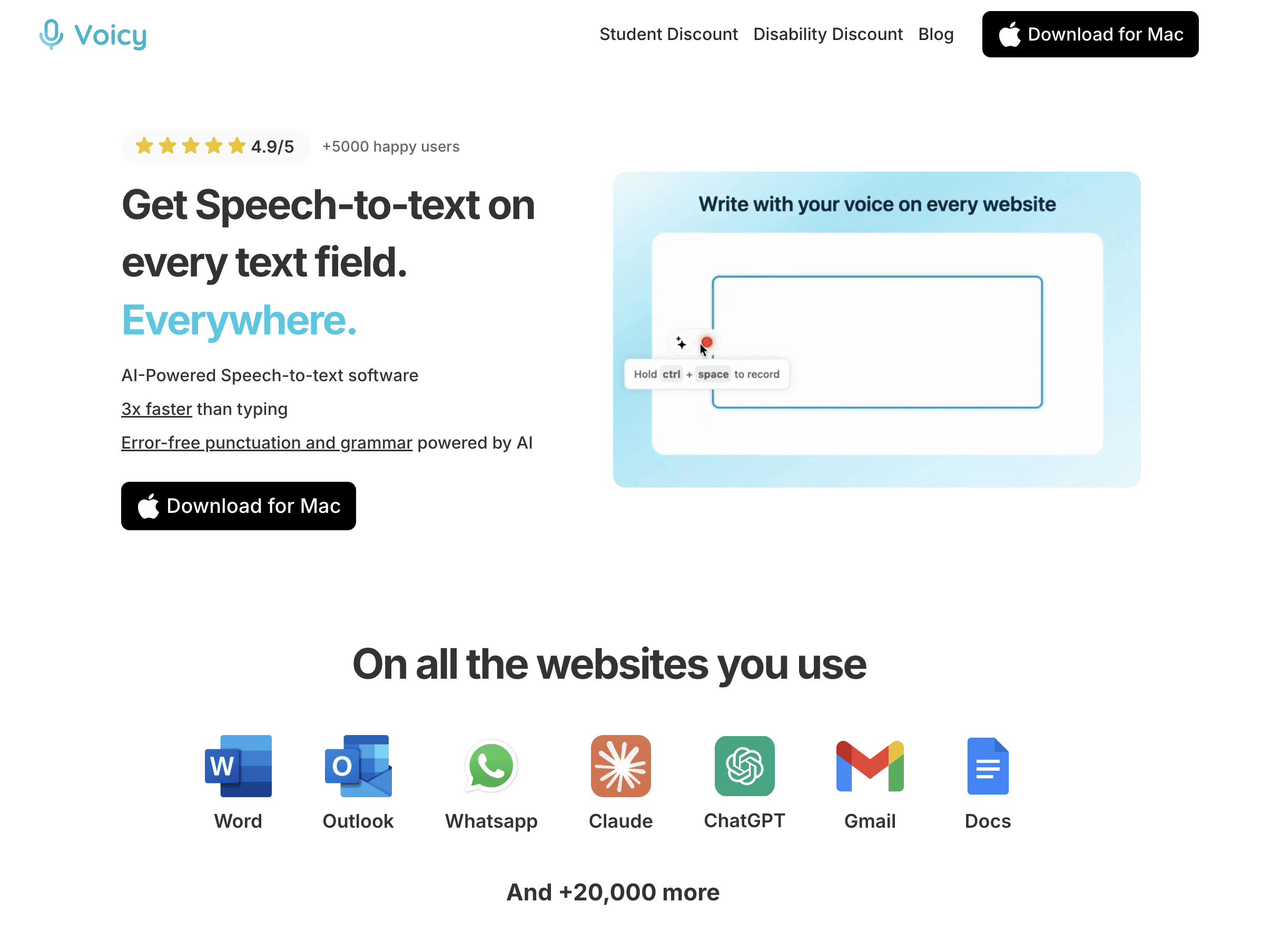
It works in any email app: Gmail, Outlook, Apple Mail, and anywhere else. No copy-pasting between tools. You click, speak, done. Available on Mac, Windows, and as a browser extension.
You can also issue editing commands by voice: "Make this shorter," "Change the tone to friendly," "Add a subject line." It's faster than typing because the average person speaks 150 words per minute but types only 40.
Best for: Anyone who wants the fastest email drafting experience, especially people with RSI, ADHD, or dyslexia
Free trial available. No credit card required to start.
Want to explore voice typing more broadly? See our guide to the best talk-to-text apps and the best dictation software for 2026.
Category 4: AI Chatbots for Email Drafting
These are general-purpose AI assistants. They're not built specifically for email, but they're excellent for drafting — especially complex or sensitive messages.
ChatGPT — Free / $20/month
ChatGPT is the most versatile AI drafting tool available. It can handle anything from a quick thank-you note to a carefully worded performance review. The free tier is capable — GPT-4o is available to free users with some limits.
For email, give it clear context: who you're writing to, what happened, what you want. The more specific you are, the better the result. Check out our full guide on using ChatGPT to write emails for tips and prompts.
Best for: Complex emails, creative outreach, or when you need to think through a difficult message
Claude — Free / $20/month
Claude is particularly good at nuanced, professional emails. It tends to write in a clearer, less corporate-sounding way than ChatGPT — which matters when you want your email to actually sound like a person wrote it.
It's excellent for sensitive situations: delivering bad news, handling a complaint, writing to someone you have a tense relationship with.
Best for: Professional and diplomatic emails where tone really matters
Google Gemini — Free / $20/month
Gemini integrates directly with Gmail through Google Workspace. If you're on Google's paid workspace plan, you can use it to draft, summarize, and respond to emails without leaving Gmail.
For personal accounts, Gemini is available as a standalone assistant at gemini.google.com.
Best for: Google Workspace users who want AI built into Gmail without installing anything extra
Quick Comparison: Which AI Email Tool Is Right for You?
Tool | Best For | Price | Works With |
|---|---|---|---|
Power inbox users, auto-draft replies | $30/mo | Gmail, Outlook | |
AI-native Gmail replacement | Free / $24/mo | Gmail only | |
All-in-one across all email providers | Free / $8/mo | Gmail, Outlook, Yahoo + | |
Grammar, tone, rewriting anywhere | Free / $12/mo | Gmail, Outlook, web | |
Sales email coaching + scoring | $29/mo | Gmail, Outlook | |
Free AI autocomplete in Gmail | Free | Gmail, web apps | |
Fast context-aware reply drafts | Free / $15/mo | Gmail, Outlook | |
Complex, creative, or long emails | Free / $20/mo | Any (copy/paste) | |
Nuanced, professional, sensitive emails | Free / $20/mo | Any (copy/paste) | |
Google Workspace users | Free / $20/mo | Gmail (native) | |
Fastest drafts via voice | Free trial / $8.49/mo | Any email app |
How to Choose the Right AI Email Tool
With so many options, picking one can feel overwhelming. Here's a simple way to think about it.
Start With How You Work Now
If you live in Gmail and don't want to change anything, start with Compose AI (free) or MailMaestro. They plug into your existing inbox. No learning curve.
If you're open to switching email clients, Shortwave (Gmail) or Spark Mail (all providers) give you AI baked into every part of the email experience.
Think About Volume
Sending 10 emails a day? A free chatbot like ChatGPT or Claude works fine. Sending 50+? An AI email client like Superhuman or an assistant like MailMaestro will save you much more time.
Consider What Kind of Emails You Send Most
Sales outreach: Lavender is built for this. Nothing else comes close for improving cold email reply rates.
Professional and nuanced: Claude or ChatGPT for complex drafts.
Quick daily replies: MailMaestro or Grammarly.
Everything, as fast as possible: Voicy — speak it, get a draft, done.
Budget Matters Too
You don't need to spend anything to start. Compose AI is completely free. ChatGPT and Claude both have usable free tiers. Voicy has a free trial — no credit card needed.
Start free, see what actually saves you time, then decide if a paid plan is worth it.
Step-by-Step: How to Use AI for Email Writing
This process works with any AI tool — chatbots, writing assistants, or voice tools like Voicy.
Step 1: Set the Context
Tell the AI who you're emailing and why. Include relevant background information.
Example prompt: "I need to email my client Sarah about a project delay. We're two weeks behind schedule due to unexpected technical issues. I need to apologize and propose a new timeline."
Step 2: Specify the Tone
Be specific about how you want to sound. Common options:
Professional: Formal business communication
Friendly: Warm but still work-appropriate
Direct: Straight to the point, no filler
Apologetic: Taking responsibility and showing concern
Enthusiastic: Showing genuine excitement or energy
Step 3: Define the Purpose
What do you want this email to accomplish? Be clear upfront:
Request information or action
Provide updates or status reports
Schedule meetings or calls
Address concerns or complaints
Follow up on a previous conversation
Step 4: Review and Personalize
AI gives you a solid foundation — not a final email. Before sending:
Add specific details AI doesn't know (inside context, shared history)
Adjust the language to match your natural voice
Double-check all names, dates, and facts
Make sure attachments or links are included
Want a deeper dive into professional email structure? Read our guide on how to write professional emails that make a great impression.
AI Email Prompts That Actually Work
These prompts work across ChatGPT, Claude, Gemini, and most AI writing tools. Copy and adapt them.
For Follow-Up Emails
"Draft a follow-up email for [situation]. It's been [timeframe] since my last message. Tone should be [professional/friendly]. Keep it under 100 words."
For Meeting Requests
"Write an email requesting a 30-minute meeting with [person] to discuss [topic]. Suggest 3 time options next week. Professional but approachable tone."
For Apology Emails
"Create an apology email for [specific issue]. Take full responsibility, explain briefly what happened, and outline steps to prevent it next time. Sincere and professional tone."
For Cold Outreach
"Draft a cold email introducing myself as [your role] at [company]. I want to discuss [specific benefit or solution] for their [specific challenge]. Keep it under 150 words, friendly but professional."
For Difficult Conversations
"Write an email to [recipient] addressing [the issue]. Be direct but respectful. I want them to understand [outcome/expectation] without feeling attacked. Keep it short."
For Sales Follow-Ups
"Draft a sales follow-up referencing our demo call on [date]. Highlight the [specific feature or benefit] we discussed and suggest a clear next step. Under 120 words, confident but not pushy."
If you mainly use ChatGPT for this, see our dedicated guide on using ChatGPT to write emails — it includes more advanced prompts and examples.
The Voice + AI Advantage: Why Voicy Is Different From the Others
Superhuman, Shortwave, and Spark are all excellent AI email tools. But they still require you to type. Even MailMaestro and Grammarly — as good as they are — assume you're sitting at a keyboard and typing through a draft.
Voicy takes a completely different approach. You speak. The AI handles everything else.
Speed: Speaking vs. Typing
The average person types 40 words per minute. The average person speaks 150 words per minute. That's nearly 4x faster — and it's especially noticeable with longer emails.
With an AI email client like Superhuman, you still need to type your instructions or corrections. With Voicy, you stay in voice mode the whole time.
Works in Any Email App
Tools like Shortwave only work with Gmail. Superhuman works with Gmail and Outlook. Voicy works with everything — Gmail, Outlook, Apple Mail, Thunderbird, Fastmail, any web app. There's nothing to configure. You just dictate, and the text appears wherever your cursor is.
You can also use Voicy for dictation directly in Gmail if that's your primary email app.
Built-In AI Editing Commands
After Voicy transcribes your words, you can use voice commands to edit the result. Say "make this more concise" or "change the tone to casual" and it rewrites on the spot. No switching to a chatbot, no copy-pasting.
Great for People Who Struggle With Typing
If you have RSI, carpal tunnel, dyslexia, ADHD, or just prefer to think out loud — voice is often faster and easier than typing. Voicy is available on Mac, Windows, and as a browser extension for Chrome.
Try it free at usevoicy.com. No credit card required.
For a broader look at voice typing options, check out best talk-to-text apps available right now.
Common Email Types and AI Approaches
Different email types work better with specific strategies. Here's how to approach the most common ones:
Customer Service Emails
AI approach: Focus on empathy and solution-oriented language. Show you understand the problem before jumping to fixes.
Voicy command: "Create a customer service response acknowledging their frustration with the software bug. Explain our fix is rolling out by Thursday. Apologetic but reassuring."
Sales Follow-Ups
AI approach: Personalize based on the previous interaction. Add a piece of value — an insight, a case study, a relevant question — instead of just "checking in."
AI tool suggestion: Pair Lavender with your email client to score and improve each follow-up before you hit send.
Internal Team Updates
AI approach: Clear structure, short paragraphs, action items at the end. Busy colleagues scan emails — make it easy for them.
Voicy command: "Write a project update email covering this week's progress, current blockers, and next week's priorities. Bullet points where possible."
Partnership or Intro Emails
AI approach: Professional, specific, and short. Explain the mutual benefit clearly. Don't try to close everything in one email — just open the door.
Voicy command: "Create a partnership inquiry email explaining how our integration could benefit their users. Keep it under 120 words."
Cold Outreach
AI approach: Start with them, not you. Lead with their pain point or something specific about them. AI can give you the structure — but personalization is what gets replies.
AI tool suggestion: Use ChatGPT to draft the template, then Lavender to score and refine each version.
Best Practices for AI Email Writing
Follow these guidelines to get better results from any AI email tool.
Be Specific in Your Prompts
Vague prompts produce generic emails. Instead of "write a business email," try: "write a project update email to my manager covering completed tasks, current blockers, and what we need from the engineering team."
Set a Word or Character Limit
AI tends to be wordy. Always add a length constraint: "Keep it under 100 words" or "Two short paragraphs, no longer." This forces the AI to be selective — just like a good writer is.
Include Real Details
Names, dates, specific products, or notes from a previous call help AI create something that actually sounds personal. The more context you give, the more usable the draft.
Test Different Tools for Different Jobs
No single tool wins in every situation. Claude is often better for sensitive emails. ChatGPT handles creative outreach well. Voicy is fastest for daily high-volume email. Give yourself permission to mix and match.
Always Proofread
AI makes mistakes. It can get names wrong, fabricate details, or miss the emotional subtext of a message. Always read the full draft before sending — especially for anything important.
Avoiding Common AI Email Mistakes
These are the pitfalls that most people run into when they start using AI for email.
Automating Too Much
Don't use AI for every email. Quick replies like "sounds good" or "thanks for the info" are better typed manually. AI is valuable for the emails that actually take time to write.
Letting AI Sound Too Generic
AI defaults to a pleasant, slightly corporate tone if you don't push it. Specify exactly what you want: "write this like a normal person, not a LinkedIn post." You'll be surprised how much better the output gets.
Skipping the Personal Layer
AI doesn't know your company culture, your relationship with the recipient, or the context behind your last conversation. Add those personal elements manually. It's the difference between an email that lands and one that gets ignored.
Pasting Sensitive Information Into AI Tools
Be careful with confidential data. Don't include sensitive financials, personal health info, or private business strategy in your AI prompts — unless you're using an enterprise tool with proper data handling policies.
Frequently Asked Questions
Is it ethical to use AI for writing emails?
Yes. Using AI for email writing is widely accepted in business. Think of it like grammar tools or spell-check — it helps you communicate more clearly. The key is to review and personalize what AI produces, so it actually sounds like you.
Can AI write emails that sound like me?
It gets closer the more context you give it. Share examples of how you normally write, describe your tone, and specify what to avoid. Tools like Superhuman learn your writing style over time. Voicy captures your natural speech patterns, which often produces the most authentic results.
What types of emails should I NOT write with AI?
Skip AI for highly personal messages, deeply confidential communications, or anything requiring strong emotional intelligence that only you can provide. Also skip it for quick one-line replies — those are faster to type manually.
How much does AI email writing cost?
You can start for free. ChatGPT, Claude, Gemini, and Compose AI all have free options. Voicy has a free trial, then $8.49/month or $82/year. Premium features for most tools run $15–$30/month.
Which AI email tool is best for sales?
Lavender is purpose-built for sales email. It scores your emails, coaches you on what to fix, and uses LinkedIn data to personalize your opening line. Pair it with ChatGPT for drafting and you have a strong sales email workflow.
Can AI help with email subject lines?
Absolutely. AI is great at generating subject lines. Ask for "five subject line options — two formal, two curiosity-driven, one direct." Compare them and pick the one that fits. Always A/B test subject lines for email campaigns.
Will AI emails pass spam filters?
Well-crafted AI emails pass spam filters fine. The issue isn't AI — it's sending too many emails, using spammy language, or emailing people who didn't ask to hear from you. Focus on relevance and quality, and deliverability won't be an issue.
How do I make AI emails more personal?
Give the AI specific details: the recipient's name, something from your last conversation, a shared reference, or a specific challenge they mentioned. After the AI drafts it, add any inside references or personal touches that only you would know.
Can I use AI for cold email campaigns?
Yes — but use AI as a starting point, not the final product. AI can help with structure and tone, but cold email success comes from personalization. Each email should feel like it was written specifically for that person.
What if the AI gets facts wrong in my email?
It happens. AI can confuse names, misremember dates, or invent details that sound plausible but aren't true. Always fact-check before sending — especially for client-facing or business-critical messages.
How fast can I really write emails with AI?
With a chatbot like ChatGPT, you'll have a draft in 30–60 seconds after typing your prompt. With Voicy, you'll often have a polished draft in 10–15 seconds — because you're speaking instead of typing, which is dramatically faster.
Is there an AI tool that works inside Gmail?
Several. Shortwave replaces the Gmail interface entirely. Grammarly, MailMaestro, Lavender, and Compose AI all work as extensions inside Gmail. Google's own Gemini integrates natively if you have a Workspace subscription. For voice-based email in Gmail, check out our guide on dictation for Gmail.
If your AI writing workflow happens in Claude instead of ChatGPT, you can also use Claude voice input to dictate longer prompts, rewrite rough ideas, and turn spoken notes into cleaner email drafts.
Start Writing Better Emails Today
There's no single "best" AI email tool. The right choice depends on your workflow, email volume, and budget. The good news: most of these tools are free to try.
If you're just starting out, try Compose AI (free Chrome extension) or Claude for a quick first draft. If you want the fastest possible method, try Voicy's free trial and experience what it feels like to speak an email into existence.
The goal isn't to let AI write your emails for you. It's to spend less time on the mechanical work of writing and more time on the thinking and decisions that actually matter.
For more reading, explore our guide on the best dictation software for 2026, or check out the full list of best talk-to-text apps if you want to go deeper on voice-first tools.


