




How to Use Speech-to-Text in Outlook (2026)
Summary of the article
Speech-to-text in Outlook lets you dictate emails instead of typing them by hand.
Use a tool like Voicy for Outlook for better accuracy and speed
Microsoft 365 includes built-in dictation in newer Outlook versions, but availability depends on your version, device, and setup.
The quickest setup is simple: open Outlook, start a new email, turn on dictation, and speak naturally.
Want the short version? If you just want the fastest way to dictate emails, go straight to speech-to-text for Outlook.
How to use speech-to-text in Outlook
If you write a lot of emails, speech-to-text in Outlook can save you a surprising amount of time. It is also easier on your hands when you are replying all day.
The good news is that Outlook dictation is not hard to set up. The less good news is that the exact steps depend on which Outlook version you use.
In this guide, I will show you the easiest way to use speech-to-text in Outlook, what to do if it is not working, and when it makes sense to use a tool like Voicy instead.
Option 1: Use Outlook's built-in dictation
If you are using a supported Microsoft 365 version of Outlook, you may already have dictation built in.
How to turn on speech-to-text in Outlook
Open Outlook.
Start a new email or open a reply.
Click inside the email body.
Find the Dictate button in the toolbar.
Click it and wait for Outlook to start listening.
Speak naturally and watch your words appear on the page.
Microsoft also supports speech-to-text across other Microsoft 365 apps, so if you already use dictation in Word, the Outlook workflow will feel familiar.
What you need for Outlook dictation to work
A supported Outlook or Microsoft 365 version
A working microphone
A stable internet connection
Microphone permissions enabled on your device
If one of those breaks, speech-to-text in Outlook usually stops working fast.
Option 2: Use Voicy for Outlook
Built-in Outlook dictation is fine for basic use. But it is not always the best option if you write a lot of emails, switch between apps, or want cleaner results the first time.
Voicy for Outlook gives you AI-powered speech-to-text with better punctuation, cleaner formatting, and a smoother workflow across more than one app.
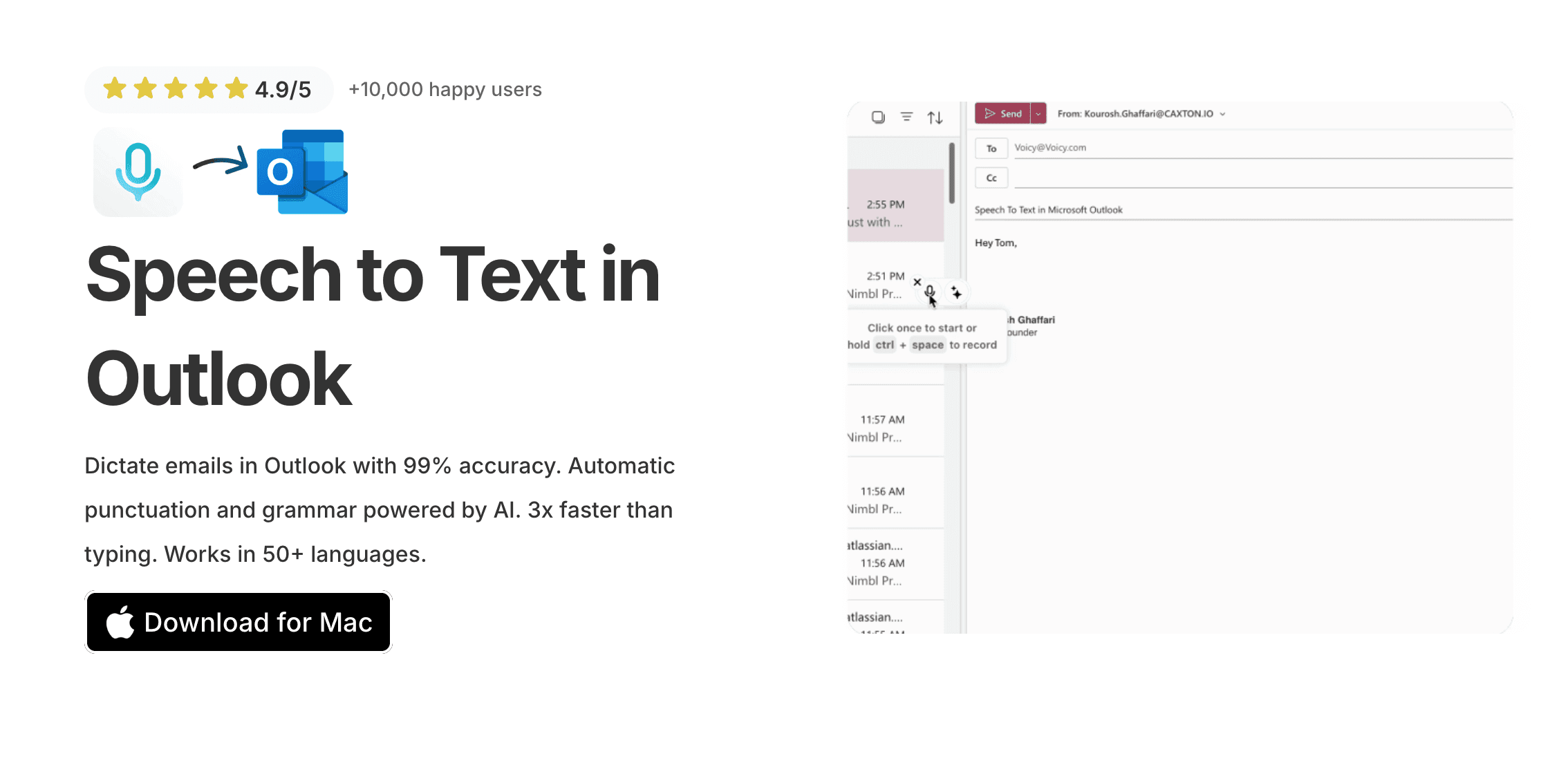
How to use Voicy in Outlook
Install Voicy.
Open Outlook and start a new email.
Click into the message body.
Use the Voicy microphone to start dictating.
Speak your email naturally.
Stop recording and review the draft.
This is especially useful if you also write in Gmail, Microsoft Word, or Google Docs and want one dictation setup for all of them.
Why people use speech-to-text in Outlook
Most people do not start using dictation because it sounds exciting. They start using it because typing email all day gets annoying.
Here are the biggest reasons Outlook speech-to-text is worth trying:
It is faster. Speaking is usually much quicker than typing first drafts.
It reduces strain. Less typing means less pressure on your hands, wrists, and fingers.
It helps with replies. Quick responses are much easier when you can just say them out loud.
It works well for rough drafts. You can get your thoughts down quickly, then clean them up after.
If hand pain is part of the problem, you may also want our guide on speech-to-text for carpal tunnel.
When built-in Outlook dictation is enough
Outlook's own dictation is usually enough if:
you already pay for Microsoft 365
you mostly work inside Outlook
you only need basic dictation
you do not mind some cleanup after dictating
When Voicy is the better option
Voicy is the better fit if:
you write across Outlook, Word, Gmail, Docs, and other tools
you want better punctuation and cleaner formatting
you want AI help for rewriting or polishing emails
you do not want your workflow tied to one app version
For the actual product page, go here: speech-to-text in Outlook.
Why speech-to-text in Outlook might not be working
If Outlook dictation fails, the fix is usually one of these:
Your microphone permissions are blocked
Your mic input device is wrong
Your internet connection dropped
Your Outlook version does not support built-in dictation
You are trying to dictate outside the supported email body area
If you keep hitting problems, our voice typing troubleshooting guide is a good next step.
Outlook speech-to-text vs other email workflows
A lot of people do not only write in Outlook. They jump between Outlook, Gmail, docs, meeting notes, and chat tools.
That is why app-specific dictation can start to feel limiting. If that sounds familiar, you may want to compare Outlook with:
Frequently asked questions
How do I use speech-to-text in Outlook?
Open Outlook, start a new email, click into the message body, and turn on dictation if your version supports it. You can also use Voicy if you want a more flexible setup.
Does Outlook have built-in speech-to-text?
Some Microsoft 365 versions of Outlook do. Availability depends on the version, device, and setup you use.
Why is dictation not working in Outlook?
The most common causes are microphone permission problems, internet issues, unsupported Outlook versions, or the wrong input device being selected.
Can I use speech-to-text in Outlook on Mac?
Yes, but support depends on your Outlook version and setup. If you want a broader cross-app option, Voicy also works across Mac workflows.
What is the best speech-to-text tool for Outlook?
If you only need basic built-in dictation, Outlook's native feature may be enough. If you want cleaner formatting, better punctuation, and a workflow that also works in other apps, Voicy is the stronger option.
Final thoughts
If all you want is a simple way to dictate emails, Outlook speech-to-text can absolutely help. It is fast, practical, and easy to test.
If you want the cleaner version of that workflow, especially across more than one writing app, take a look at Voicy for Outlook.


