





A Practical Guide to Speech to Text on Mac
Want to type faster? Speech-to-text on Mac can help you write at the speed of thought. Just go to System Settings > Keyboard > Dictation, turn it on, and start talking instead of typing.
Which Mac speech-to-text page should you read?
Use this page for a quick overview of speech-to-text on Mac. If you need exact Apple Dictation setup steps or fixes, read how to do dictation on Mac. If you want the longer setup guide, read the Mac speech-to-text guide.
If your goal is to compare paid tools, start with Voicy dictation for Mac. That page is the best fit for voice dictation software Mac and voice dictation software for Mac searches.
Why Use Speech to Text on Your Mac?
Your keyboard shouldn't slow you down. Whether you're writing a report, answering emails, or catching a quick idea, your typing speed holds you back.
Speech-to-text changes that. You can write faster, give your hands a break, and work more naturally.
How Voice Technology Got Better
Apple's voice tech started back in 1993 with basic commands. It wasn't very accurate.
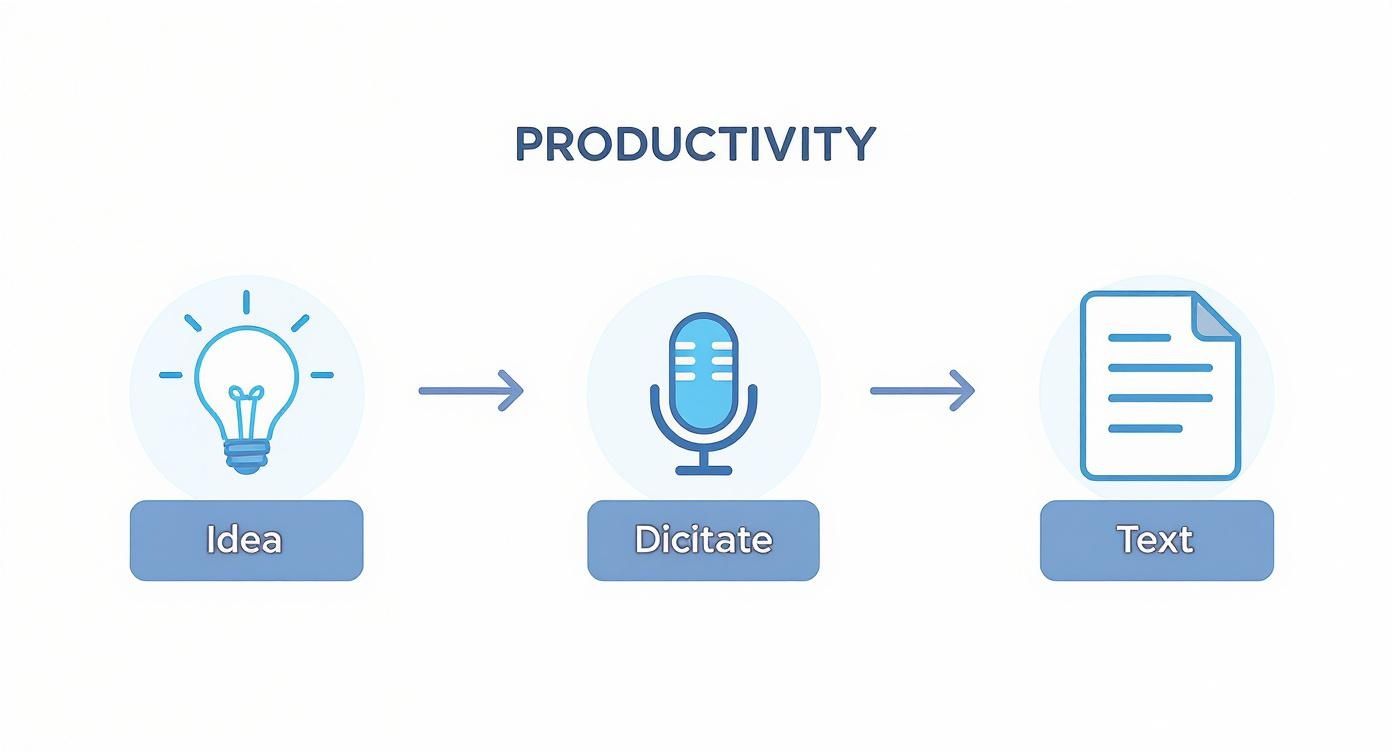
Today's dictation uses smart AI that understands you in real-time. Here's what you can do:
Write documents faster: Get your first draft done by talking
Answer messages quickly: Reply to emails without typing
Capture ideas instantly: Don't lose thoughts while finding the right keys
Rest your hands: Great if you have wrist pain or RSI
The best part? Dictation helps you stay focused. When you're not thinking about typing, your ideas flow better, and your writing feels more natural.
Want to boost your productivity even more? Check out our guide on how to use speech-to-text in your daily workflow to increase productivity.
Setting Up macOS Dictation
Getting started is easy. Apple built dictation right into your Mac, so you don't need to download anything.
Go to System Settings, find Keyboard, and flip the Dictation switch on.
Pick Your Settings
Take a minute to set these up right:
Language: Pick the language and accent you use. Choosing "English (UK)" instead of "English (US)" makes a big difference if you have a British accent.
Microphone: Your Mac's built-in mic works fine, but a headset or external mic gives you better accuracy.
Shortcut: The default is usually pressing a function key twice. Change it to whatever feels easy; just make sure it doesn't clash with shortcuts you already use.
Online vs. Offline Mode
Standard dictation needs the internet because it sends your voice to Apple's servers. This can be slow.
Enhanced Dictation is better. It downloads language files to your Mac so everything stays on your computer. No cloud, no lag, and better privacy.
To turn it on, enable Enhanced Dictation in your settings. It's a one-time download that makes dictation faster and more secure.
Once you're set up, hit your shortcut in any text field and start talking. Your words appear on screen instantly.
Using Voice Commands
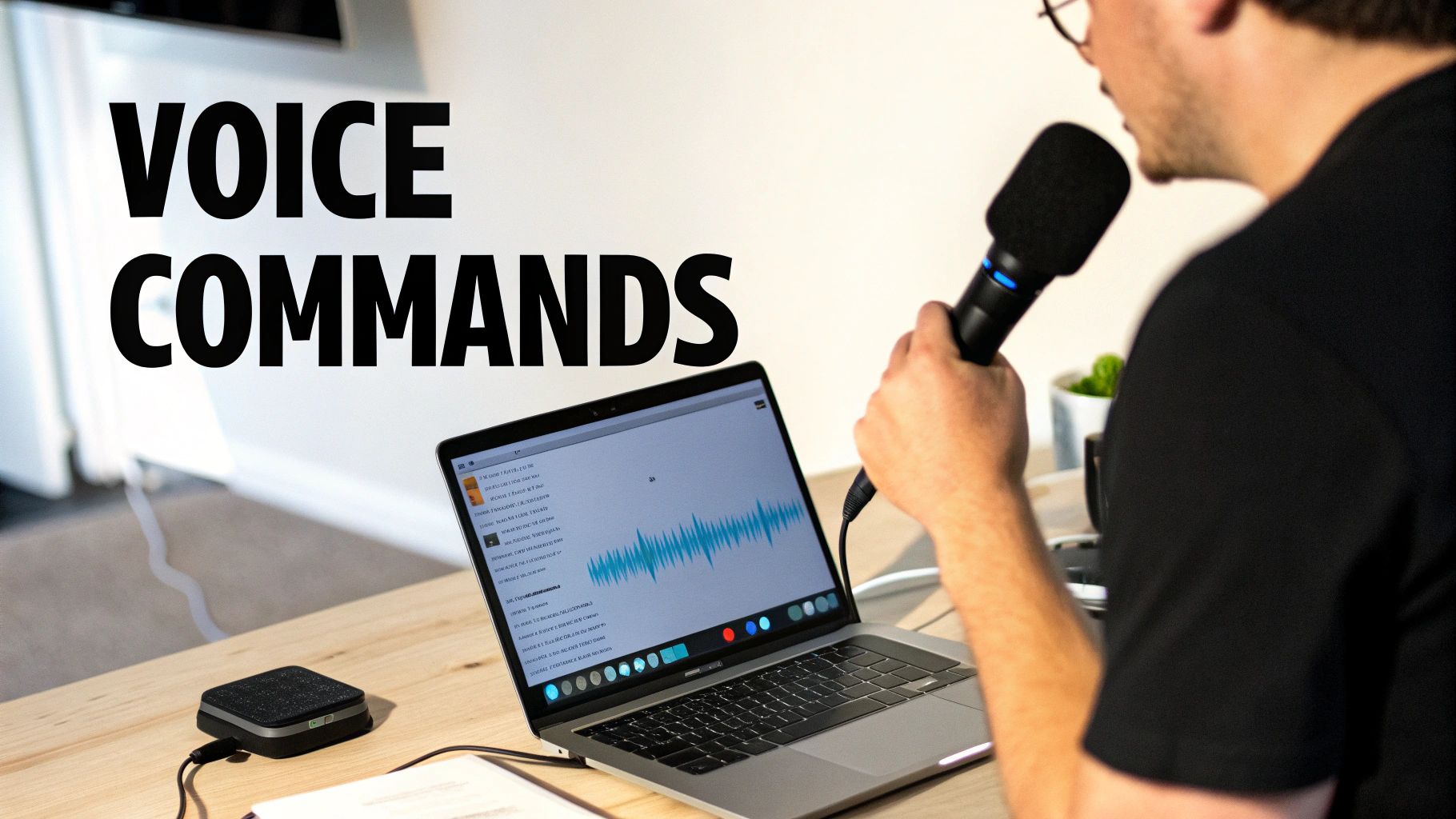
Now for the fun part. Voice commands let you edit and format text without touching your keyboard.
You can write emails with bold text, bullet points, and perfect punctuation-all by speaking.
Adding Punctuation
Just say the punctuation mark where you want it. The system knows these are commands, not words to type.
For example, say, "First, comma, we need to review the budget period," and you'll get, "First, we need to review the budget."
Basic commands you'll use constantly:
Period
Comma
Question Mark
Exclamation Point
New Line (moves down one line)
New Paragraph (moves down two lines)
Saying "new paragraph" is perfect when ideas are flowing. You can organise your thoughts without stopping to hit enter.
Formatting Your Text
You can also make text bold, italic, or underlined:
Say "bold that" after speaking a word or phrase
Say "italicise that" to make text italic
Say "cap that" to capitalise something
Say "all caps" before a word to make it ALL CAPS
For example, say "bold that" right after saying "quarterly results," and it becomes "bold that quarterly results.
Controlling Your Cursor
Move around your document with these commands:
"Go to the beginning" or "Go to the end."
"Move up/down" or "Move left/right"
"Select [word or phrase]," then say a replacement
"Delete that" to remove the last thing you said
These commands keep you in the zone. No more reaching for the mouse every few seconds.
Tips for Better Accuracy
Want your Mac to understand you perfectly? Start with good equipment.
A quality microphone makes a huge difference. The built-in Mac mic is okay, but a USB mic or headset with noise cancelling works way better. Put your mic about 6-8 inches from your mouth, slightly off to the side so you're not breathing directly into it.
Speak Clearly and Naturally
You don't need to sound like a robot. Just talk at a steady pace and say words clearly.
Pause briefly before and after punctuation commands like "comma" or "new paragraph" so the system can tell them apart from regular words.
Think of it like talking to someone in the same room. Don't mumble or rush. Don't over-enunciate either-that can confuse the system.
Today's speech-to-text is way better than old versions. Modern tools get over 90% accuracy right away thanks to better AI.
Teach Your Mac New Words
macOS won't know your company's acronyms or unusual names at first. When it keeps misspelling something, you can teach it the right way.
Here's how:
Go to System Settings > Keyboard
Click Text Replacements
Click the + button
Type how the word sounds in "Replace."
Type the correct spelling in "With."
This creates a custom dictionary, so your Mac gets those words right every time.
When to Try Third-Party Apps
Built-in speech-to-text on Mac works great for everyday use. But sometimes you need more power.
Doctors require precise accuracy with medical terminology. Lawyers cannot afford to make mistakes with legal language. If you're in a specialised field, basic dictation might not cut it.
Signs You Need Something Better
You might need a third-party app if you:
Use specialised vocabulary: Medical, legal, or technical terms that need custom training
Transcribe meetings: Apps like Otter.ai can tell different speakers apart
Need better integrations: Direct connections to Word, Scrivener, or your CRM
Want advanced commands: Custom macros and app controls beyond basic text
The built-in option is solid, but specialised apps offer much more. Check out the 7 Top Speech-to-Text Software Options to see what else is out there.
Finding the Right Tool
Once you know what you need, look for apps that solve your specific problems.
Apps like Dragon have been the professional standard for years. Newer AI-powered tools focus on collaboration and transcription.
The key is finding something that fits your workflow naturally.
If you want better accuracy, automatic punctuation, and an easy interface, try Voicy dictation for Mac to see how it fills the gaps. Voicy supports Mac, Windows, browser extension, iOS, and Android. It also supports file upload transcription for recordings, voice memos, interviews, and meeting audio.
Voicy has a free trial. Paid plans are $8.49/month, $82/year, or $260 lifetime.
Common Questions About Mac Speech to Text
Let's answer the questions people ask most about dictation on Mac.
Can I Use It Offline?
Yes! Enable Enhanced Dictation in your keyboard settings. Your Mac downloads the language files it needs, so everything works without internet.
This gives you two big benefits:
Privacy: Your voice never leaves your computer
Speed: Faster response time with no lag
Enhanced Dictation turns the feature into a self-contained tool on your Mac. Perfect for travel or anywhere with spotty Wi-Fi.
Need a budget-friendly Mac for dictation? This guide to refurbished MacBooks can help. Even refurbished machines handle voice processing easily.
How Do I Add Punctuation?
Just say the punctuation mark where you want it. Say "comma," "period," or "question mark" as you speak.
Example: To get "That's a great idea, let's do it!" Just say, "That's a great idea; let's do it!"
The system puts in the right symbols automatically.
What If My Mac Mishears Me?
Say "Undo that" to erase the last thing you dictated.
Want a step-by-step walkthrough? See our detailed guide on how to do dictation on Mac. Want the commercial tool page? See dictation app for Mac.
For specific fixes, say "Select [word]" and then speak the correct replacement. This keeps you working hands-free without grabbing your mouse.
Ready for over 99% accuracy, automatic punctuation, and powerful AI commands? Voicy takes Mac dictation to the next level, letting you write and format text across your Mac apps with your voice. Try Voicy for Mac dictation.


