




Best Speech-to-Text Apps for Microsoft Word (2026)
If you also write outside Word, it helps to compare Word-first tools with broader dictation software for Windows that works across email, browsers, notes, and chat apps.
Summary of the article
Voicy is the best speech-to-text app for Microsoft Word if you want cleaner punctuation, broader Word compatibility, and a better everyday writing workflow.
Microsoft Word Dictate is the easiest place to start if you already use Microsoft 365.
Windows Voice Typing is handy if you want system-level dictation outside Word too.
Dragon is still the heavyweight option for people who want maximum control and do not mind the extra complexity.
Superwhisper is a strong Mac-first pick, but it is less Word-specific than the best options here.
If you just want the fastest answer, start here: voice typing in Microsoft Word.
Best speech-to-text apps for Microsoft Word
If you write a lot in Microsoft Word, good speech-to-text can save you a lot of time. It can also save your hands when typing starts to feel like a chore.
The problem is that not every dictation tool works equally well in Word. Some are great for quick drafts. Some are better for long documents. Some look polished, but get annoying fast once you use them for real work.
This guide breaks down the best speech-to-text apps for Microsoft Word in 2026, who each one is for, and when it makes sense to use Word's built-in Dictate versus a tool like Voicy.
Quick comparison table
Tool | Best for | Main strength | Main drawback |
|---|---|---|---|
Everyday Word writing | Cleaner punctuation and cross-app workflow | Not fully free | |
Microsoft 365 users | Built into Word | Depends on version and setup | |
Windows-wide dictation | Works outside Word too | Less Word-specific polish | |
Heavy professional dictation | Deep control | Expensive and heavier to learn | |
Mac-first users | Modern desktop feel | Not built around Word specifically |
How I picked these Word speech-to-text apps
I focused on the things that matter most when you write in Word regularly:
how easy it is to start dictating
how clean the punctuation and formatting look
whether it works well for long documents, not just short notes
how much setup friction it adds
whether it still helps once your workflow moves outside Word
That last point matters more than it sounds. A lot of people start with Word, then end up dictating in Outlook, Google Docs, prompts, and notes too.
1. Voicy, best overall for Microsoft Word writing
Voicy is the best choice for most people who want better speech-to-text in Microsoft Word without getting trapped in a clunky setup.
It works well when you are drafting reports, writing essays, taking notes, or cleaning up rough ideas into readable text. The big win is that it does not stop being useful the second you leave Word. If you also write emails, docs, or AI prompts, the same setup still works.
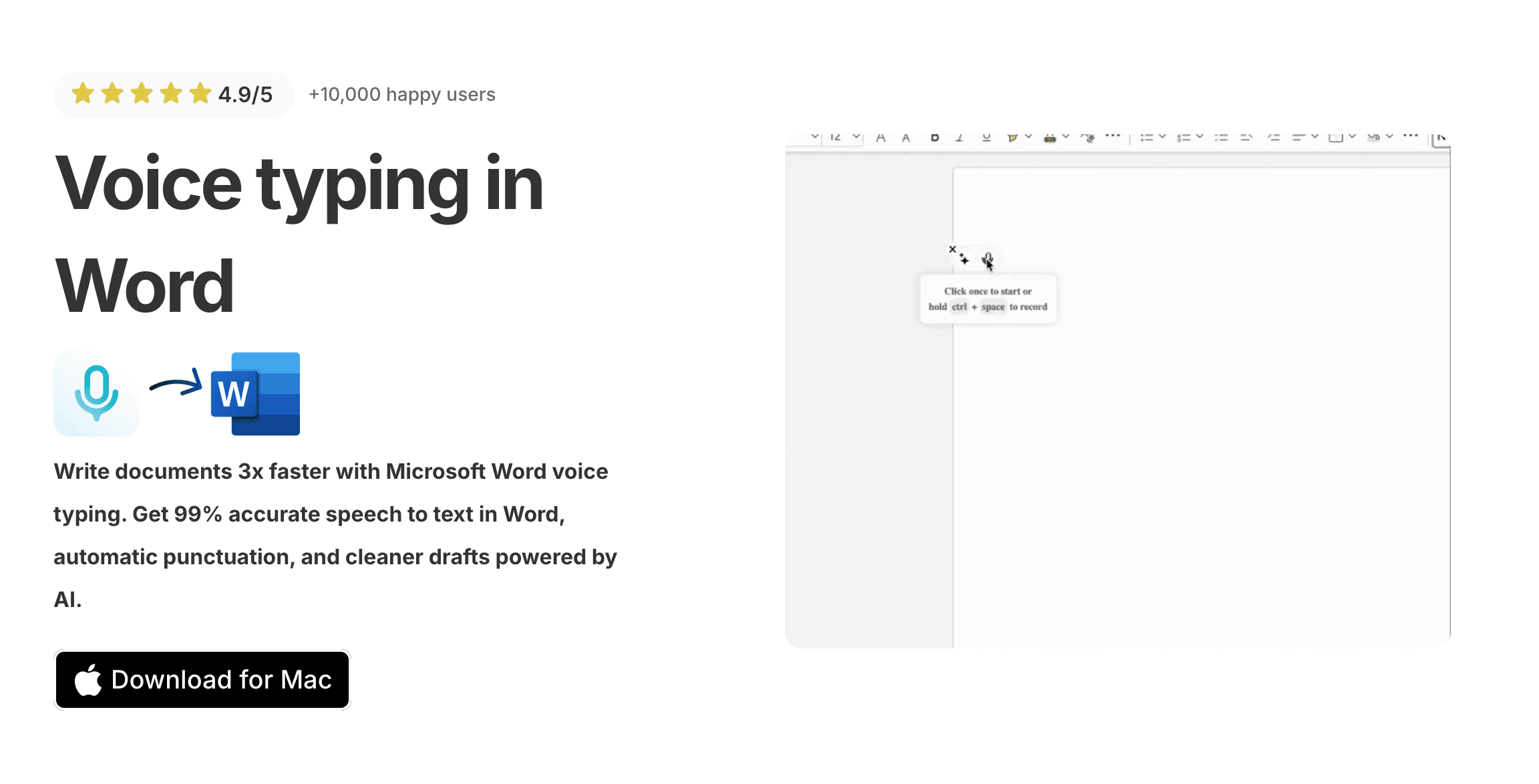
That makes Voicy more practical than tools that only feel good inside one app. If your real goal is to write faster and with less cleanup, it is the strongest all-around pick.
Best for: people who want one reliable speech-to-text workflow for Word and the rest of their writing
Pros:
cleaner punctuation and formatting
good fit for longer Word documents
works across Word, Outlook, Gmail, Docs, and more
includes AI help for rewriting and cleanup
Cons:
not fully free
cloud-based, so it depends on internet access
Pricing: $8.49/month, $82/year, or $260 lifetime
2. Microsoft Word Dictate, best built-in option
Word Dictate is the obvious first thing to test if you already use Microsoft 365.
It is built into Word, easy to find, and good enough for plenty of people. If your needs are simple, that may be all you need.
The catch is that support depends on your version, your setup, and whether the feature behaves well on your device. It is convenient, but not always the smoothest option for heavy daily writing.
Best for: Microsoft 365 users who want the simplest built-in dictation option
Pros:
already inside Word
easy to test right away
good starting point for simple documents
Cons:
availability depends on version and device
can need more cleanup than stronger dedicated tools
3. Windows Voice Typing, best if you want system-wide dictation too
Windows Voice Typing is useful if your main goal is not just Word. It gives you a broader dictation layer across Windows text fields.
That can be handy if you jump between Word, browser tabs, forms, and notes. It is more flexible than Word Dictate in that sense.
Still, if Word is your main writing tool, it can feel less tuned to a proper document workflow than a stronger dedicated option.
Best for: Windows users who want a simple dictation tool that works beyond Word
Pros:
works across many text fields
built into Windows 11
easy to trigger once set up
Cons:
less tailored to Word specifically
some users report reliability issues in longer sessions
4. Dragon, best for specialists who want maximum control
Dragon is still the classic name in dictation software. It has a long reputation, a lot of power, and a more serious feel than lighter consumer tools.
That is useful if you dictate heavily and care about deep control. It is less attractive if you just want a fast, modern way to write in Word without learning a whole new system.
Best for: professionals with heavy dictation needs
Pros:
strong reputation
powerful for specialist workflows
deeper control than lighter tools
Cons:
expensive
heavier setup and learning curve
overkill for many Word users
5. Superwhisper, best Mac-first alternative
Superwhisper is a good option for people who care a lot about a modern Mac desktop feel.
It is polished and easy to like if your workflow is Mac-first. The tradeoff is that it is not really a Word-specific tool. If your main question is "what helps me write better in Microsoft Word," the fit is less direct than the top options above.
Best for: Mac users who want a polished AI dictation experience
Pros:
modern Mac-first design
good desktop experience
useful outside Word too
Cons:
not designed around Word specifically
less relevant for Windows-first users
Which speech-to-text app is best for Microsoft Word?
Here is the short version:
Use Word Dictate if you want the easiest built-in option.
Use Windows Voice Typing if you want broader system-wide dictation too.
Use Dragon if you want a heavyweight professional tool.
Use Superwhisper if you are Mac-first and care most about desktop feel.
Use Voicy if you want the best everyday writing workflow in Word and beyond.
If your next step is testing the strongest Word-specific workflow, start with voice typing in Microsoft Word. You can also compare it with our guides on speech-to-text in Outlook and speech-to-text in Google Docs if your writing moves between tools.
Frequently asked questions
What is the best speech-to-text app for Microsoft Word?
For most people, the best option is the one that gives you clean output with the least friction. Word Dictate is a fine built-in starting point, but Voicy is the stronger choice if you want cleaner punctuation and a better workflow across more than one app.
Does Microsoft Word have built-in speech-to-text?
Yes. Microsoft 365 versions of Word include Dictate, which lets you speak and turn your voice into text inside a document.
Is Word Dictate better than Windows Voice Typing?
It depends on your workflow. Word Dictate is more direct inside Word. Windows Voice Typing is more flexible if you want system-wide dictation too.
Can I use speech-to-text in older versions of Word?
Built-in Dictate support depends on the version you use. If you need a more flexible option that is less tied to one Word version, a dedicated tool like Voicy is often easier.
Final thoughts
The best speech-to-text app for Microsoft Word depends on how much writing you do, how much cleanup you tolerate, and whether you only care about Word or your whole workflow.
If you want the cleanest practical option for everyday use, start with Voicy for Microsoft Word.


