




Best Tools for Dysgraphia: Typing, Dictation, and Writing Support (2026)
Summary of the article
If writing feels slow, painful, or messy because of dysgraphia, use a workflow with dictation + structure + editing support.
Best tools:
Voicy — fastest way to get first drafts out by voice
Google Docs Voice Typing — free browser dictation option
Dragon Professional — advanced dictation for heavy desktop workflows
Grammarly — easier sentence cleanup and rewrite support
Notion — structure thoughts with clear writing blocks
Texthelp Read&Write — education-focused literacy support toolkit
If you only do one thing this week: use voice typing for first drafts and keyboard for short edits.
Dysgraphia can make writing feel like friction all day. You may know exactly what you want to say, but getting it onto the page takes too long.
The right tool stack helps a lot. This guide covers the best tools for dysgraphia in 2026, with honest pros/cons and a practical workflow you can actually stick to.
This is educational content, not medical advice.
How we picked these tools
We scored tools on:
How fast they help you produce a first draft
Ease of use for daily school/work writing
Editing and clarity support
Cross-platform access
Cost vs real productivity gain
1) Voicy - best for writing
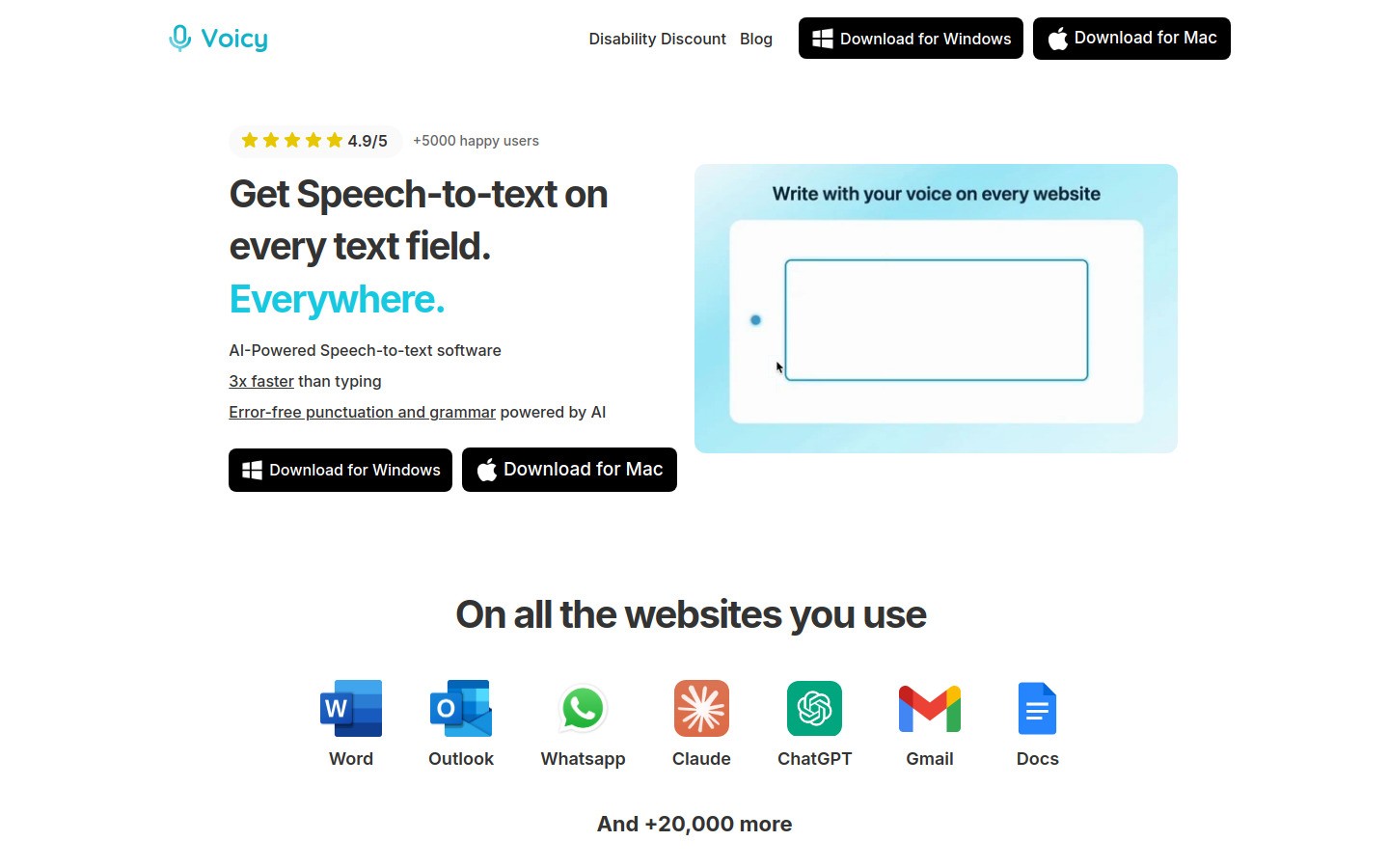
Voicy is strong when your biggest problem is slow text production. You speak, it transcribes quickly, and you edit after.
Pros
Great for first-draft speed
Works on Mac, Windows, and browser extension. Mac users can also check out our dedicated speech to text Mac app for enhanced macOS integration.
Helpful for emails, docs, and notes in many apps
Cons
Needs internet
Still requires final proofreading
Pricing: free trial available, then $8.49/month, $82/year, or $260 lifetime.
Best for
Students and professionals who need to produce more text with less typing load.
2) Google Docs Voice Typing — best free starting point
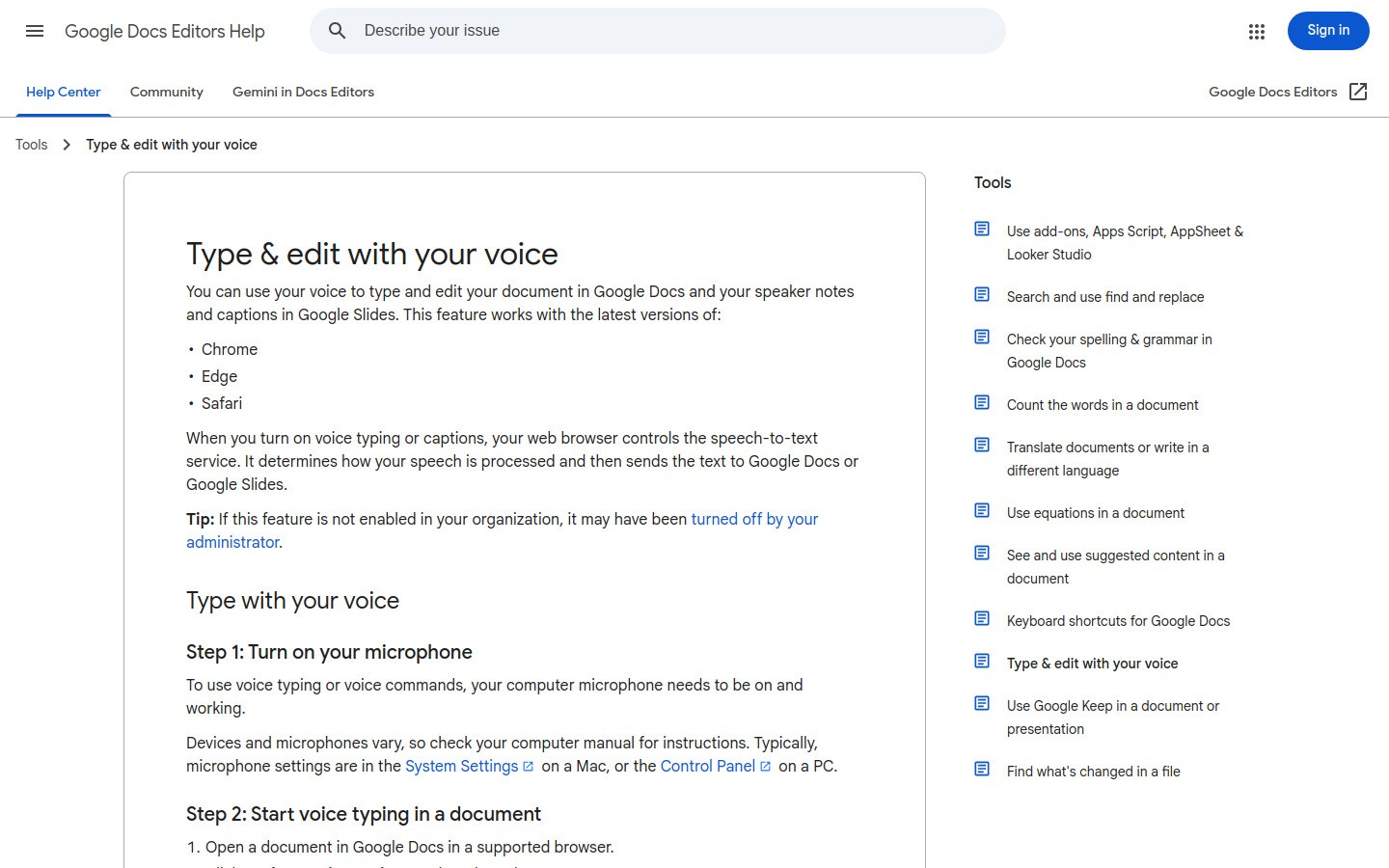
Google Docs Voice Typing is the easiest zero-cost place to test voice drafting.
Pros
Free
Very quick to start
Good for essays, notes, and rough drafts
Cons
Mostly tied to Docs workflow
Can need cleanup for punctuation
Best for
Anyone testing dictation for the first time.
3) Dragon Professional — best for power users on Windows
Dragon Professional is a serious dictation option for high-volume desktop writing.
Pros
Mature dictation engine
Strong for long-form writing
Useful customization features
Cons
Higher cost
Steeper setup and learning curve
Best for
High-volume Windows users who write long documents often.
4) Grammarly — best for rewrite and clarity support
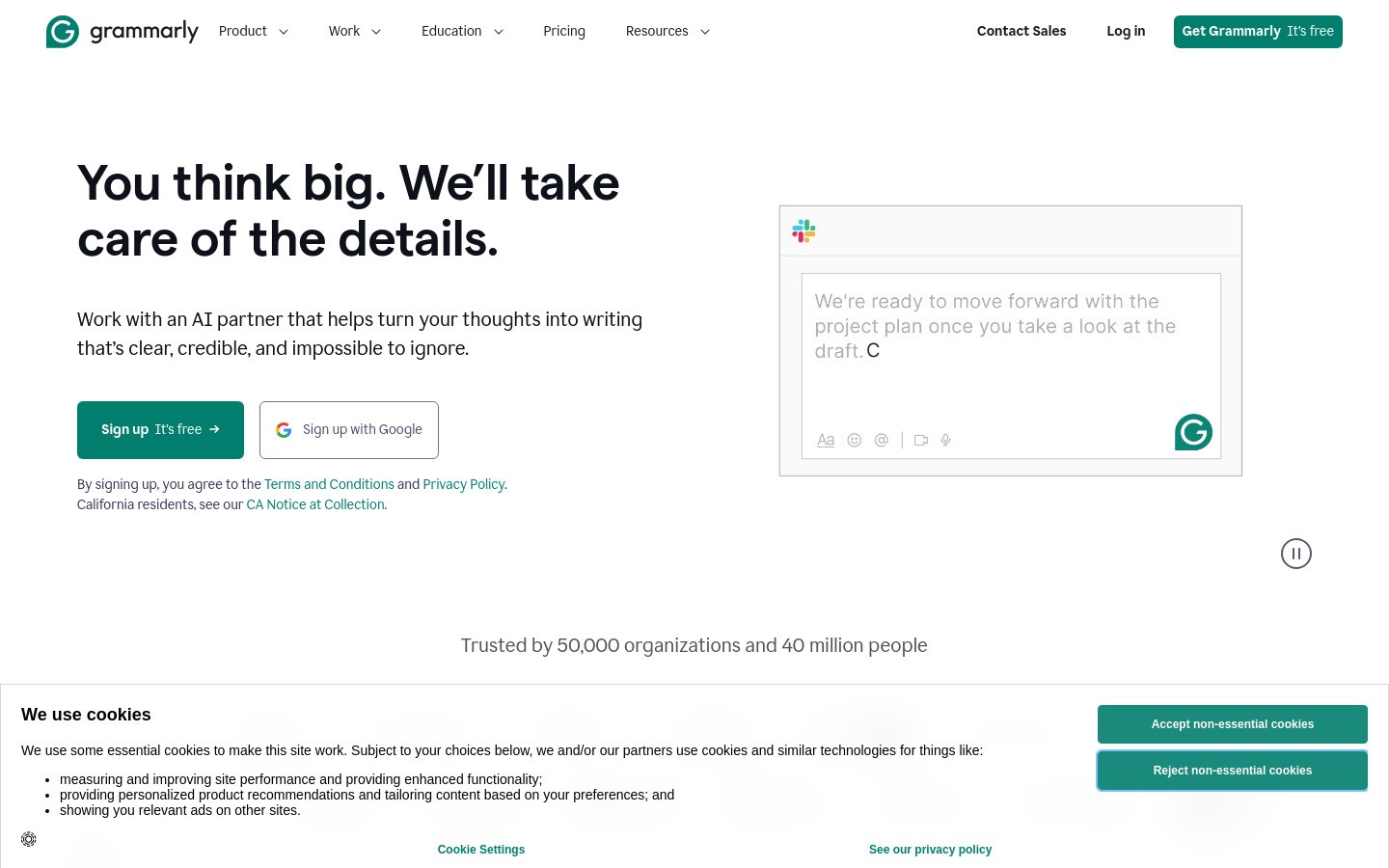
Grammarly helps when your draft exists but sentence clarity, structure, and grammar still need work.
Pros
Strong rewrite and clarity suggestions
Good for final polish before submission
Works in many writing surfaces
Cons
Suggestions are not always context-perfect
Premium features are paid
Best for
Second-pass editing after dictation.
5) Notion — best for structuring thoughts before drafting
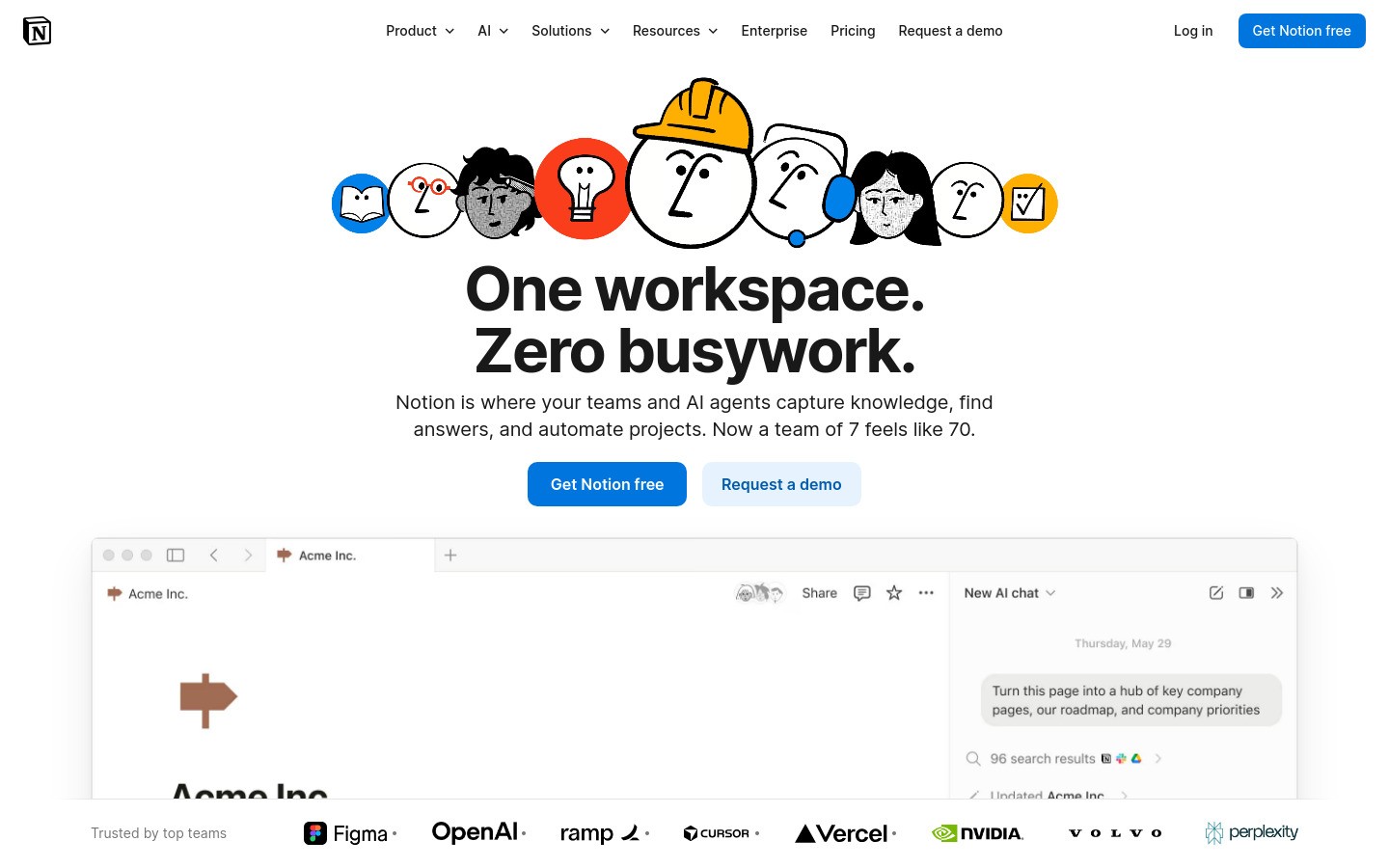
Notion helps break writing into manageable blocks: outline, bullet points, then final paragraphs.
Pros
Great visual structure for planning
Easy templates and checklists
Useful for study and project writing
Cons
Can become too complex if over-customized
Editing can feel slower in huge pages
Best for
People who need structure before writing full sentences.
6) Texthelp Read&Write — best for literacy support stack
Texthelp Read&Write combines reading and writing supports often used in education workflows.
Pros
Multiple assistive features in one suite
Strong school accessibility use cases
Helps with confidence and output consistency
Cons
Depends on license/context
Some users only need a smaller tool stack
Best for
Students and schools needing broader literacy support.
Comparison table
Tool | Best For | Price Level | Main Limitation |
|---|---|---|---|
Voicy | Fast first drafts | $$ | Internet required |
Google Docs Voice Typing | Free dictation starter | $ | Docs-centered workflow |
Dragon Professional | Power dictation on Windows | $$$ | Learning curve |
Grammarly | Cleanup and rewrites | $$ | Suggestion quality varies |
Notion | Planning and structure | $-$$ | Can get bloated |
Texthelp Read&Write | Education assistive stack | $$-$$$ | Broader than some users need |
A practical dysgraphia writing workflow
Step 1: Speak the rough draft (10–15 min)
Use Voicy, Google Docs Voice Typing, or Dragon to capture ideas fast.
Step 2: Structure the draft (5–10 min)
Move rough text into sections (intro, points, conclusion).
Step 3: Cleanup pass (10 min)
Use Grammarly or manual edits for readability.
Step 4: Final quality check (3 min)
Read it once out loud before sending.
Internal resources
FAQ
What are the best tools for dysgraphia?
A mix of dictation + organization + editing tools usually works best.
Does dysgraphia affect typing?
It can. Many users find voice-first drafting easier than typing every sentence.
Is speech-to-text good for dysgraphia?
Yes, especially for first drafts. It reduces writing friction and helps with output speed.
Should I use one tool or a stack?
A small stack usually works better: one dictation tool, one organizer, one editor.
Which tool should I start with today?
Start with Voicy or Google Docs Voice Typing for first drafts, then add Grammarly for editing.
Final takeaway
The best tools for dysgraphia are the ones that reduce friction and help you finish writing, not just start it.
Use voice for draft speed, structure your thoughts, then edit in short focused passes.
If you want a fast cross-app starting point, try Voicy and run a 7-day test.


