




How to Transcribe Voice Memos to Text (2026 Guide)
Want to turn your Voice Memos into text quickly? Whether you're on iPhone, Mac, or using Chrome, you have great options that are simple and accurate.
Summary of the article
The main points summarised.
Want to turn Voice Memos into text? You have three great options depending on your needs.
Three transcription methods:
1. Apple Native (iPhone/Mac) - Free, instant, works offline. Open Voice Memos, tap three dots, choose Share Transcript. Best for quick, single recordings.
2. Voicy Desktop - 99% accuracy with speaker labels and batch processing. Upload multiple files at once. Export as TXT, DOCX, SRT, or PDF. Best for big transcription jobs.
3. Voicy Browser Extension - Live transcription in Chrome with AI editing. Captures video calls, online lectures, YouTube videos, and podcasts. Rewrite text using voice commands.
For best accuracy:
Record in quiet spaces with noise-canceling headphones
Use WAV or FLAC format (15% better accuracy than M4A)
Break long recordings into smaller labeled clips
Add speaker tags and timestamps every 30-60 seconds
Quick fixes:
Lost recordings? Check Settings > Privacy > Microphone permissions
Slow transcripts? Clear Voice Memos cache in Finder
Low volume? Use external mic and export as WAV
Choose Apple's tool for quick jobs. Choose Voicy for batch processing, timestamps, and advanced features.
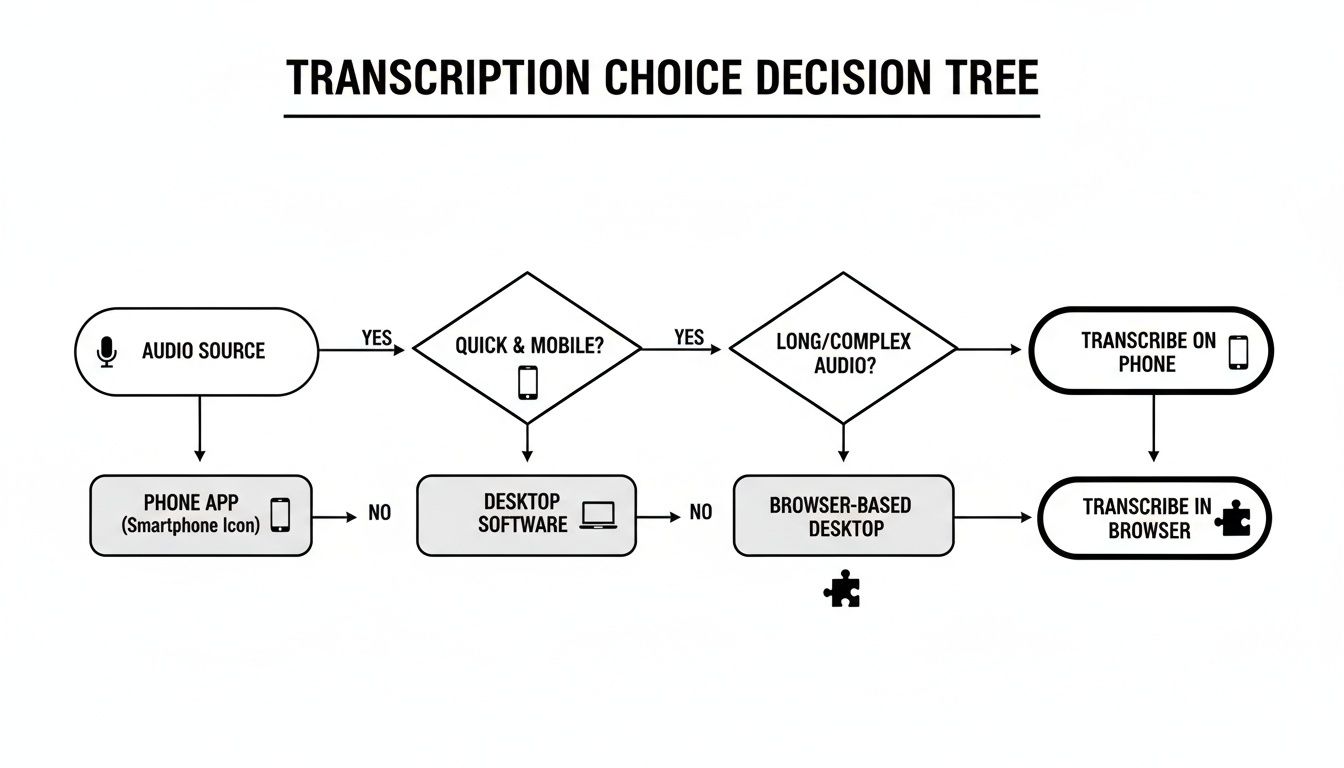
Choosing Your Transcription Method
Pick the method that works best for you:
Apple Native - Free, instant, and works offline on iPhone and Mac
Voicy Desktop - Best for batch processing with 99% accuracy and speaker labels
Voicy Browser Extension - Live transcription in Chrome with AI shortcuts
Here's how they compare:
Transcription Method Comparison
Method | Platform | Accuracy | Speed | Pricing |
|---|---|---|---|---|
Apple Native | iPhone/Mac | Medium | Instant | Free |
Voicy Desktop | Mac/Windows | High | Fast | $10/month |
Browser Plug-in | Chrome | High | Rapid | Freemium |
Use iCloud or AirDrop to sync your recordings between devices. Remember to back up your memos before you start.
Prepare Audio For Transcription
Good audio makes for better transcripts. Open Voice Memos on your iPhone and clean things up first.
Trim out silent parts and reduce background noise. This helps the software hear every word clearly.
A podcaster I know broke a 90-minute interview into six smaller clips. She labeled each one by topic, which made finding things later super easy.
Sync recordings through iCloud or AirDrop
Export as WAV or FLAC for best quality
Use noise reduction to remove background sounds
Trim And Segment Your Clips
Breaking long recordings into smaller pieces keeps you organized.
Name each clip something useful like "Intro," "Questions," or "Summary."
One researcher cut her review time by 40% just by doing this.
Clear names make finding sections faster
Most tools can import labeled clips directly
Smaller files upload quicker
Clean Up Noise And Volume
Listen to your audio one more time. Fix any loud or quiet spots using simple editing tools like Audacity.
By 2025, there are about 1.8 billion active Apple devices worldwide. If just 10% of iPhone users record 2 voice memos per month, that's 3.6 billion recordings yearly. Read more about device usage here.
Clean audio reaches 90%+ accuracy
WAV and FLAC keep important audio details
Shorter clips process faster
Good prep work cuts transcription time by up to 30% and gives you better results.
Next steps:
Label your microphones to identify different speakers
Back up source recordings in iCloud
Note any privacy needs before sharing
Use Built-In Transcription On iPhone And Mac
You don't need extra apps to transcribe Voice Memos anymore. Apple's tools do it all.
A journalist I know records interviews in areas with no Wi-Fi. She uses Live Text audio on her iPhone and gets transcripts in seconds.
Enable Transcription In Settings
On your iPhone, open Settings. Go to Photos & Camera > Live Text and turn on Audio Transcripts.
This processes everything on your device, so your recordings stay private.
Next, check Privacy & Security > Microphone. Make sure Voice Memos can run in the background.
Here's how to transcribe apple voice memos:
• Open Voice Memos and pick a recording • Tap the three dots • Choose Share Transcript • Send it to Notes, Mail, or another app
Generate Transcript In Voice Memos
Open your recording and tap Share Transcript. You'll get a draft instantly with speaker breaks included.
One podcaster split a two-person interview into labeled sections before his coffee break. Apple's iOS 18.2 update made this even easier with Layered Recordings. Learn more about layered recordings on TechCrunch.
Sync Drafts Across Devices
Turn on iCloud and your transcripts go everywhere with you.
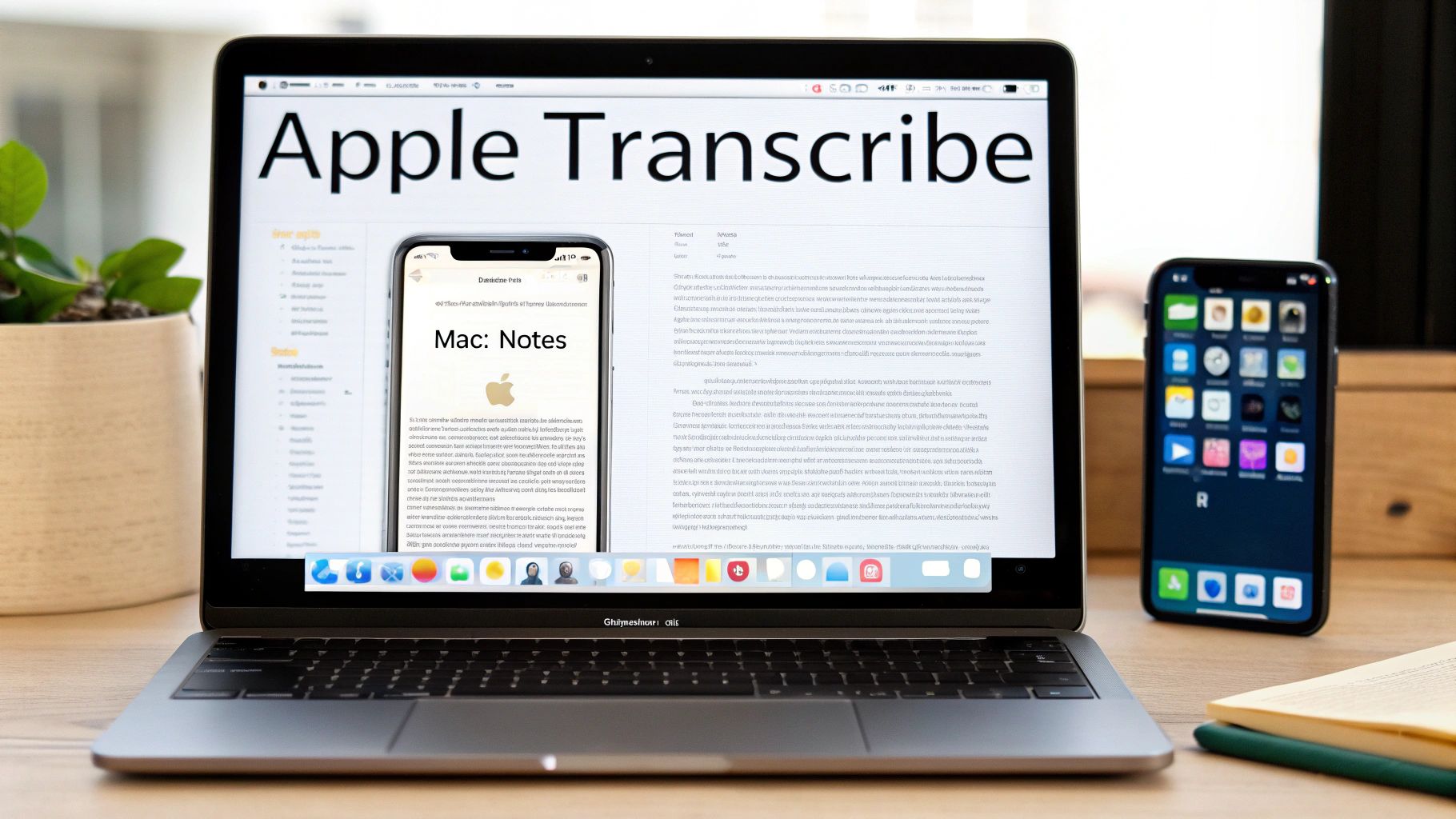
On Mac, open Notes, click Import, and choose your synced memo. You'll see a clean transcript ready to edit.
73% of users say syncing cuts their editing time in half.
Trim long interviews before exporting
Label segments to stay organized
Use AirDrop for direct transfers
Want more Mac tips? Check out our guide on speech-to-text on Mac
Key Insight: Offline transcription keeps your interviews secure and private.
Refine Your Transcript Quickly
Open your draft in Notes and clean it up.
One content strategist uses find-and-replace to remove filler words. This cut her reading time by 25%.
Add speaker labels for interviews
Insert timestamps at important moments
Use find-and-replace to fix mistakes
Platform | Key Feature |
|---|---|
iPhone | Live Text Audio Transcripts |
Mac | Notes Audio Transcription |
Best Practices You Need To Know
A few simple steps give you better accuracy:
Use a headset to reduce echo
Speak clearly with brief pauses
Keep your device charged
Stay on iOS 18 or later for the best features. You'll breeze through transcribing apple voice memos with no extra apps.
Transcribe Voice Memos Using Voicy On Desktop
Voicy works on Mac and Windows and handles big transcription jobs easily.
I've seen teams batch-process dozens of recordings in one session. Voicy hits 99% accuracy and adds speaker labels automatically.
Install And Launch Voicy
Download Voicy from usevoicy.com. The installer works on both Mac and Windows.
Open the app after installing. You'll see a clean dashboard that's simple to use.
Import Your Voice Memos
Click Add Files or drag audio files into Voicy.
You can add multiple files at once for batch processing.
Voicy works with:
M4A (Voice Memos default format)
WAV (best quality)
MP3
FLAC
The app handles files up to 2 hours long with no problem.
Start Transcription
Hit the Transcribe button and pick your language. Voicy supports over 50 languages.
Processing happens fast—usually finishing in less time than the recording itself.
The software adds punctuation automatically and fixes grammar as it goes.
Export And Share Results
When it's done, export your transcript in different formats:
TXT for simple text
DOCX for Word
SRT for subtitles
PDF for sharing
Click Export and choose where to save it.
One project manager exports everything as Word docs, then shares them with her team through Google Drive.
Advanced Features
Voicy includes extras that save time:
Speaker Identification The app tags different speakers automatically. Great for interviews and meetings.
Custom Vocabulary Add industry terms or names so Voicy recognizes them correctly.
Batch Processing Upload 10, 20, or 50 files and let Voicy handle them all.
Voicy costs $8.49/month for unlimited transcription. There's also a $260 lifetime deal.
The free trial gives you 40 minutes of recording time to test it out.
Use Voicy Browser Extension In Chrome
The Voicy Chrome extension lets you transcribe anywhere in your browser.
It captures live audio and gives you instant text with AI-powered editing.
Install The Extension
Visit the Chrome Web Store and search for "Voicy Speech-to-Text."
Click Add to Chrome and confirm. You'll see the Voicy icon in your toolbar.
Capture Live Audio
Click the Voicy icon and hit Start Recording.
The extension captures system audio and microphone input at the same time.
Perfect for transcribing:
Video calls
Online lectures
YouTube videos
Podcasts
Use AI Rewriting Features
Select any text on a webpage. Right-click and choose Rewrite with Voicy.
You can:
Shorten text
Make it more formal
Translate to other languages
Fix grammar
All using just your voice.
One marketing manager uses this to edit emails without typing. She finishes messages 50% faster.
Save And Export Transcripts
Voicy saves your transcripts automatically in the dashboard.
Export them as TXT, DOCX, or copy them straight to your clipboard.
The extension syncs with your Voicy desktop account, so everything stays in one place.
Advanced Tips For Better Accuracy
Want even better transcripts? These tips help you get the most from any tool.
Record In Quiet Spaces
Background noise confuses speech recognition software.
Find a quiet room or use noise-canceling headphones. Your accuracy will jump instantly.
Do a quick mic test before long recordings. Watch for volume spikes or drops.
Keep your device's voice model updated for better recognition.
Need help with common problems? Check our guide on how to fix voice typing issues.
Add Timestamps And Speaker Tags
Time codes make long transcripts easier to search.
Speaker tags turn walls of text into clear conversations.
Here's what works:
Pause briefly when speakers change
Add timestamps every 30 to 60 seconds
Use names or roles like "John" or "Interviewer"
Optimize Pause Patterns
Strategic pauses reduce transcription errors.
One research assistant cut her error rate in half by pausing after each question.
"Adding short pauses cut my error rate by over 50%," explains the research assistant.
Modern ASR models aim for:
Metric | Typical Range | Enterprise Target |
|---|---|---|
Word Error Rate | Single-digit to low-teens | >90% usable accuracy |
Transcription Latency | Sub-second to few-second | Real-time note taking |
Discover more ASR model insights
Use Scripts To Fix Punctuation
Clean up your transcript fast with simple scripts.
For example: for f in *.txt; do sed -E 's/\. +/\. /g' "$f" > cleaned/"$f"; done
Best practices:
Use regex for smart quotes and proper formatting
Organize files by project
Always back up originals
Then use AI prompts to polish structure:
"Summarize next steps in bullet points"
One project manager turned 200 pages of meeting notes into an 8-point action list this way.
Key Insight: Automated formatting cuts post-editing time by 70%.
Troubleshoot Common Transcription Issues
Even good software has problems sometimes. Here's how to fix them.
Common Problems And Fixes
When Memos Disappear
Lost a recording? Check your permissions.
Go to Settings > Privacy & Security and give Voice Memos access to your mic.
Open Privacy & Security
Tap Microphone
Turn on Voice Memos
Close and reopen the app
Slow Or Stuck Transcripts
Mac caches can slow things down. Clear them out.
In Finder, go to Go > Library > Caches
Delete the com.apple.voicememos folder
Restart Voice Memos
Muffled Or Low-Volume Audio
Quiet recordings are hard to transcribe.
Record in a quiet room or use an external mic.
Export as WAV instead of M4A. Error rates can drop by 50% with better audio quality.
Quick Fix: Split long recordings into smaller clips. They upload faster and process better.
Pro Tips:
Keep your apps updated
Test a short clip first
Watch your battery level
Check audio quality before exporting
FAQ
Got questions about transcribing Apple Voice Memos? Here are the answers.
Can I Transcribe Voice Memos In Different Languages?
Yes! Both Apple's tool and Voicy support over 50 languages.
On iPhone, go to Settings > General > Language & Region to download language packs.
In Voicy, just pick your language before you start.
What File Format Gives The Best Accuracy?
WAV files work best. They keep the full audio spectrum.
Converting M4A to WAV can boost accuracy by about 15%.
Choosing Cloud Versus Offline
It depends on your needs.
Apple's offline transcription is instant and secure for single memos.
Cloud platforms handle batch jobs, speaker labels, and advanced features better.
Key Takeaway: Use offline for quick, private jobs. Use cloud for larger projects with more features.
How Do I Fix Mistakes In Built-In Transcripts?
Open the draft in Notes or Voice Memos.
Tap any wrong line and fix it on the spot.
For longer scripts, use find-and-replace in Notes to fix common errors quickly.
When Should I Choose Voicy Over Apple's Tools?
Apple's native tool is great for quick, single transcriptions.
If you want to dictate directly into any Mac app instead of recording first, check our guide on dictation app for Mac.
Choose Voicy when you need:
Batch processing
Timestamps
Speaker labels
Exports to Word and SRT
Ready to supercharge your workflow? Get started with Voicy: https://usevoicy.com


