




Summary of the article
Voice to text means turning spoken words into written text. Voice typing is the same idea, but people often use that phrase when they want to speak into a document, email, browser field, or phone keyboard.
Best everyday voice to text app: Voicy for Mac, Windows, browser, iOS, Android, live dictation, and file upload transcription.
Best free online starting point: Speechnotes for quick notes in one web editor.
Best for meetings: Otter.ai for speaker labels and searchable meeting transcripts.
Best built-in mobile option: Google Gboard on Android or Apple Dictation on iPhone.
Best specialist option: Dragon NaturallySpeaking for heavy medical, legal, and command workflows.
Best browser voice typing: Voicy's browser extension for Gmail, Google Docs, forms, and web apps.
If you want a free one-off tool, start with a browser editor. If you want voice typing across the apps where you already work, try Voicy's dictation app. It has a free trial, then costs $8.49/month, $82/year, or $260 lifetime.
What is Voice to Text?
Voice to text is software that listens to your speech and turns it into typed words. It is also called speech to text, speech recognition, dictation, or voice typing.
The simple version: click in a text field, start talking, and the tool writes for you. Some tools only work in one web page. Better paid tools work across email, docs, chat, notes, browser forms, and mobile apps.
Think of it as having a super-fast typist who can keep up with your natural speaking pace. Modern voice to text tools use advanced AI and machine learning to understand context, add proper punctuation, and even learn your speaking patterns over time.
How Voice to Text Works
The process happens in milliseconds through several steps:
Audio capture: Your microphone picks up sound waves from your voice
Speech processing: AI algorithms analyze the audio patterns and frequencies
Word recognition: The system matches audio patterns to known words and phrases
Context understanding: Natural language processing adds punctuation and fixes grammar
Text output: Clean, formatted text appears on your screen
The best voice to text tools today achieve 95%+ accuracy, making them reliable enough for professional use.
Why Use Voice to Text?
Here's why millions of people have switched to voice typing:
Speed and Efficiency
You can speak 150+ words per minute but only type 40 words per minute on average. That's nearly 4x faster with voice input.
Reduced Physical Strain
Perfect for people with carpal tunnel, arthritis, or other repetitive strain injuries. Also helps reduce neck and shoulder tension from hunching over keyboards.
Multitasking
Dictate emails while walking, take meeting notes hands-free, or write documents while reviewing other materials.
Accessibility
Essential for people with mobility challenges, visual impairments, or conditions like dyslexia that make traditional typing difficult.
Natural Thinking
Many people find that speaking feels more natural than writing, leading to better idea flow and less writer's block.
Types of Voice to Text Tools
Voice to text comes in several forms, each with different strengths:
Built-in OS Tools
Windows: Windows Speech Recognition (free, basic accuracy)
Mac: Enhanced Dictation (free, good accuracy)
iOS: Apple Dictation (built into keyboard)
Android: Google Voice Typing via Gboard
Standalone Desktop Apps
Voicy: Mac, Windows, browser, iOS, Android, cloud-based AI, live dictation, and file upload transcription
Dragon NaturallySpeaking: Professional-grade, highly customizable
SuperWhisper: Mac-only, local processing
Browser Extensions
Voicy Browser Extension: Works on websites, forms, docs, and browser-based work apps
Speechnotes Chrome Extension: Basic voice typing
Dictanote: Note-taking focus
Online Web Tools
Speechnotes: Free, no signup required
SpeechTexter: 70+ languages
QuillBot Speech to Text: AI-powered accuracy
Mobile Apps
Otter.ai: Meeting transcription, collaboration features
Transcribe: File transcription, 100+ languages
Voice to Text: Android, unlimited dictation
Best Voice to Text Tools by Use Case
Best Overall: Voicy
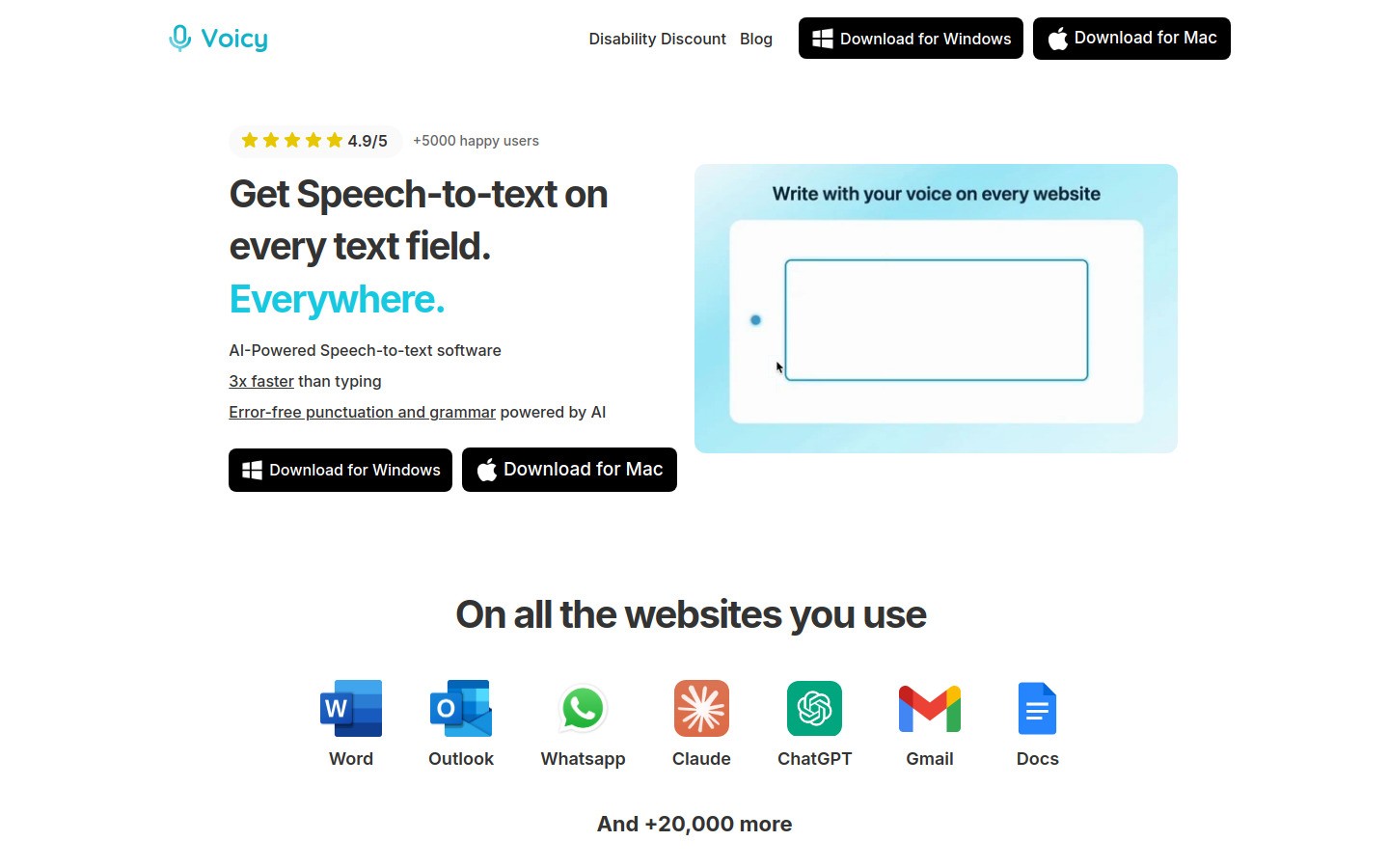
Voicy offers the best balance of accuracy, features, and platform support for daily voice typing. It works across Mac, Windows, browser, iOS, and Android, so you can use the same voice to text workflow in more places.
Voicy is best when you want more than a free text box. Use it to dictate into work apps, write emails, fill browser forms, draft documents, and transcribe uploaded audio files. It uses cloud-based AI processing for cleaner text and automatic punctuation.
Key features:
99%+ accuracy with cloud-based AI processing
Works across desktop, browser, and mobile workflows
File upload transcription for saved audio
Custom voice commands and shortcuts
Multi-language support
Real-time transcription
Pricing: Free trial available, then $8.49/month, $82/year, or $260 lifetime
Best for: Daily productivity across multiple platforms
If you are comparing tools now, open the Voicy dictation app page and test the free trial with one email, one document, one browser form, and one uploaded audio file.
Best Free Option: Speechnotes
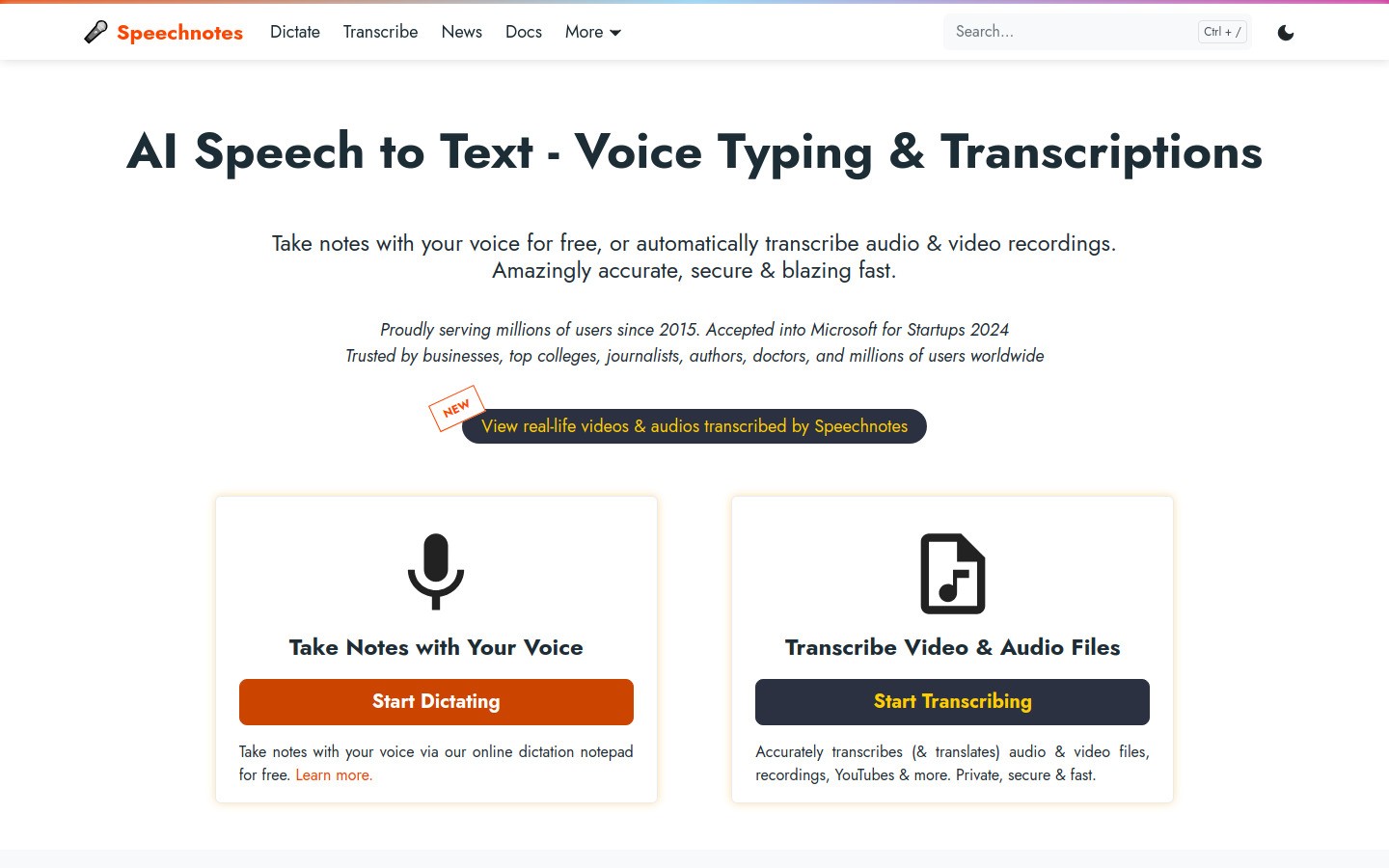
Speechnotes provides solid accuracy without any cost. The web interface is clean and you can start typing immediately.
Key features:
No signup required
Automatic punctuation
Export to Google Drive or email
Voice commands (say "comma," "period," etc.)
50+ languages supported
Limitations: Web-only, basic formatting options, less accurate than premium tools
Best for: Casual note-taking and trying voice typing
Best for Meetings: Otter.ai
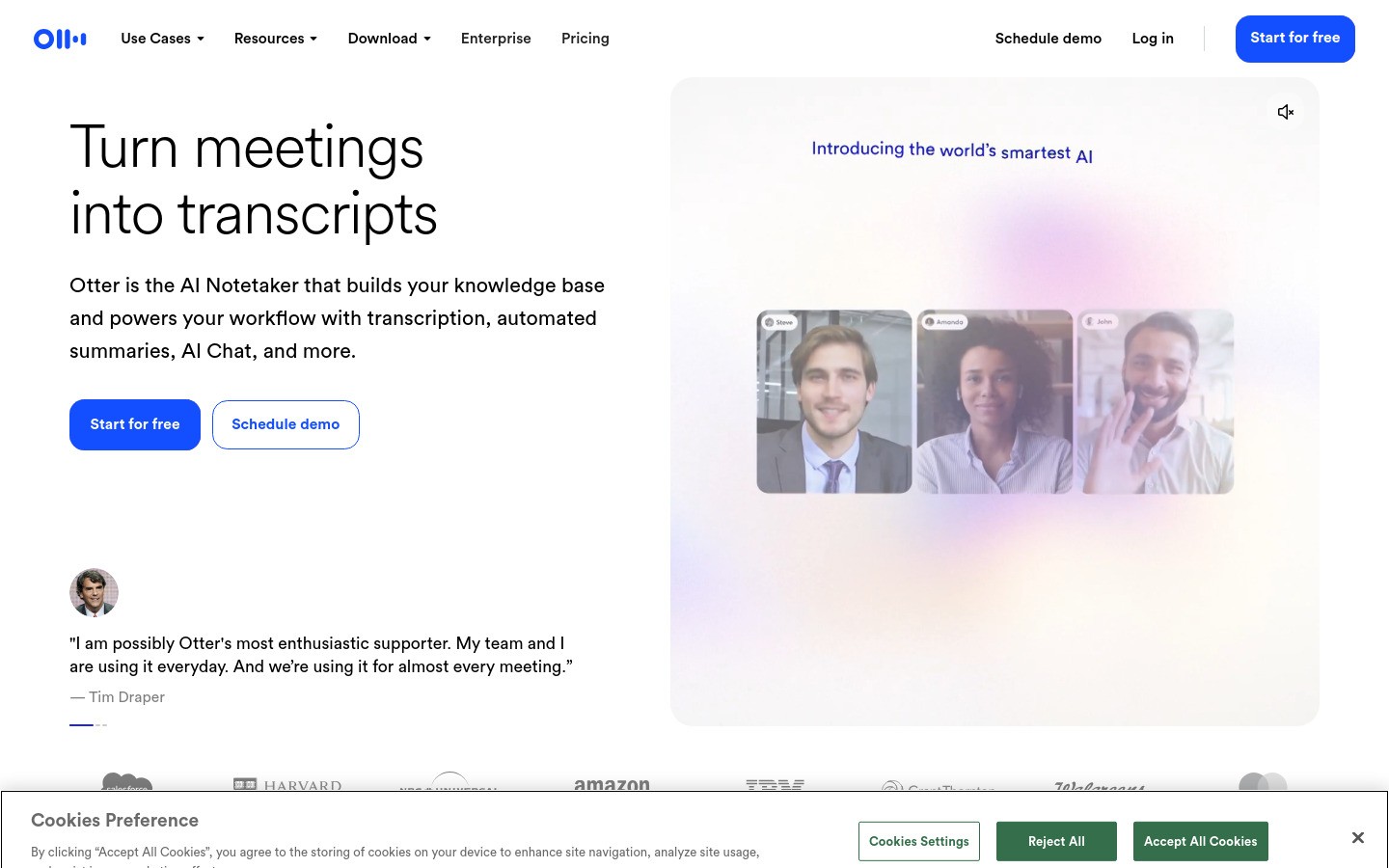
Otter.ai excels at transcribing conversations with multiple speakers. It can identify different voices and create searchable meeting transcripts.
Key features:
Speaker identification (diarization)
Real-time collaboration
Integration with Zoom, Teams, Google Meet
AI-generated summaries
Keyword highlighting
Pricing: Free tier (600 minutes/month), paid plans from $10/month
Best for: Business meetings, interviews, lectures
Best for Mobile: Built-in Options
Android: Google Gboard provides excellent voice typing built into the keyboard. Just tap the microphone icon in any text field.
iPhone/iPad: Apple's Dictation is built into iOS. Enable it in Settings > General > Keyboard > Enable Dictation.
Key benefits:
No separate app needed
Works in all apps
Free with your device
Offline support (limited)
Best for Professionals: Dragon NaturallySpeaking
Dragon NaturallySpeaking remains the gold standard for professional speech recognition, especially in healthcare and legal fields.
Key features:
99%+ accuracy with training
Extensive customization
Industry-specific vocabularies
Voice commands for computer control
Works offline
Pricing: $150-500 depending on edition
Best for: Heavy daily use, professional environments
Best Browser Extension: Voicy
The Voicy Browser Extension works on websites, making it useful for web-based workflows.
Key features:
Works on Gmail, Google Docs, Slack, etc.
Cloud-based accuracy
Custom shortcuts
Auto-punctuation
Multi-language support
Best for: Email, social media, web forms, Google Docs voice typing. Also works in Safari and Firefox
Voice to Text for Specific Platforms
Voice to Text for Mac
Mac users have several excellent options:
Voicy: Best cross-app option when you want one paid tool with a free trial
Enhanced Dictation: Built-in, free, works offline after setup
SuperWhisper: Local processing, privacy-focused
For a Mac-specific landing page, see Voicy for Mac dictation.
Voice to Text for Windows
Windows options include:
Voicy: Best cross-app option for daily dictation and uploaded-file transcription
Windows Speech Recognition: Free but limited accuracy
Dragon: Professional-grade for heavy users
For a comprehensive overview of all Windows speech-to-text options, check our detailed Windows speech to text guide.
Voice to Text Online
Web-based tools require no downloads and are useful when you need one quick note. They are weaker when you need voice typing inside your normal work apps.
Speechnotes: Most popular free option
SpeechTexter: 70+ languages
QuillBot: AI-powered for better accuracy
Tips for Better Voice to Text Accuracy
Get the most from your voice typing with these techniques:
Environment Setup
Use a good microphone: Built-in laptop mics work but external headset mics are better
Reduce background noise: Close windows, turn off fans, find a quiet space
Maintain consistent distance: Keep your mouth 6-12 inches from the microphone
Speaking Technique
Speak clearly: Don't rush or mumble
Use natural rhythm: Slight pauses between thoughts help accuracy
Say punctuation: "period," "comma," "question mark"
Spell difficult words: "cap S-M-I-T-H"
Voice Commands
Most tools support these common commands:
"New line" or "Enter" - Line break
"New paragraph" - Paragraph break
"Cap [word]" - Capitalize next word
"All caps [phrase] end caps" - ALL CAPS text
"Delete that" - Remove last phrase
Common Voice to Text Problems and Solutions
Low Accuracy
Problem: The tool misunderstands many words
Solutions:
Check your microphone quality and positioning
Reduce background noise
Speak more slowly and clearly
Train the software with your voice (Dragon, Windows)
Missing Punctuation
Problem: Long sentences without periods or commas
Solutions:
Say punctuation marks out loud
Use tools with auto-punctuation (Voicy, Otter.ai)
Edit text after dictating
Formatting Issues
Problem: Incorrect capitalization or spacing
Solutions:
Learn voice commands for formatting
Use "cap" before proper nouns
Choose tools with smart formatting
Voice to Text Privacy and Security
Consider privacy when choosing voice to text tools:
Cloud vs Local Processing
Cloud-based (Voicy, Google, most online tools): Better accuracy but audio sent to servers
Local processing (SuperWhisper, offline modes): More private but may be less accurate
Data Retention
Check each tool's privacy policy:
How long is audio stored?
Is audio used to improve the service?
Can you delete your voice data?
Business Use
For sensitive business content, consider:
Tools with business privacy guarantees
Local processing options
GDPR/CCPA compliance
Voice to Text for Different Professions
Writers and Authors
Perfect for overcoming writer's block and first drafts. Many authors find speaking more natural than typing for creative work.
Doctors and Healthcare
Essential for patient notes and medical records. Dragon Medical is the industry standard.
Best tools: Dragon Medical, specialized medical vocabulary
Lawyers
Useful for drafting documents and case notes. Requires high accuracy and legal terminology.
Best tools: Dragon Legal, Voicy with custom vocabulary
Students
Great for taking lecture notes and writing papers faster.
Best tools: Otter.ai for lectures, Voicy for essays
Business Professionals
Perfect for emails, reports, and meeting notes.
Best tools: Voicy, Otter.ai, built-in mobile options
Future of Voice to Text Technology
Voice recognition continues to improve rapidly:
AI Advancements
Better context understanding
Improved accent and dialect recognition
Real-time language translation
Emotion and tone detection
Integration Trends
Deeper OS integration
Smart home and IoT devices
Vehicle voice control
Augmented reality interfaces
Accessibility Focus
Better support for speech impairments
Multilingual switching
Visual feedback systems
Getting Started with Voice to Text
Ready to start voice typing? Here's your action plan:
Try Before You Buy
Test your device's built-in options first
Try Speechnotes for free online voice typing
Download Voicy's free trial if you want voice typing across apps, browsers, phones, and uploaded audio files
Start Simple
Begin with short notes and emails
Practice voice commands for punctuation
Get comfortable before tackling longer documents
Build the Habit
Use voice typing for one task per day
Gradually increase usage as accuracy improves
Combine with traditional typing as needed
Frequently Asked Questions
What is the best voice to text tool?
The best voice to text tool depends on where you write. Use a free online tool for one quick note. Use Voicy if you want a paid voice typing app with a free trial that works across Mac, Windows, browser, iOS, Android, and uploaded audio files.
Is voice typing the same as voice to text?
Yes. Voice typing, voice to text, speech to text, and dictation all mean using your voice to create written text. People often say voice typing when they mean writing directly into an app or text field.
Can Voicy transcribe uploaded files?
Yes. Voicy supports live dictation and file upload transcription. That helps when you have a voice memo, meeting recording, interview, or saved audio file that you want to turn into text.
Is voice to text accurate enough for professional use?
Yes, modern tools like Voicy and Dragon achieve 95-99% accuracy, making them suitable for business documents, emails, and reports. Accuracy improves with practice and proper setup.
Does voice to text work with accents?
Yes, current AI models are trained on diverse accents and speech patterns. Cloud-based tools generally handle accents better than local processing.
Can I use voice to text offline?
Some tools offer offline modes (Apple Dictation, Dragon, SuperWhisper) but online tools typically provide better accuracy due to more powerful processing.
Is voice to text secure for sensitive information?
It depends on the tool. Cloud-based services send audio to servers, while local processing keeps everything on your device. Check privacy policies for sensitive work.
What equipment do I need?
Most laptops and phones have adequate built-in microphones. For better accuracy, consider a USB headset or dedicated microphone, especially in noisy environments.
How long does it take to learn voice typing?
Basic voice typing can be learned in minutes. Becoming proficient with voice commands and achieving high accuracy typically takes 1-2 weeks of regular use.
Conclusion
Voice to text technology has reached a tipping point where it's accurate and fast enough for daily use. Whether you're looking to boost productivity, reduce physical strain, or improve accessibility, there's a voice typing solution that fits your needs.
For most people who write in more than one place, we recommend starting with Voicy for its combination of accuracy, features, and platform support. The free trial lets you test it across Mac, Windows, browser, iOS, Android, and uploaded audio files before choosing a paid plan.
If you're just getting started, try Speechnotes for free online voice typing, or use your device's built-in speech recognition to get a feel for voice typing.
Remember, voice to text works best when you speak naturally and give it time to learn your voice patterns. With a little practice, you'll wonder how you ever lived without it.
Ready to see whether voice typing fits your day? Start your free Voicy trial and test it where you already write.


