




Summary of the article
Quick answer: Most devices already have dictation built-in. On Windows, press Windows + H. On Mac, press Fn twice. iPhone and Android have microphone buttons on their keyboards. For cross-platform use, try browser tools like dictation.io or professional apps like Voicy for better accuracy and features.
Windows: Windows + H or Voice Typing in Settings
Mac: Fn + Fn or System Preferences > Keyboard > Dictation
iPhone/iPad: Microphone button on keyboard
Android: Microphone icon on Gboard
Browser: dictation.io or Speechnotes
Professional: Voicy ($8.49/month), Dragon, or Mac Dictation
What Does "Dictate" Mean?
To dictate means speaking words aloud that get converted into written text. Think of it as having a super-fast typist who writes exactly what you say. This process goes by many names: speech-to-text, voice typing, or voice recognition.
Why bother? Dictation saves time, helps with spelling tricky words, and makes writing way more comfortable if you have typing difficulties or injuries. Instead of hunting and pecking at keys, you just talk naturally.
Built-in Dictation: What's Already on Your Device
Here's the good news: you probably don't need to download anything. Most devices made after 2018 include dictation features right out of the box.
Windows Dictation
Method 1: Windows + H shortcut
Open any text field (Word, Notepad, email, whatever)
Press Windows + H
Wait for the microphone icon to appear
Start speaking clearly
Say "stop dictation" or press Windows + H again to stop
Method 2: Voice Typing in Settings
Go to Settings > Time & Language > Speech
Turn on "Online speech recognition"
Use Windows + H to activate anywhere
Voice commands: Say "period," "comma," "new line," or "delete" to control punctuation and editing.
Mac Dictation
Quick setup:
Press Fn + Fn (Function key twice) to start dictation
If that doesn't work, go to System Preferences > Keyboard > Dictation
Turn on "Enhanced Dictation" for offline use
Choose your microphone and preferred language
Mac dictation works in any text field across all apps. Say "period," "comma," "new paragraph," or "delete that" for punctuation and editing.
iPhone and iPad Dictation
Using built-in dictation:
Open any app with a text field (Messages, Notes, email)
Tap the text field to bring up the keyboard
Look for the microphone button (usually near the space bar)
Tap the microphone and start speaking
Tap "Done" when finished
iPhone dictation works offline for basic features but needs internet for best accuracy. It automatically adds punctuation based on your speech patterns.
Android Dictation
Using Gboard (Google Keyboard):
Open any text field
Tap the microphone icon on the keyboard
Grant microphone permission if asked
Speak clearly and naturally
Tap the microphone again to stop
Android dictation requires an internet connection but offers excellent accuracy in multiple languages. You can also say punctuation like "period" and "comma."
Browser-Based Dictation Tools
Sometimes you need dictation on a device that doesn't have it built-in, or you want features beyond basic voice typing.
Dictation.io (Free)
Dictation.io runs entirely in your web browser using Google's speech recognition. No downloads required.
How to use:
Visit dictation.io in Chrome or Edge
Click "Start Dictation"
Allow microphone access
Speak naturally
Copy the text to wherever you need it
Pros: Free, works on any computer with a browser, supports multiple languages
Cons: Requires internet, basic features only, no formatting options
Speechnotes (Free)
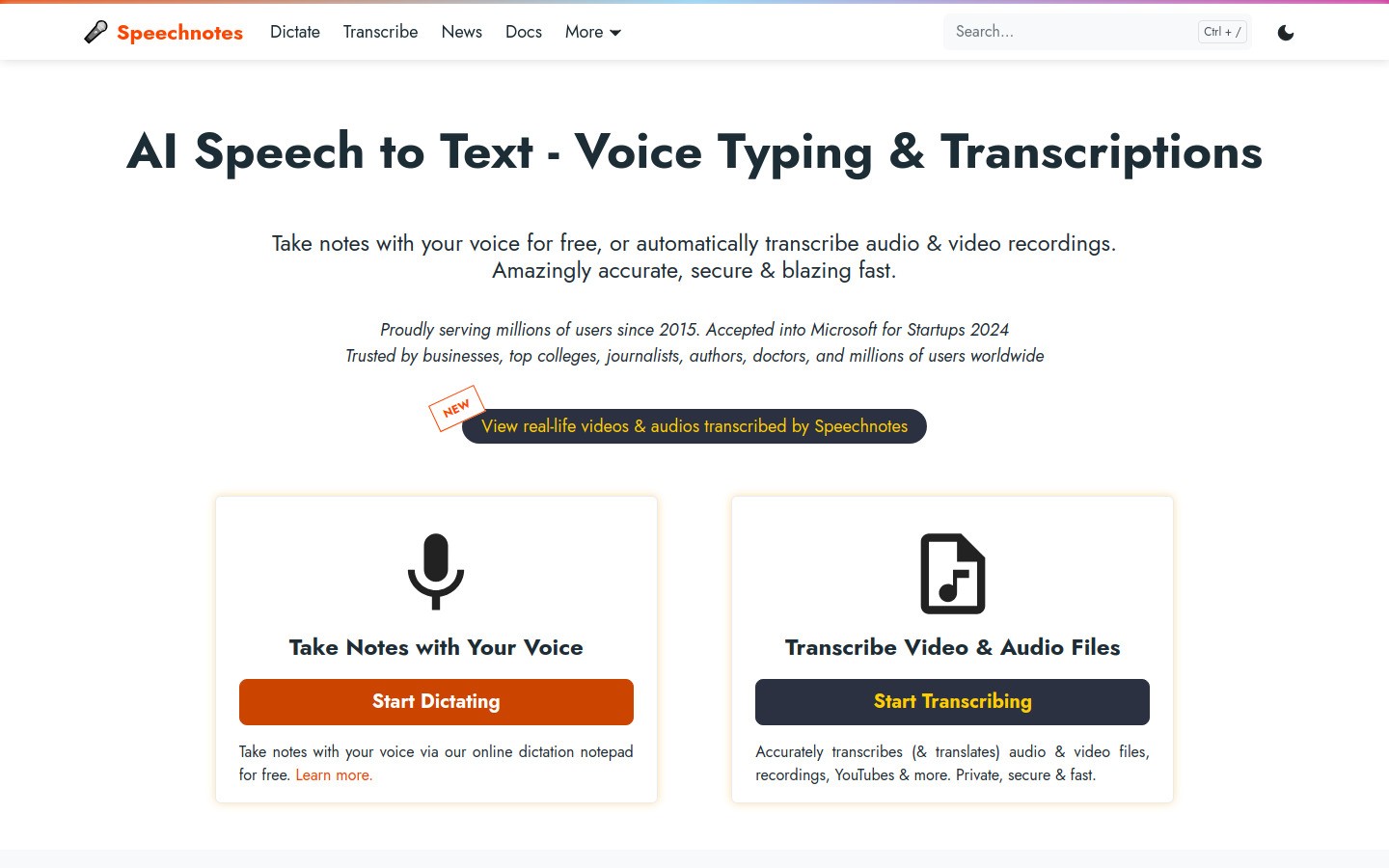
Speechnotes offers similar functionality to dictation.io but with a cleaner interface and some additional features.
Pros: Clean design, auto-saves your work, export options
Cons: Still requires internet, limited advanced features
Professional Dictation Apps
For frequent dictation users, professional apps offer better accuracy, more features, and advanced editing capabilities.
Voicy ($8.49/month)
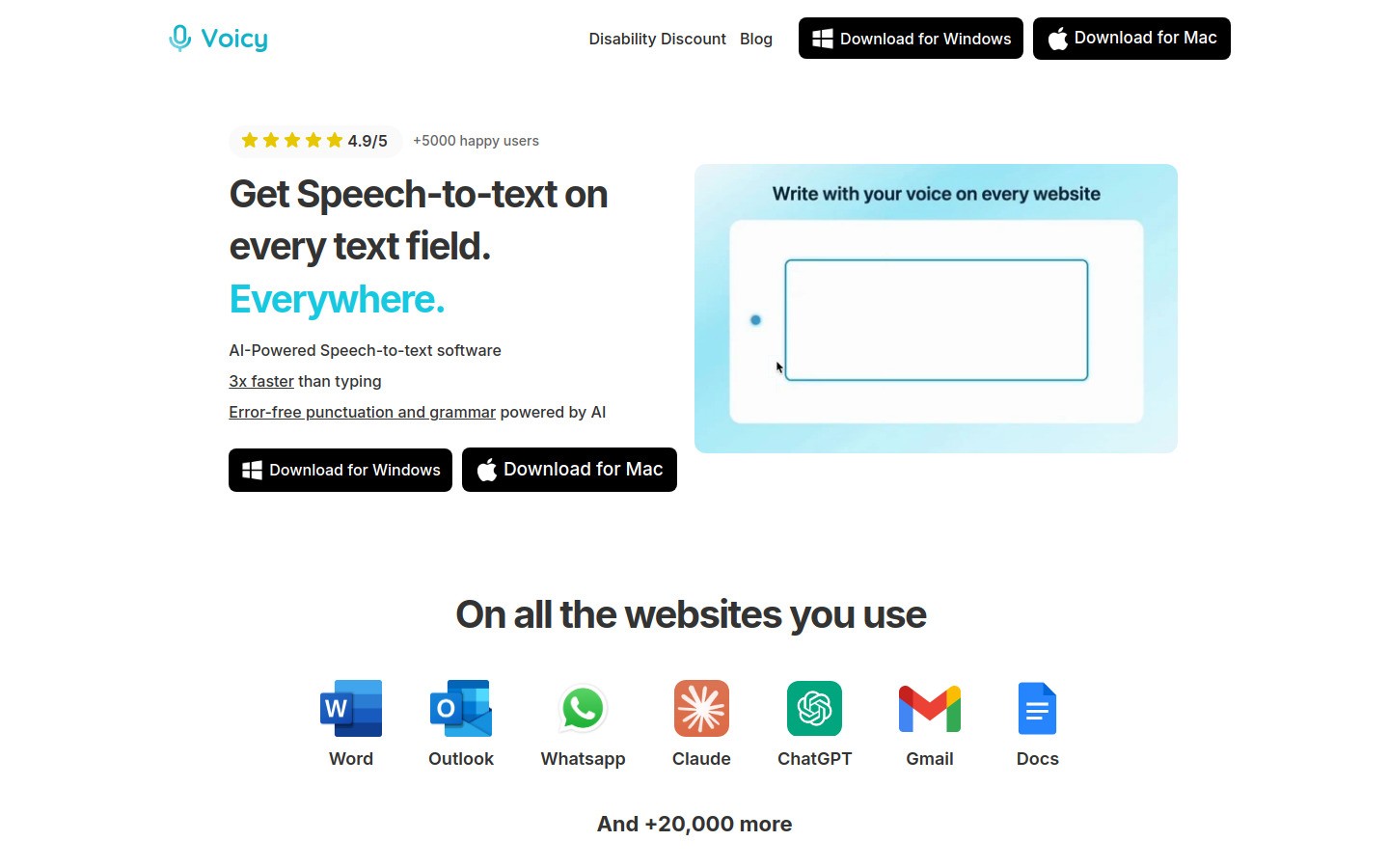
Voicy is a cloud-based dictation tool that works across Mac, Windows, and browsers. It's designed specifically for people who dictate regularly.
Key features:
High accuracy with cloud-based processing
Works in Google Docs, Word, email, and anywhere you type — including Safari and Firefox
Custom vocabulary for names, technical terms, and jargon
Real-time transcription
Free trial available (not fully free)
Best for: Writers, professionals, students, or anyone who dictates more than 30 minutes per week.
Dragon NaturallySpeaking (Premium)
Dragon remains the gold standard for professional dictation, especially for specialized fields like medicine and law.
Pros: Extremely high accuracy, extensive voice commands, industry-specific versions
Cons: Expensive ($300+), Windows-only, steep learning curve
Tips for Better Dictation Accuracy
Getting good results from any dictation tool requires some technique adjustments. Here's what actually works:
Speaking Technique
Speak naturally but clearly. Don't slow down too much or you'll sound like a robot
Use full sentences rather than individual words
Pronounce punctuation: "Hi comma my name is John period"
Spell unusual names: "Contact Sarah S-A-R-A-H"
Take pauses between thoughts to let the software catch up
Environment Setup
Find a quiet space with minimal background noise
Use a good microphone if possible (built-in mics work but external ones are better)
Stay consistent distance from the microphone (about 6 inches)
Check your internet connection for cloud-based tools
Editing Strategy
Most people find it easier to dictate first drafts, then edit with keyboard and mouse:
Dictate your main thoughts without worrying about perfection
Review the text for obvious errors
Switch to typing for detailed edits and formatting
Use voice commands for simple corrections ("delete that," "new paragraph")
Common Voice Commands
Most dictation systems understand these basic commands:
Punctuation: "period," "comma," "question mark," "exclamation point"
Navigation: "new line," "new paragraph," "tab"
Editing: "delete," "delete that," "undo"
Formatting: "bold that," "italics," "all caps"
Control: "stop dictation," "pause," "resume"
Troubleshooting Common Issues
Poor Accuracy
Check your microphone settings and position
Reduce background noise
Speak more clearly and at a steady pace
Train the software with your voice (if available)
Switch to a better dictation app like Voicy
Microphone Not Working
Check microphone permissions in your browser or app settings
Make sure no other app is using the microphone
Test your microphone in other apps
Try refreshing the webpage or restarting the app
Missing Punctuation
Remember to say punctuation marks out loud
Some tools add punctuation automatically, others don't
Practice with common punctuation commands
Edit punctuation manually after dictating
Which Dictation Method Should You Choose?
For occasional use: Start with your device's built-in dictation. It's free and already there.
For regular writing: Consider Voicy for its cross-platform compatibility and accuracy improvements over built-in options.
For professional use: Dragon NaturallySpeaking offers the most features but requires significant time investment to learn.
For quick tasks: Browser tools like dictation.io work well for short messages and notes.
For students: Built-in tools plus an app like Voicy can significantly speed up essay writing and note-taking. Check out our guide on voice typing apps for more options.
Getting Started Today
Don't overcomplicate it. Pick one method and try it for a week:
Test your built-in dictation (Windows + H, Fn + Fn, or microphone button)
Practice speaking clearly and saying punctuation
Start with short messages before attempting long documents
Time yourself you might be surprised how much faster dictation can be
Gradually increase usage as you get comfortable
Dictation isn't magic, but it can genuinely transform how you write. Whether you're dealing with typing fatigue, want to speed up your writing, or need accessibility support, there's a dictation solution that fits your needs and budget.
The best part? Most of these tools are already installed on your devices. Give dictation a try for a week and see if it changes your writing routine. For Mac users specifically, we have a detailed guide on Mac speech-to-text options that goes deeper into setup and optimization.


