





Summary of the article
Hand arthritis makes typing painful — dictation software lets you keep working without the strain
Voicy is our top pick: works in every app, AI-powered accuracy, Mac + Windows + browser
Apple Dictation and Google Docs Voice Typing are solid free options with limitations
Dragon Professional is best for specialized medical or legal vocabulary
Start with voice input for long-form writing, keep keyboard for quick edits
Combine dictation with hand-friendly shortcuts and ergonomic tools for the best results
Why Dictation Software Matters for Hand Arthritis
Arthritis in the hands affects over 50 million adults. For anyone who works at a computer, it creates a painful problem: you need to type, but typing makes your joints hurt more.
The symptoms that make typing difficult:
Joint stiffness — especially in the morning or after rest
Swelling in finger joints that limits movement
Pain that increases with repetitive motions like typing
Reduced grip strength — harder to press keys firmly
Fatigue — hands tire faster than they used to
Dictation software solves this by replacing keystrokes with speech. Instead of pressing keys thousands of times per day, you talk and the software types for you.
Disclaimer: This article is for informational purposes only. Consult your healthcare provider for arthritis treatment and management advice.
What to Look for in Dictation Software
Not all voice typing tools are equal. For arthritis specifically, these features matter most:
Must-haves
System-wide support — works in every app, not just one browser tab
High accuracy — fewer corrections means less keyboard use
Easy activation — start dictating with one click or keyboard shortcut
Punctuation by voice — say "period" or "comma" instead of reaching for keys
Nice-to-haves
Custom vocabulary — add medical terms or industry jargon
Voice commands — "select all," "new line," "delete that"
Multiple language support — useful for bilingual speakers
Offline mode — works without internet
Best Dictation Software for Hand Arthritis
1. Voicy
Best for: Daily use across all apps
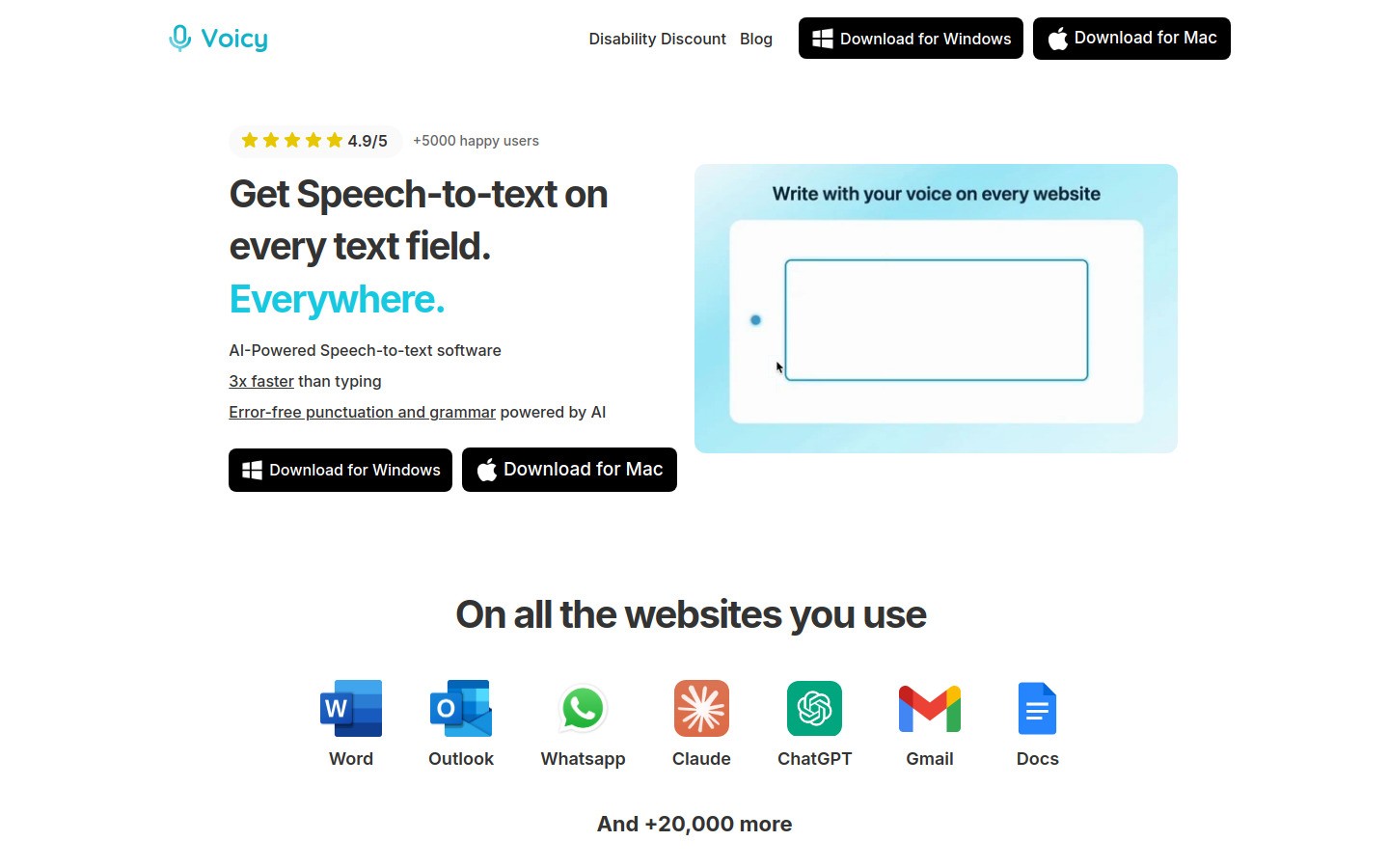
Voicy is an AI-powered dictation tool that works system-wide on your computer. Click in any text field — email, Word doc, Slack message, browser — and start talking. It types what you say with 95–99% accuracy.
Why it works for arthritis:
One keyboard shortcut to activate (minimal hand use)
Works everywhere — no switching between tools
Fast enough for real-time conversation flow
Smart punctuation and formatting
Key features:
System-wide dictation (Mac, Windows, browser extension)
50+ languages supported
AI-powered accuracy
Works in any text field
Pricing: Free trial available, then $8.49/month, $82/year, or $260 lifetime.
Limitations:
Requires internet connection
Best for dictation (not full computer voice control)
2. Apple Dictation
Best for: Mac and iPhone users who want something free
Apple's built-in dictation works across macOS and iOS. It's improved significantly with recent updates and supports continuous dictation.
Why it works for arthritis:
Already installed on your Mac or iPhone
Activate with a double-tap of the Function key
Supports voice commands for basic editing
On-device processing (no internet needed for basic use)
Key features:
Built into macOS and iOS
Continuous dictation (no time limit)
Basic voice commands ("new paragraph," "cap")
Free
Pricing: Free (included with Mac/iPhone).
Limitations:
Less accurate than AI-powered tools for long sessions
Limited formatting commands
Doesn't work as well in non-Apple apps
No custom vocabulary
3. Dragon Professional
Best for: Medical professionals and legal workers with arthritis
Dragon has been the gold standard in dictation for decades. It has the deepest vocabulary customization and learns your speech patterns over time.
Why it works for arthritis:
Extremely high accuracy after training
Custom vocabulary for medical, legal, and technical terms
Full voice commands for computer control
Can reduce keyboard use to nearly zero
Key features:
Deep vocabulary customization
Learns your voice over time
Voice commands for navigation and editing
Windows and Mac (though Mac version is limited)
Pricing: Starting at $500 (one-time purchase).
Limitations:
Expensive
Mac version discontinued (Windows only for full features)
Requires training period for best accuracy
Resource-heavy software
4. Google Docs Voice Typing
Best for: Light use in Google Workspace
Google's free voice typing works directly in Google Docs. Good accuracy and supports voice commands for formatting.
Why it works for arthritis:
Zero cost
Good accuracy for everyday language
Voice commands for formatting ("bold," "italics," "new paragraph")
Works on any computer with Chrome
Key features:
Built into Google Docs
Supports 100+ languages
Basic voice commands
Free
Pricing: Free.
Limitations:
Only works in Google Docs (not other apps)
Requires Chrome browser
No custom vocabulary
Can't use in email, Slack, Word, or other apps
5. Windows Speech Recognition / Voice Access
Best for: Windows users who want free, built-in dictation
Windows 11 includes Voice Access, which provides both dictation and full computer control by voice. Earlier versions have Speech Recognition.
Why it works for arthritis:
Free and built into Windows
Voice Access includes full mouse and keyboard control
No additional software to install
Supports voice commands for navigation
Key features:
System-wide on Windows
Full computer control (not just dictation)
Grid-based mouse control
Free
Pricing: Free (included with Windows).
Limitations:
Less accurate than AI-powered alternatives
Voice Access requires Windows 11
Setup can be confusing
English only for Voice Access features
6. Otter.ai
Best for: Meeting transcription and note-taking
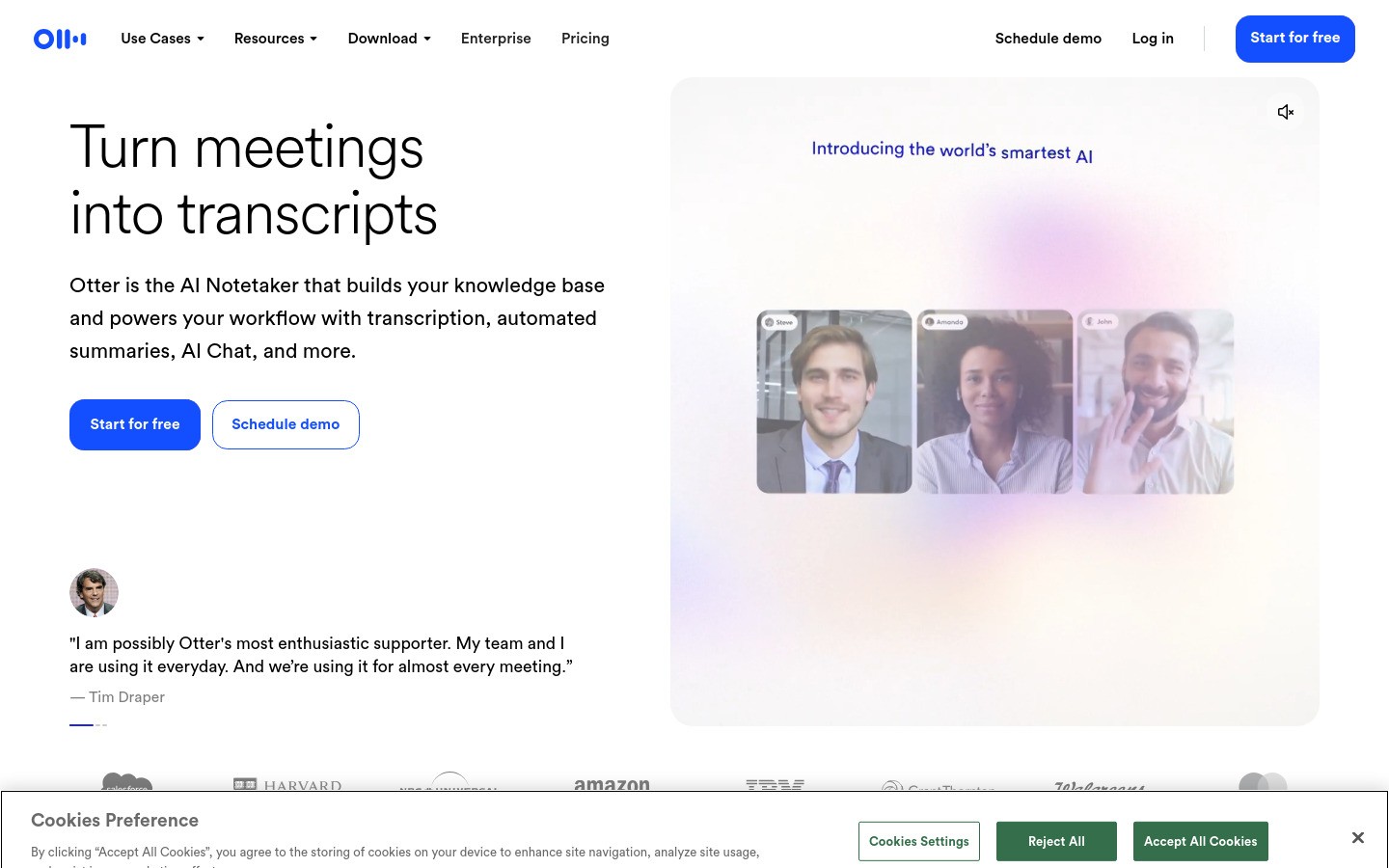
Otter.ai is primarily a meeting transcription tool, but it also works for general dictation. Good for people who attend lots of meetings and want automated notes.
Why it works for arthritis:
Automated meeting notes reduce post-meeting typing
Real-time transcription
Searchable transcripts
Key features:
Meeting transcription (Zoom, Teams, Meet)
Real-time dictation
Searchable transcript library
Collaboration features
Pricing: Free tier (300 min/month), Pro $8.33/month.
Limitations:
Not designed for system-wide dictation
Free tier is limited
Best for meetings, not daily typing replacement
Quick Comparison
Tool | Accuracy | Works Everywhere | Price | Best For |
|---|---|---|---|---|
Voicy | ⭐⭐⭐⭐⭐ | ✅ Yes | $8.49/mo | Daily use in all apps |
Apple Dictation | ⭐⭐⭐ | ⚠️ Apple only | Free | Mac/iPhone users |
Dragon | ⭐⭐⭐⭐⭐ | ✅ Yes | $500+ | Medical/legal pros |
Google Voice | ⭐⭐⭐⭐ | ❌ Docs only | Free | Google Workspace |
Windows Voice | ⭐⭐⭐ | ✅ Windows | Free | Windows users |
Otter.ai | ⭐⭐⭐⭐ | ❌ App only | $8.33/mo | Meetings |
When to Use Voice vs. Keyboard
Even with arthritis, you probably don't need to go 100% voice. Here's a practical split:
Use voice for:
Emails longer than 2–3 sentences
Reports, documents, and long-form writing
Chat messages and Slack replies
Meeting notes and follow-ups
Brainstorming and first drafts
Use keyboard for:
Quick edits (fixing a typo, moving a word)
Passwords and form fields
Keyboard shortcuts (copy, paste, undo)
Formatting that's faster by hand
The 80/20 rule
Aim to do 80% of your text input by voice and 20% by keyboard. This dramatically reduces hand strain while keeping you productive for tasks where the keyboard is faster.
Tips for Getting Started With Voice Typing
Start small
Don't try to go fully voice on day one. Start with emails for one week. Then add documents. Then messages. Build the habit gradually.
Speak naturally
Talk like you're explaining something to a colleague. Don't over-enunciate or speak robotically — modern AI handles natural speech better.
Learn the punctuation commands
Most tools support spoken punctuation:
"Period" → .
"Comma" → ,
"Question mark" → ?
"New line" → line break
"New paragraph" → paragraph break
Set up a quiet workspace
Background noise reduces accuracy. A quiet room or a good directional microphone helps.
Pair with a good microphone
Your laptop mic works, but a USB headset or desk microphone improves accuracy significantly. The Blue Yeti and Rode NT-USB Mini are popular choices.
Hand Exercises to Complement Voice Typing
Voice typing reduces strain, but gentle exercises help maintain hand mobility and reduce stiffness.
Finger bends
Bend each finger slowly toward your palm, one at a time. Hold 5 seconds. Straighten. Repeat 5 times per finger.
Thumb circles
Make slow circles with your thumb, 10 times clockwise, 10 times counter-clockwise. Repeat for both hands.
Wrist rotations
Extend your arm, make a fist, and rotate your wrist slowly. 10 circles each direction, both hands.
Warm water soak
Before starting work, soak your hands in warm water for 5 minutes. This loosens stiff joints and reduces pain.
Always check with your doctor or occupational therapist before starting hand exercises.
FAQ
What's the best dictation software for someone with hand arthritis?
For most people, Voicy is the best balance of accuracy, ease of use, and price. It works in every app and has a free trial so you can test it. If you need specialized medical vocabulary, Dragon Professional is worth the investment.
Can I use dictation software all day?
Yes. Modern tools handle continuous dictation well. Your voice may tire after several hours, so it helps to alternate between voice input and short keyboard tasks. Stay hydrated — it keeps your voice clear.
Is dictation software hard to learn?
No. Most people are productive within 15–30 minutes. The main adjustment is learning to speak punctuation ("period," "comma") and getting used to thinking out loud. It feels strange at first but becomes natural quickly.
Does arthritis medication affect voice typing?
Some arthritis medications can cause dry mouth, which may affect voice clarity. Keep water nearby and take sips regularly. A good microphone also helps compensate.
Can I use voice typing for work emails?
Absolutely. Tools like Voicy work in Gmail, Outlook, and any email client. Dictate the body, then do a quick visual check before sending. Most people find they write longer, more thoughtful emails when dictating because it's easier than typing.
What microphone should I use?
Your laptop's built-in microphone works for basic use. For better accuracy, a USB headset ($20–50) or desk microphone like the Blue Yeti ($100) makes a noticeable difference, especially in noisy environments.
Is there free dictation software that works well?
Apple Dictation (Mac) and Google Docs Voice Typing (Chrome) are both free and decent. Windows Voice Access is also free. The tradeoff is they're less accurate and more limited than paid tools like Voicy.
How much does dictation software reduce hand strain?
If you switch 50% of your typing to voice, you eliminate roughly 50% of your keystrokes. For someone who types 5,000 words a day, that's thousands of fewer finger movements. Most users report noticeable pain reduction within the first week.


