




For people dealing with hand pain on a PC, the biggest win is usually a reliable cross-app setup. This guide to Windows dictation software focuses on tools that work well beyond a single document.
Summary of the article
If typing makes your hands hurt, the best dictation software is the tool you can use all day without fighting it.
Voicy for system-wide dictation on Mac, Windows, and in your browser.
Dragon Professional for heavy Windows dictation and custom vocabulary.
Microsoft Word Dictate if you already live in Microsoft 365.
Apple Dictation for built-in Mac dictation with zero setup.
Speechnotes for quick browser-based dictation on a budget.
If your hand pain or RSI is moderate to severe, start with a system-wide tool, not a single-app tool. That is the biggest difference-maker.
Hand pain from typing is not just annoying. It changes how you work. A short email takes longer. Notes pile up. You start avoiding long writing tasks because your wrists, fingers, or forearms are already tired.
The good news is that modern dictation software is finally good enough to be a real replacement for a big chunk of your typing. The best tools turn your voice into clean text, work in the apps you already use, and cut down the small repeated movements that make RSI worse.
In this guide, we compare the best dictation software for hand pain and RSI, explain which tools fit which workflows, and show you where a tool like Voicy makes the most sense.
How we picked the best dictation software for hand pain and RSI
We focused on five things.
System-wide support. If a tool only works in one app, you still end up typing everywhere else.
Low friction. You should be able to start speaking fast, without a clunky setup.
Accuracy. Bad transcription creates more cleanup, which means more keyboard use.
Comfort. The tool should reduce strain, not add extra clicking and toggling.
Value. People dealing with RSI often need this every day, so price matters.
If you want a broader low-strain software stack, read our guide to the best software tools for RSI. If your symptoms are closer to carpal tunnel, this guide on speech to text for carpal tunnel is also useful.
What matters most if you have hand pain
Here is the short version. The best dictation software for RSI is usually the one that lets you replace the most typing with the least effort.
That is why system-wide dictation usually beats browser-only or document-only tools. If you can dictate in Gmail, Slack, Notion, Google Docs, Word, and chat apps with one shortcut, your hands get a real break. If you can only dictate inside one program, you still end up doing a lot of painful switching back to the keyboard.
For many people, the sweet spot is a hybrid workflow. Dictate long drafts, emails, notes, and messages by voice. Use the keyboard for short edits and precision work. That is often the easiest way to lower strain without changing your whole job overnight.
Best dictation software for hand pain and RSI
1. Voicy, best overall for everyday work across apps
Best for: People who need dictation in lots of apps, not just one.
Platforms: Mac, Windows, Browser Extension.
Pricing: $8.49/month, $82/year, or $260 lifetime. Free trial available.
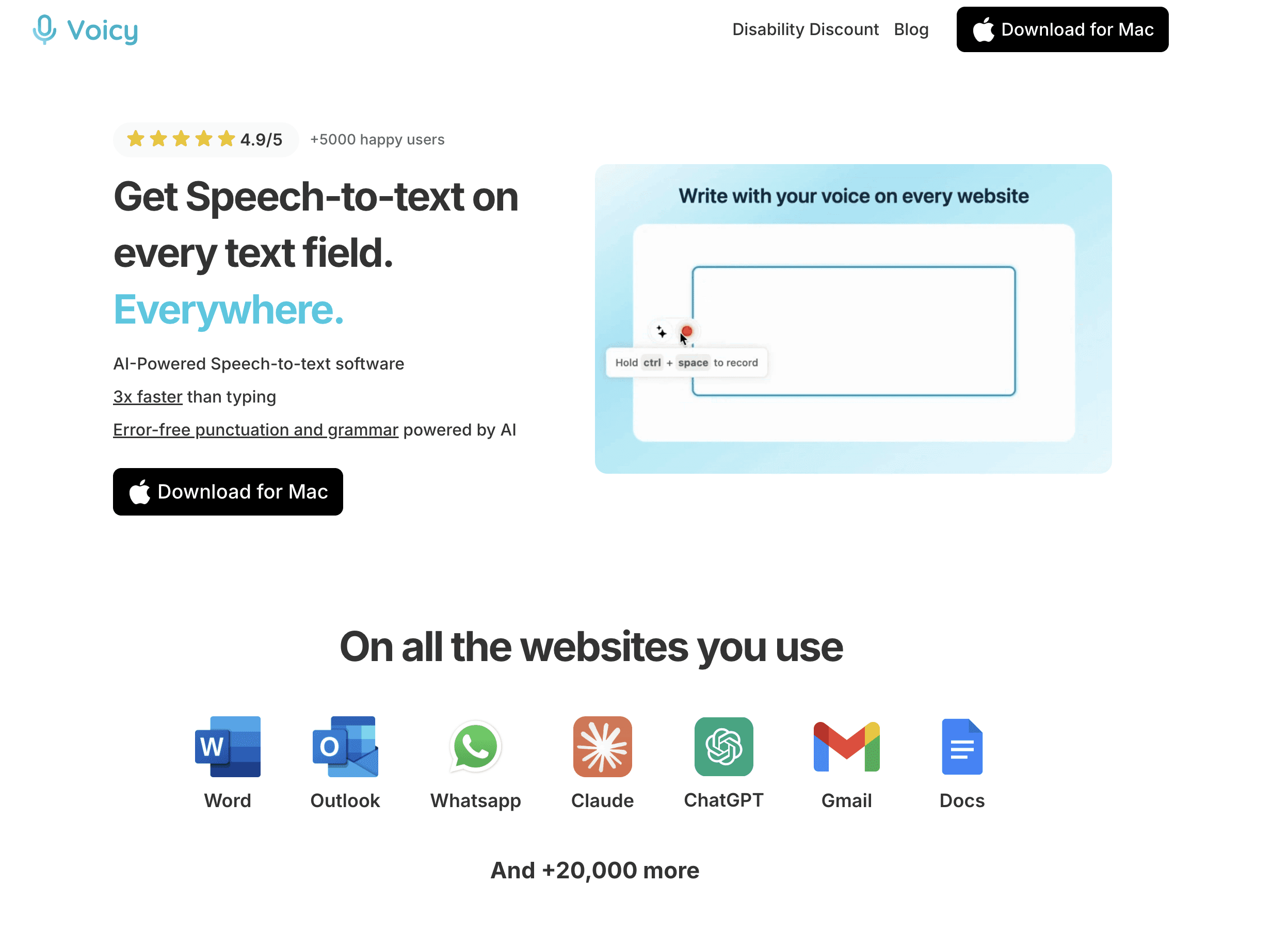
Voicy is the strongest pick for most people with hand pain because it works where your work already happens. You press a shortcut, speak, and it types into the active text field. That sounds simple, but it matters a lot when your goal is to reduce repetitive strain, not just transcribe a note once in a while.
It is especially useful if your day jumps between email, docs, chat, CRM notes, and AI tools. You do not need a separate dictation window or a copy-paste workflow. That cuts down both typing and extra hand movement.
Voicy also has a nice advantage for people with RSI. It can clean up the raw text for you, so you spend less time fixing punctuation and grammar by hand. Its transcription is cloud-based, so you do need internet access, but that tradeoff makes sense for many people who want higher accuracy and smoother writing.
Pros:
Works across Mac, Windows, and browser workflows
System-wide, so it replaces more typing
Useful AI editing for cleanup after dictation
Free trial available
Cons:
Needs an internet connection because transcription is cloud-based
Not the best fit if you need a fully offline workflow
Good next step: compare it with the broader options in our best dictation software roundup or see the Voicy disability discount if price is part of the decision.
2. Dragon Professional, best for heavy Windows dictation
Best for: Windows users who dictate a lot and need custom vocabulary or voice commands.
Platforms: Windows.
Pricing: Premium one-time purchase, usually much higher than consumer tools.

Dragon Professional has been the serious dictation option for years. If you are on Windows and you spend hours dictating reports, notes, or documentation, Dragon is still one of the strongest tools on the market.
Its biggest strengths are custom vocabulary, strong long-form dictation, and deeper voice control. That matters for lawyers, clinicians, and power users who need specialized terms or want to reduce both typing and some navigation work.
The downside is obvious. Dragon is expensive, Windows-only, and takes more effort to learn than newer tools. If your main goal is just to cut down everyday typing pain, it can feel heavier than you need.
Pros:
Very strong for long dictation sessions
Custom vocabulary is useful for specialized work
Good option for people who want deeper voice control on Windows
Cons:
High upfront cost
Windows only
More setup and training than simpler tools
If Dragon feels too expensive, our guide to an affordable alternative to Dragon NaturallySpeaking is a helpful next read.
3. Microsoft Word Dictate, best if you already work in Microsoft 365
Best for: People who write mostly in Word and Outlook.
Platforms: Windows, Mac, Web inside Microsoft 365 apps.
Pricing: Included with many Microsoft 365 plans.
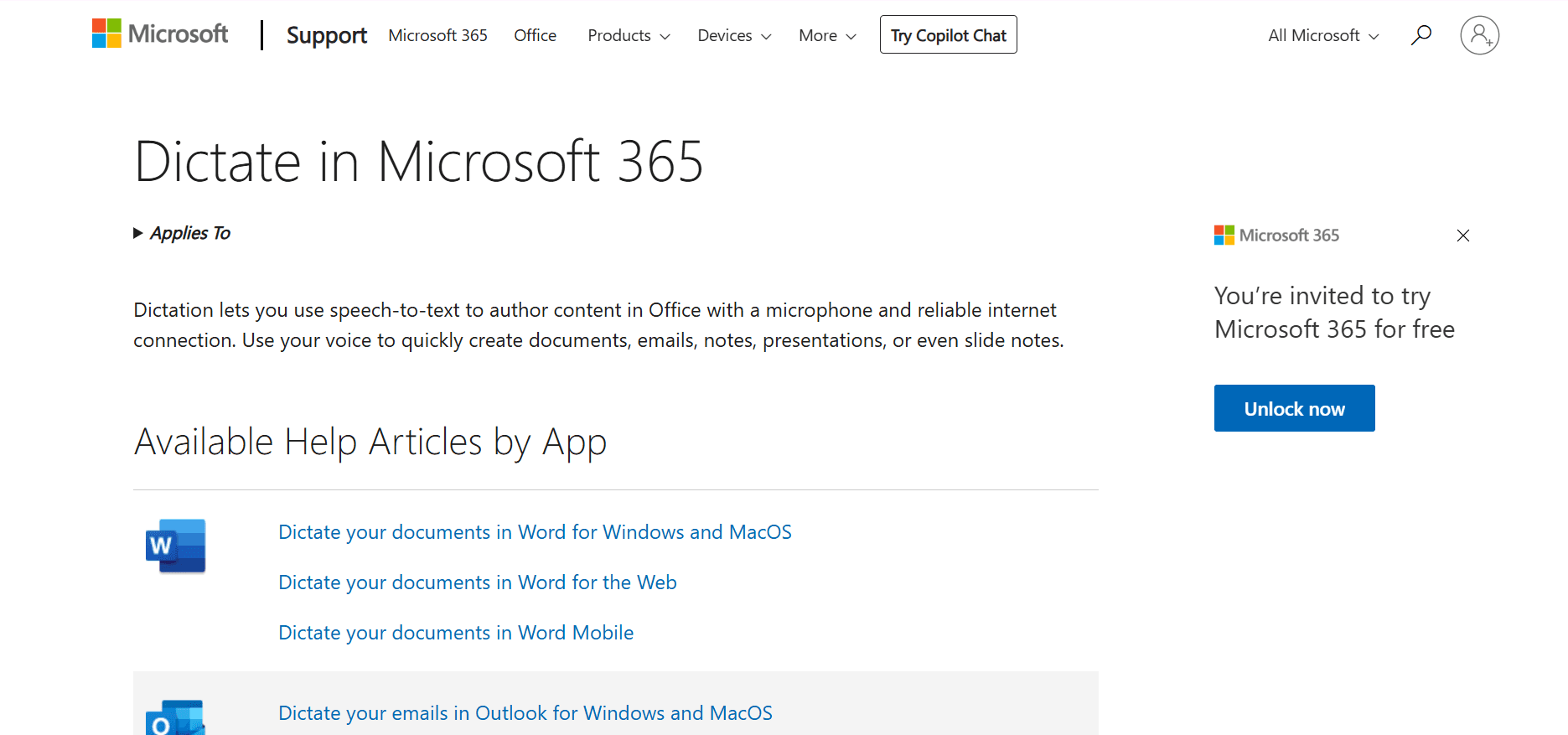
Microsoft Word Dictate is a practical pick if most of your painful typing happens inside Word or Outlook. You click the microphone and start talking. It is easy, fairly accurate, and already included for many people.
This is a good fit for office workers, students, and anyone who spends large chunks of the day drafting inside Microsoft apps. It is also one of the simpler ways to test whether voice-first work actually helps your symptoms.
The limitation is that it is not a true system-wide replacement. If your day includes Slack, web forms, chat apps, project tools, and other text fields, you will still end up typing a lot outside Microsoft.
Pros:
Easy to access if you already use Microsoft 365
Good accuracy for everyday writing
Formatting commands can save small edits
Cons:
Best only inside Microsoft apps
Less useful for mixed-app workflows
Still not enough on its own for severe RSI
4. Apple Dictation, best built-in option for Mac users
Best for: Mac users who want a free starting point.
Platforms: Mac.
Pricing: Free.
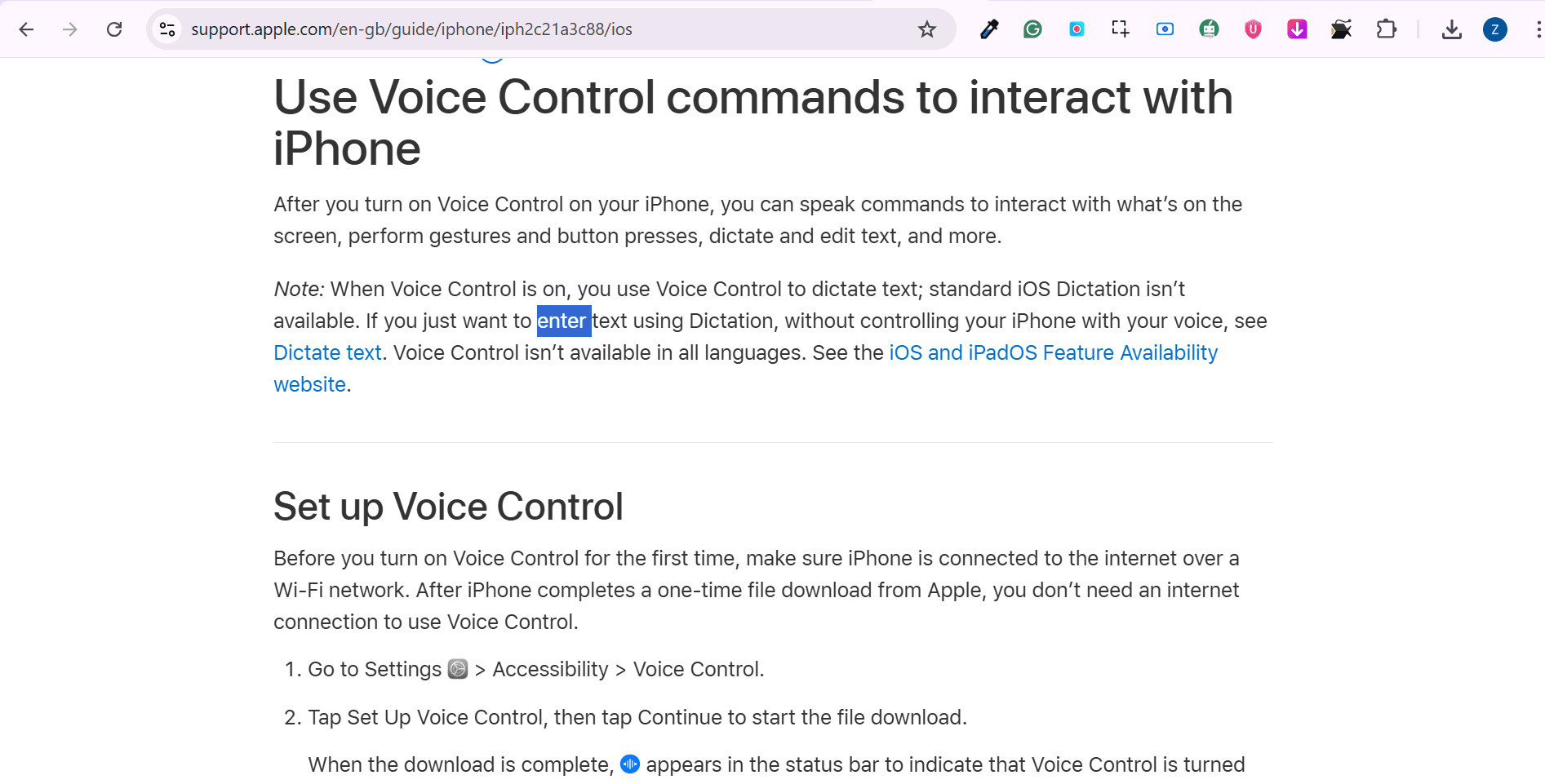
Apple Dictation is the easiest zero-cost place to start if you are on a Mac. It is already there, setup is light, and it works well enough for short emails, notes, and document drafting.
For mild hand pain, that may be enough. You can offload a decent share of your typing without paying for anything new. That is a real win.
But Apple Dictation has limits. It is not as flexible as dedicated dictation software, and power users often hit those limits quickly. If your RSI is more than occasional discomfort, you may want something more system-wide and more polished for everyday writing.
Pros:
Free and built into macOS
Very easy to start using
Good for light to moderate dictation needs
Cons:
Less flexible than dedicated dictation tools
Limited fit for people with heavier RSI workflows
Mostly a starter option, not always a forever option
Mac-specific readers should also see our guide to speech to text on Mac.
5. Speechnotes, best low-cost browser option
Best for: People who need simple dictation in the browser without much setup.
Platforms: Web.
Pricing: Free tier, with optional premium upgrades.
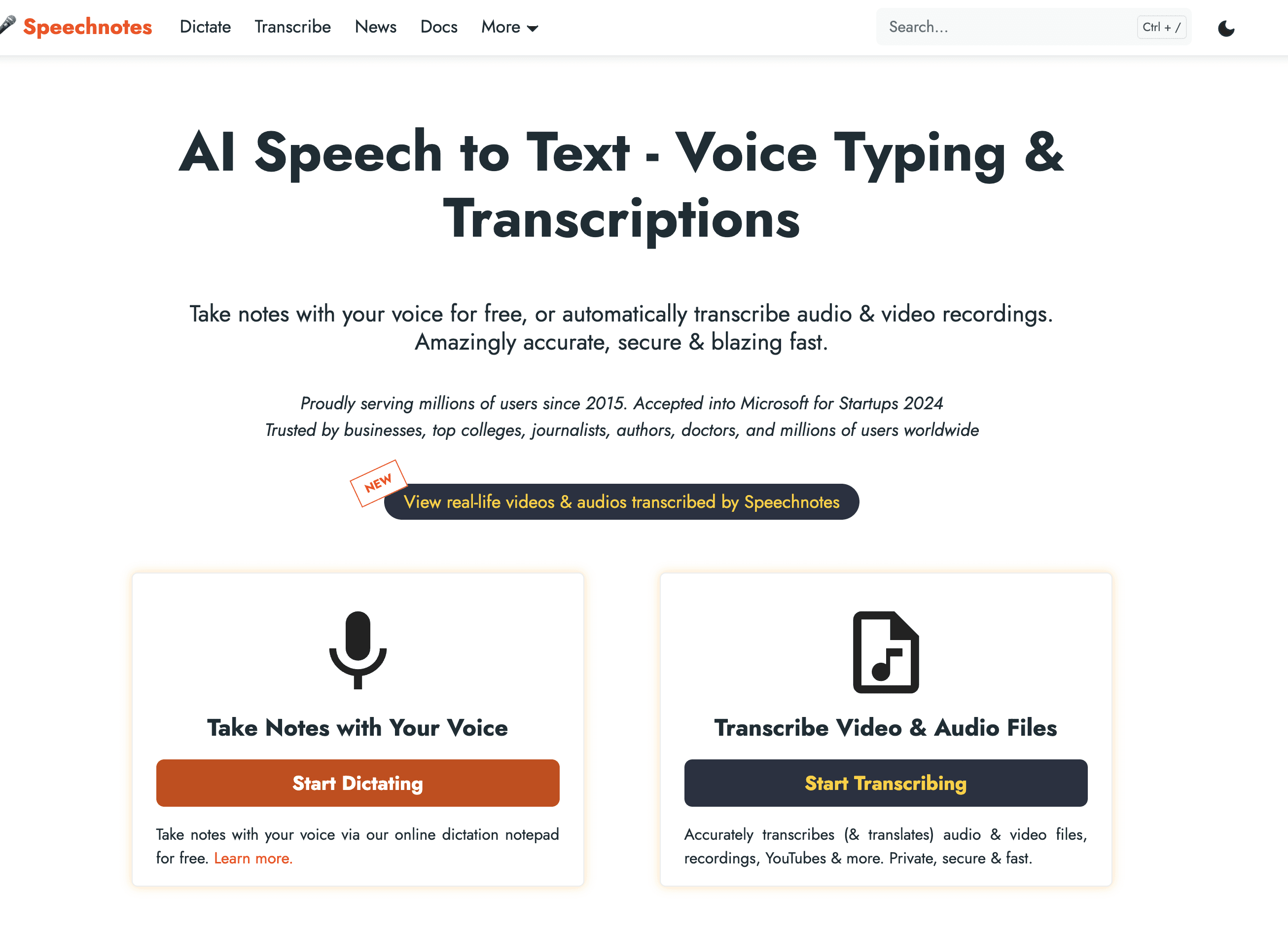
Speechnotes is a solid budget option. Open the site, start talking, and get text quickly. It is useful for notes, drafts, and lighter workflows where you do not want to install much.
This works best for people with occasional pain or people testing dictation before moving into a stronger system-wide setup. It is also fine for students or freelancers who mostly write in the browser.
The tradeoff is clear. Speechnotes is convenient, but it is not a full accessibility workflow. If your pain is serious, browser-only dictation will only solve part of the problem.
Pros:
Easy to use
Low cost or free entry point
Good for quick browser-based writing
Cons:
Not system-wide
Less helpful if you work across lots of apps
Can feel limited for heavier professional use
Quick comparison table
Tool | Best for | Works where | Main drawback |
|---|---|---|---|
Everyday work across apps | Mac, Windows, Browser Extension | Needs internet, cloud-based transcription | |
Heavy Windows dictation | Windows | Expensive and heavier to learn | |
Word and Outlook users | Microsoft 365 apps | Not system-wide | |
Free Mac starting point | Mac | Less flexible than dedicated tools | |
Simple browser dictation | Web | Limited accessibility workflow |
Which tool should you choose?
Choose Voicy if you want the best overall mix of accessibility, ease, and cross-app usefulness. It is the strongest option when your work happens everywhere.
Choose Dragon Professional if you are on Windows, dictate for hours, and need a more advanced setup.
Choose Microsoft Word Dictate if most of your writing pain happens inside Microsoft 365 and you want the easiest low-friction option there.
Choose Apple Dictation if you are on a Mac and want a free starting point today.
Choose Speechnotes if you want a cheap, low-commitment way to dictate in the browser.
One more tip, do not try to go fully voice-only on day one
This is where a lot of people get frustrated. If you jump from full typing to full dictation overnight, it can feel awkward. The better move is to shift the highest-strain tasks first.
Dictate long emails
Dictate meeting notes
Dictate first drafts
Keep the keyboard for short edits
That hybrid setup usually gives your hands relief fast, while keeping your workflow realistic. If you want more guidance, our article on RSI voice typing solutions goes deeper.
Final verdict
The best dictation software for hand pain and RSI is the tool that removes the most painful typing from your day with the fewest extra steps. For most people, that means a system-wide tool wins.
Voicy is the strongest overall choice because it works across apps, has practical AI cleanup, and is built for real everyday writing, not just one narrow use case. Dragon is still excellent for heavier Windows workflows. Microsoft Word Dictate, Apple Dictation, and Speechnotes are all useful depending on how narrow or broad your workday is.
If your hands are already warning you, do not wait for the problem to get worse. Start replacing the longest, most repetitive typing tasks first. Your workflow can improve, and your hands can get a break at the same time.
Ready to type less and still get more done? Try Voicy free.


