




Summary of the article
The best dictation software for teachers depends on where you work.
Voicy: Best for teachers who write across many apps, grade work, answer parent emails, and want cleaner text fast.
Google Docs Voice Typing: Best free option for Chromebook and Google Classroom workflows.
Microsoft Word Dictate: Best for teachers already living in Word and Microsoft 365.
Otter: Best for meeting notes, lesson reflection, and interview-style recordings.
Dragon: Best for heavy desktop dictation and advanced voice commands.
Apple Dictation: Best built-in pick for Mac teachers who need simple, no-cost dictation.
Windows Voice Typing: Best built-in pick for quick notes and short admin tasks on Windows.
If you want the short answer, most teachers should start with the tool already on their computer, then upgrade only if they need better accuracy, app coverage, or faster cleanup.
The best dictation software for teachers can save hours every week. Teachers write more than most people realize. Lesson plans. IEP notes. Parent emails. Feedback on student work. Staff meeting notes. It adds up fast.
That is why this category matters. The right dictation tool lets you speak naturally and turn that into usable text without fighting your keyboard at 6:30 p.m.
I looked at the tools teachers are most likely to use in real life, not just generic speech-to-text apps. That means I focused on classroom fit, school device reality, ease of setup, and whether the tool helps with teaching work instead of just basic transcription.
How we picked the best dictation software for teachers
Teachers need something different from doctors, lawyers, or podcast teams. Most teachers care about four things.
Low setup friction: You should be able to start in minutes.
Works in your actual workflow: Google Docs, Word, email, LMS tools, and browser text boxes matter more than niche features.
Clean output: Less cleanup means more time back.
Honest value: Free is great, but only if it actually helps.
SERP results from Wirecutter, Zapier, and Willow Voice all leaned generic. They covered broad dictation software needs well, but they did not really dig into teacher-specific jobs like writing student feedback, adjusting lesson materials, or switching between school systems all day. That gap is where this list tries to be more useful.
What teachers usually need dictation for
Before you pick a tool, be clear about the job.
Lesson planning: Talking through activities and turning rough ideas into a first draft.
Student feedback: Faster comments on essays, projects, and behavior notes.
Parent communication: Short updates, longer explanations, and follow-ups after meetings.
Meetings and documentation: Notes from staff meetings, IEP prep, observation follow-ups, and planning sessions.
Accessibility and energy: Some teachers simply need a break from typing.
1. Voicy, best for teachers writing across many apps
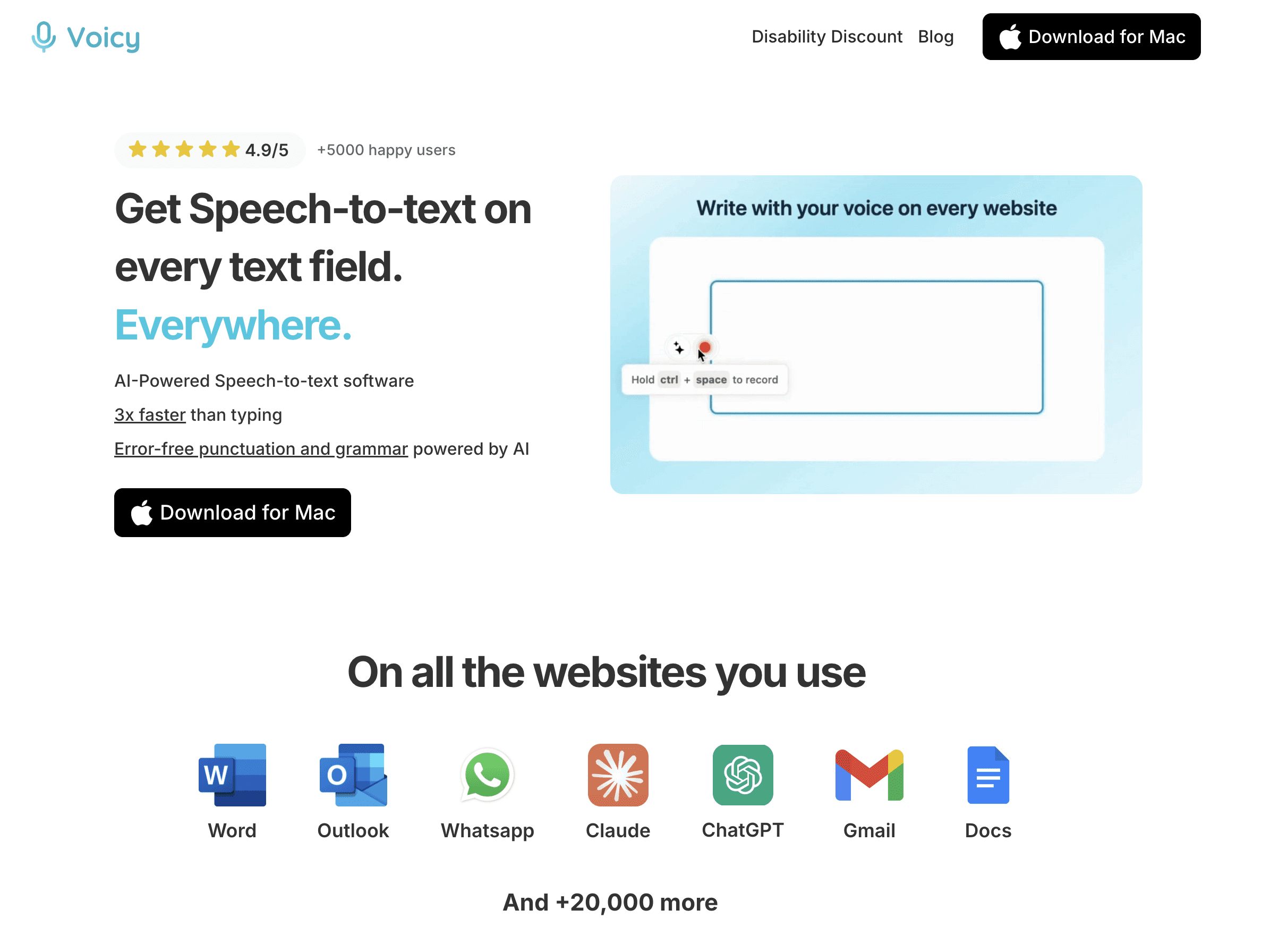
Voicy makes the most sense for teachers who do not stay in one app all day. That is a big deal. A real teacher workflow jumps between email, LMS comments, Google Docs, Word, ChatGPT, forms, rubrics, and random browser fields.
Voicy is cloud-based and works on Mac, Windows, and as a browser extension. That broad coverage is its biggest advantage. You can use one shortcut and keep writing with your voice across the places where teaching work actually happens.
It is also one of the cleaner options for first-draft writing. If you are dictating parent updates, behavior notes, assignment instructions, or rough lesson ideas, the automatic punctuation and grammar cleanup reduce the extra edit pass.
Best for: Teachers who want one dictation tool for email, lesson planning, grading notes, and browser-based admin work.
What stands out:
Works on Mac, Windows, and browser extension
Free trial available
Good fit for cross-app school workflows
Useful when you need polished text, not just raw transcript
Limits: It is not fully free, and because transcription is cloud-based, it is not the right fit if you need an offline-only workflow.
Pricing: $8.49/month, $82/year, or $260 lifetime.
Helpful internal links: If you mostly live in Google Docs, see speech to text in Google Docs. If you want a broader starting point, read our guide to voice typing apps.
2. Google Docs Voice Typing, best free option for Google-based classrooms
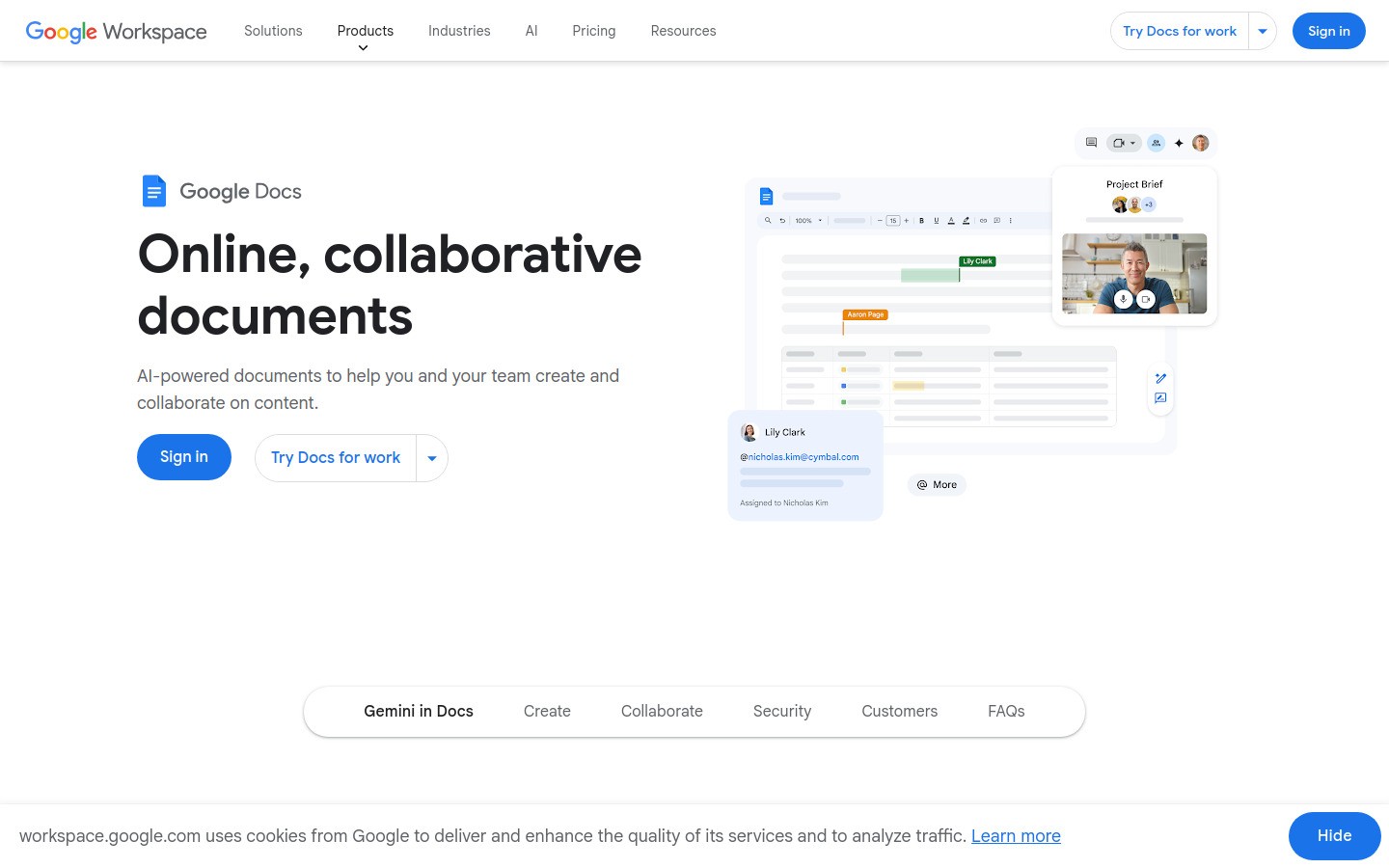
If your school runs on Google Workspace, this is where most teachers should start. It is free, built into Google Docs, and easy to explain to colleagues.
Google Docs Voice Typing works especially well for lesson plans, worksheets, and quick first drafts. It is also simple enough to recommend to students who need speech-to-text support for written assignments.
The catch is that it stays inside Google Docs. That sounds minor until you need to reply to parents in Gmail, leave LMS comments, or fill in forms elsewhere.
Best for: Teachers on Chromebooks or Google-heavy schools who mostly create content inside Docs.
What stands out:
Free and built in
Very easy to start
Great fit for classroom drafting and shared docs
Limits: Browser and Docs only, and you may need to say punctuation out loud more often than with newer AI-heavy tools.
Internal link: Here is the deeper step-by-step guide to speech to text in Google Docs.
3. Microsoft Word Dictate, best for teachers already using Word every day
Some schools still run heavily on Microsoft 365, and plenty of teachers do their serious writing in Word. If that is you, Word Dictate is the obvious built-in starting point.
It works well for longer planning documents, letters home, handouts, and reports. You stay in the same editor, and that lowers friction. No extra install. No separate workflow to learn.
The downside is similar to Google Docs Voice Typing. It is strongest inside Word, not everywhere else. If your day jumps between browser tools, comments, and school portals, that boundary shows up quickly.
Best for: Teachers who already write most formal documents in Microsoft Word.
What stands out:
Built into a tool many schools already pay for
Good for structured documents
No extra app to manage
Limits: Less flexible outside the Microsoft writing environment.
Internal link: If Word is your main writing tool, read how to dictate in Microsoft Word.
4. Otter, best for meeting notes and spoken reflections
Otter is less of a classic dictation tool and more of a capture-and-transcribe tool. That distinction matters. If your main need is live writing into text fields, Otter is not the strongest option. But if you want to record and transcribe meetings, planning sessions, or spoken reflections, it is useful.
Teachers often need that exact thing. Think grade-level planning meetings, post-observation reflections, or talking through tomorrow's lesson while walking to your car.
Best for: Meeting notes, recorded reflections, and spoken brainstorming you can organize later.
What stands out:
Strong for transcripts and summaries
Useful when you want a record of discussion
Good fit for admin and collaboration contexts
Limits: Not the best pick for typing directly into every app while you work.
5. Dragon, best for heavy desktop dictation
Dragon is still the name many people think of first when they hear dictation software. There is a reason. It has long been the serious, professional option for people who dictate a lot and want more voice command depth.
For teachers, Dragon makes sense if dictation is not just a convenience but a core part of how you work. That might be because of accessibility needs, injury, or a very high writing load.
Best for: Teachers who dictate heavily and want advanced control.
What stands out:
Strong reputation for serious dictation use
Better suited to power users than casual users
Can be worth it if dictation is central to your job
Limits: More setup, more training, and usually more cost than built-in options. For many teachers, it will be more tool than they actually need.
6. Apple Dictation, best built-in option for Mac teachers
Apple Dictation is the easiest no-cost choice if you teach on a Mac. It is already there, and it handles everyday dictation well enough for many people.
This is a good pick for short notes, email drafts, lesson adjustments, and admin tasks. It is also a smart first step before spending money on anything.
Best for: Mac teachers who want something simple and built in.
What stands out:
No extra purchase
Very low setup friction
Fine for daily short-form writing
Limits: If you need polished output across many apps or faster cleanup, you may outgrow it.
Internal link: Mac users may also like speech to text on Mac OS.
7. Windows Voice Typing, best built-in option for quick Windows tasks
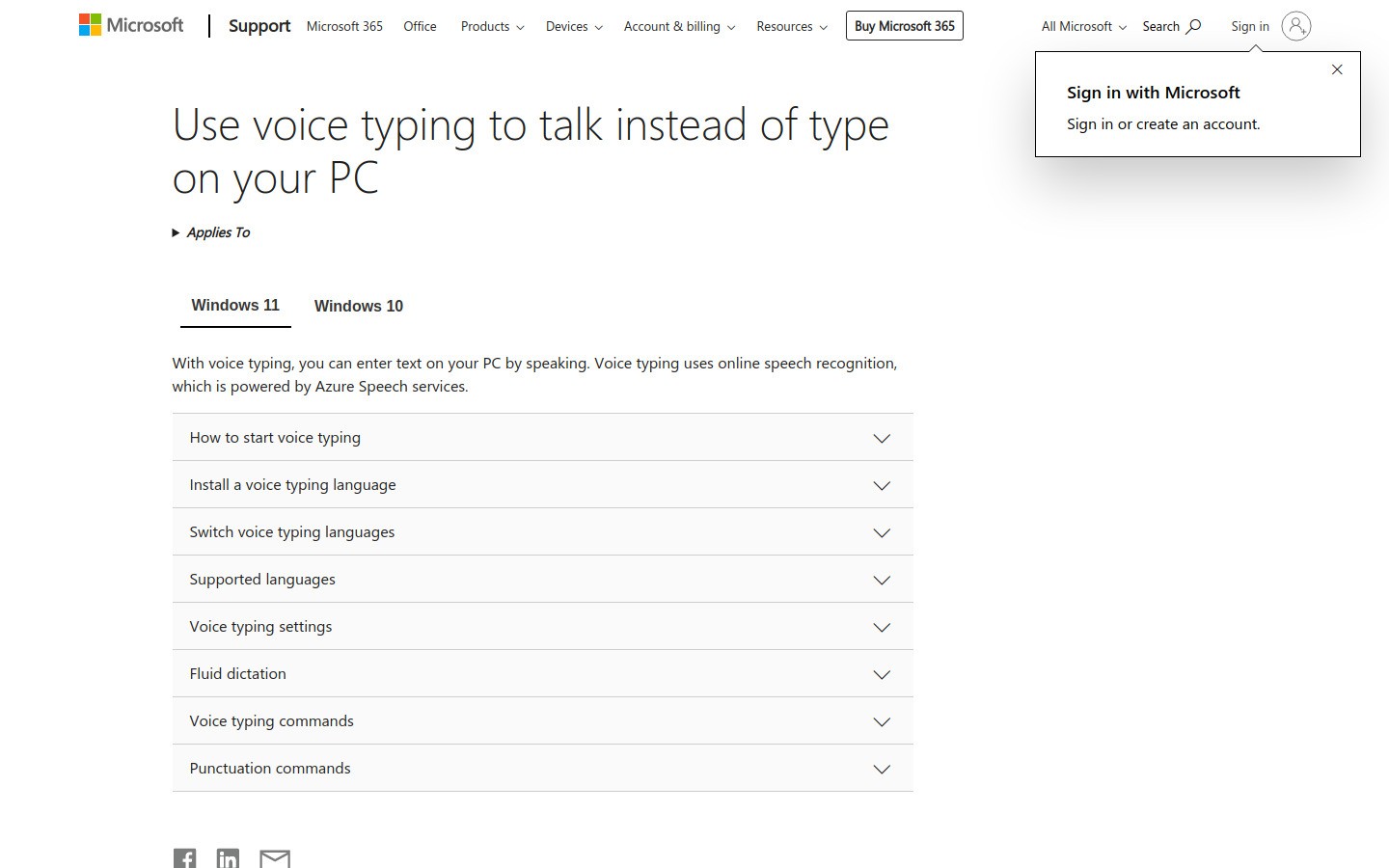
Windows Voice Typing is the practical free option for teachers on school Windows laptops. It is fast to access and useful for short bursts of writing.
That makes it good for quick admin notes, comments, and first-pass drafting. It is less compelling for longer, all-day voice workflows, but it costs nothing and is already on the machine.
Best for: Windows teachers who want a free tool for light dictation.
What stands out:
Built in and easy to try
Good for short tasks
No extra buying decision
Limits: It is more of a helpful built-in feature than a full teacher productivity system.
Quick comparison table
Tool | Best for | Main drawback |
|---|---|---|
Cross-app teaching workflows | Paid, cloud-based | |
Free drafting in Docs | Mostly limited to Google Docs | |
Microsoft-heavy writing | Less flexible outside Word | |
Meeting notes and reflections | Not ideal for direct typing everywhere | |
Heavy professional dictation | More setup and cost | |
Simple Mac dictation | Basic compared with dedicated tools | |
Quick free Windows notes | Limited for all-day use |
Which dictation software should teachers pick?
Here is the simple version.
Use Google Docs Voice Typing if your school is all-in on Google and you mainly write in Docs.
Use Word Dictate if your day centers on Microsoft Word.
Use Apple Dictation or Windows Voice Typing if you want the fastest free starting point.
Use Otter if meetings and spoken notes matter more than direct text entry.
Use Dragon if dictation is a major part of your job and you want a more serious desktop setup.
Use Voicy if you want one tool that follows you across grading, email, planning, and browser work.
Final take
The best dictation software for teachers is the one that removes friction from the boring writing load. That is the real test. If a tool saves ten minutes on one parent email but slows you down everywhere else, it is not helping enough.
For most teachers, the smartest path is simple. Start with the free tool already on your machine. If you keep hitting app limits or spending too much time cleaning up text, move up to a stronger option.
If you want a tool built for writing across your whole day, not just one document, Voicy is the strongest fit here. You can also explore speech to text in ChatGPT if part of your workflow includes AI-assisted lesson planning or drafting.


