




Students using Windows laptops for essays, lecture notes, and research can also compare our favorite Windows dictation software options for campus workflows.
Summary of the article
Google Docs Voice Typing: Best free starting point for students who already write papers in Google Docs.
Voicy: Best for students who jump between lecture notes, essays, browser tabs, and AI tools all day.
Apple Dictation: Best built-in option for Mac students who want zero setup.
Microsoft Word Dictate: Best for students whose university workflow lives in Word and Microsoft 365.
Wispr Flow: Best for students who want polished text and use both laptop and phone.
Dragon: Best for accessibility-heavy or very high-volume dictation needs.
If you want the short answer, most university students should start free with Google Docs Voice Typing or Apple Dictation. Upgrade only if you need better cross-app coverage, cleaner text, or a tool that works beyond one document.
The best dictation software for university students should do more than turn speech into text. It should help you finish essays faster, capture lecture ideas before they disappear, and reduce the grind of typing the same draft three times.
Students have a messy workflow. One hour you are in Google Docs. Then you are in Word, Notion, ChatGPT, your browser, and a class portal that looks like it was built in 2014. That is why the best pick is not always the fanciest one. It is the one you will actually use every day.
I looked at the options that show up most often in current dictation roundups, then filtered them for student reality: budget, setup time, essay writing, note taking, and how well each tool works across normal campus workflows.
How we picked the best dictation software for university students
University students usually care about five things.
Low cost: Free or student-friendly pricing matters.
Essay workflow fit: The tool should work for long papers, not just short messages.
Cross-app usefulness: Students write in docs, browsers, AI tools, note apps, and LMS forms.
Fast cleanup: Raw transcripts that need tons of editing are not a real time saver.
Accessibility: Some students use dictation for convenience. Others need it because typing is painful, slow, or exhausting.
Broad SERP guides helped frame the field, but they mostly optimize for general buyers. They say less about lecture note capture, campus device restrictions, and whether a tool still helps once you leave one document and bounce into five other tabs.
What students actually use dictation for
Essay first drafts: Talking through an outline is often faster than staring at a blank page.
Study notes: You can summarize a reading out loud while it is still fresh.
Lecture follow-ups: After class, a quick voice dump can save details you would forget by dinner.
Accessibility support: Dictation can reduce strain for students with dyslexia, hand pain, RSI, or plain old deadline fatigue.
AI workflows: Plenty of students now speak into ChatGPT, Claude, or Notion while brainstorming and revising.
1. Google Docs Voice Typing, best free option for most students
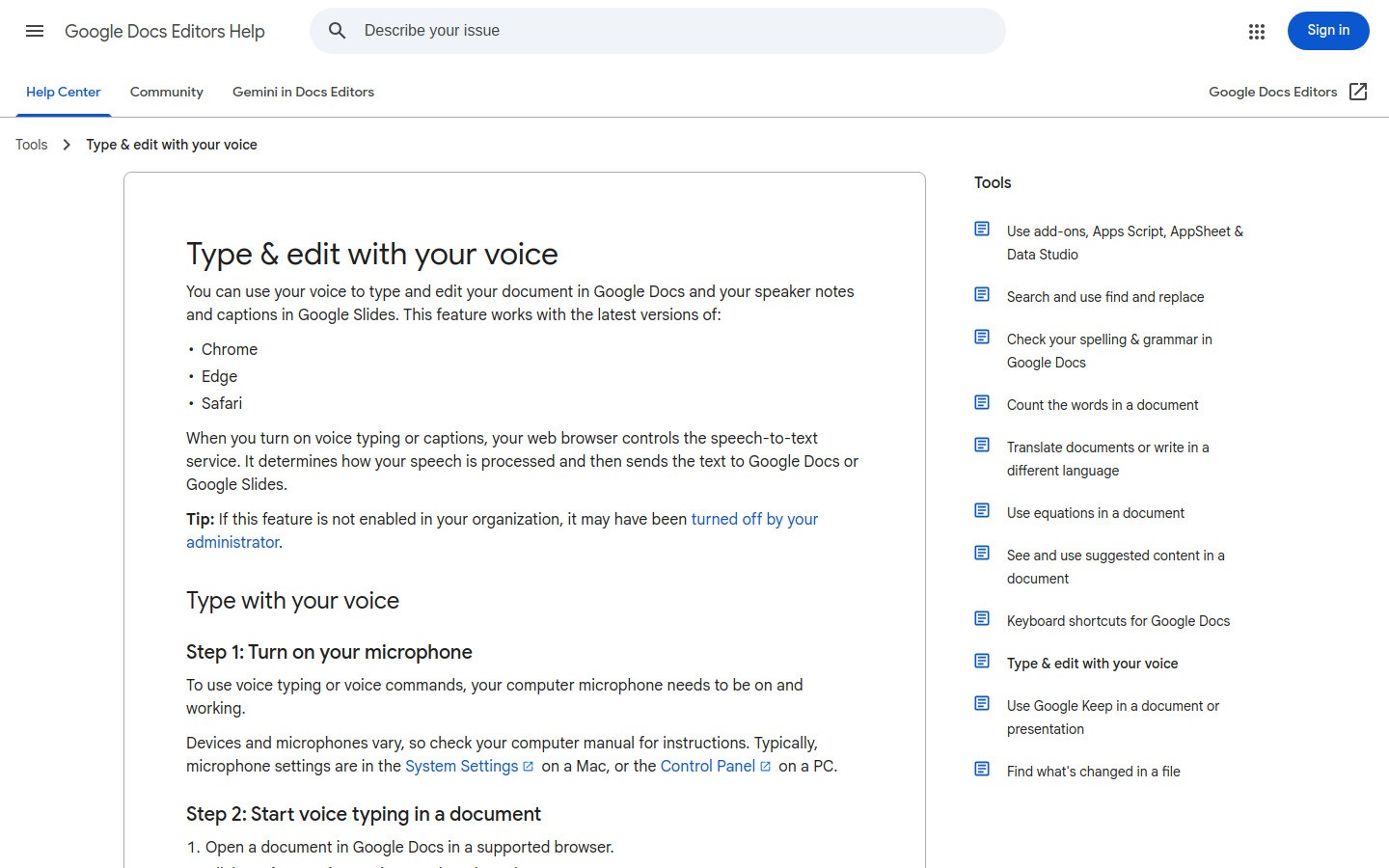
If you are a university student on a tight budget, this is the place to start. Google Docs Voice Typing is free, built into a writing tool you probably already use, and simple enough that you can test it in two minutes.
It works well for rough essay drafts, reflection assignments, reading summaries, and study guides. The catch is obvious once your workflow gets more chaotic. It mostly shines inside Google Docs. If half your day happens in browser forms, email, or other apps, that wall shows up fast.
Best for: Students who mainly draft assignments in Google Docs and want a free starting point.
What stands out:
Free and easy to access
Great for first drafts and study notes
Natural fit for Chromebook and Google Workspace users
Limits: Mostly tied to Docs, not your whole workflow. You may also need to speak punctuation more explicitly than with newer AI-focused tools.
2. Voicy, best for cross-app student workflows
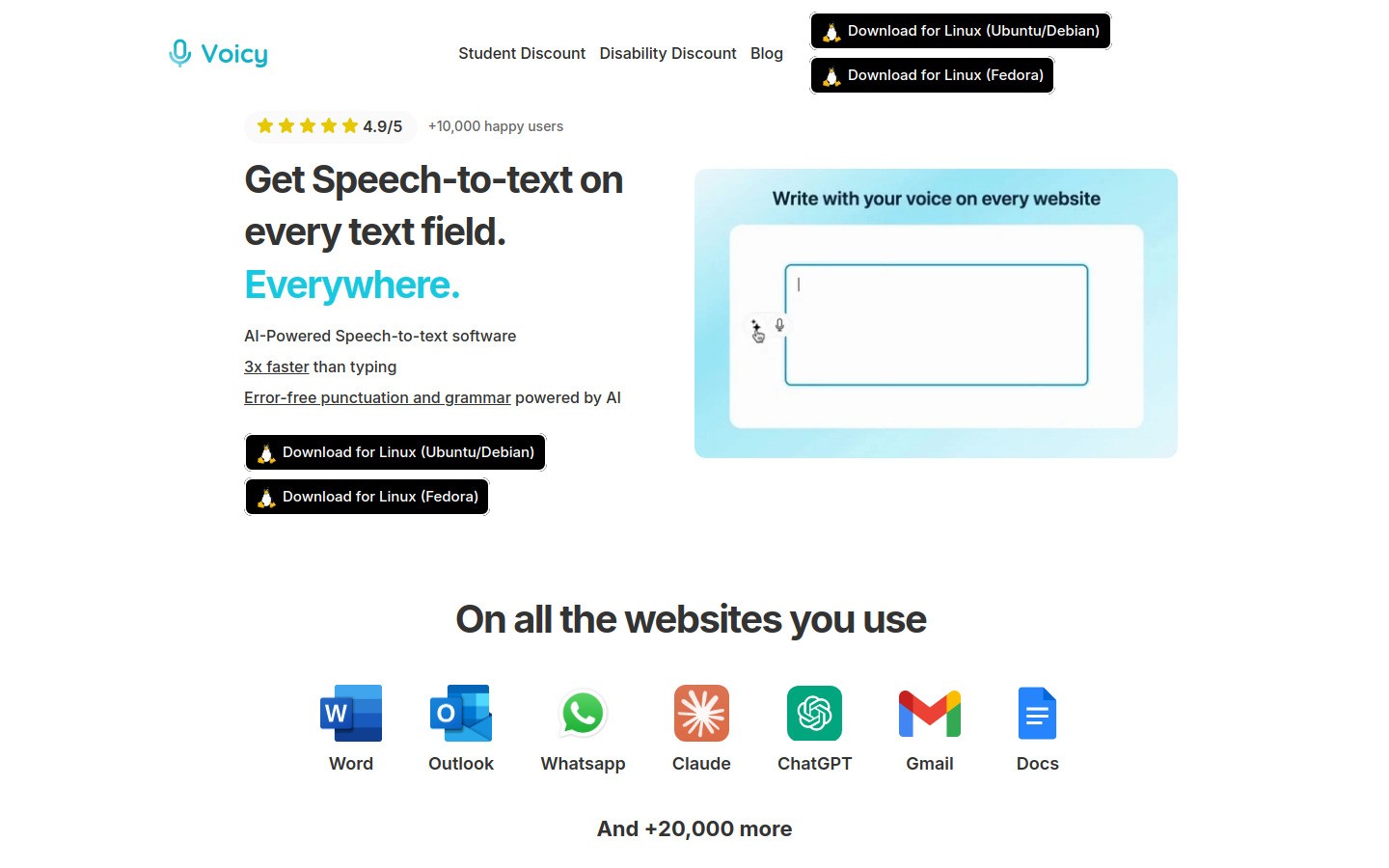
Voicy makes the most sense for students who do not stay in one app. That is a lot of students now. You might outline a paper in Docs, dump ideas into Notion, ask for feedback in ChatGPT, and paste the final version into a course portal.
Voicy works on Mac, Windows, and as a browser extension. It is cloud-based, not local-only, and it includes cleanup help that can make spoken first drafts look less messy right away. That matters when you want dictation to save time, not create an editing tax.
Best for: Students who write across many apps and want one shortcut that keeps up.
What stands out:
Works on Mac, Windows, and browser extension
Free trial available
Useful for essays, notes, prompts, and browser text fields
Cleaner output than many basic built-in tools
Limits: It is not fully free, and students who need offline-only transcription should look elsewhere.
Pricing: $8.49/month, $82/year, or $260 lifetime.
Helpful internal links: If you use AI for drafting, see speech to text in ChatGPT and speech to text in Claude. If you keep notes in Notion, that workflow guide is useful too. If most of your coursework lives in docs, this guide to speech to text in Google Docs is a practical next step.
3. Apple Dictation, best built-in pick for Mac students
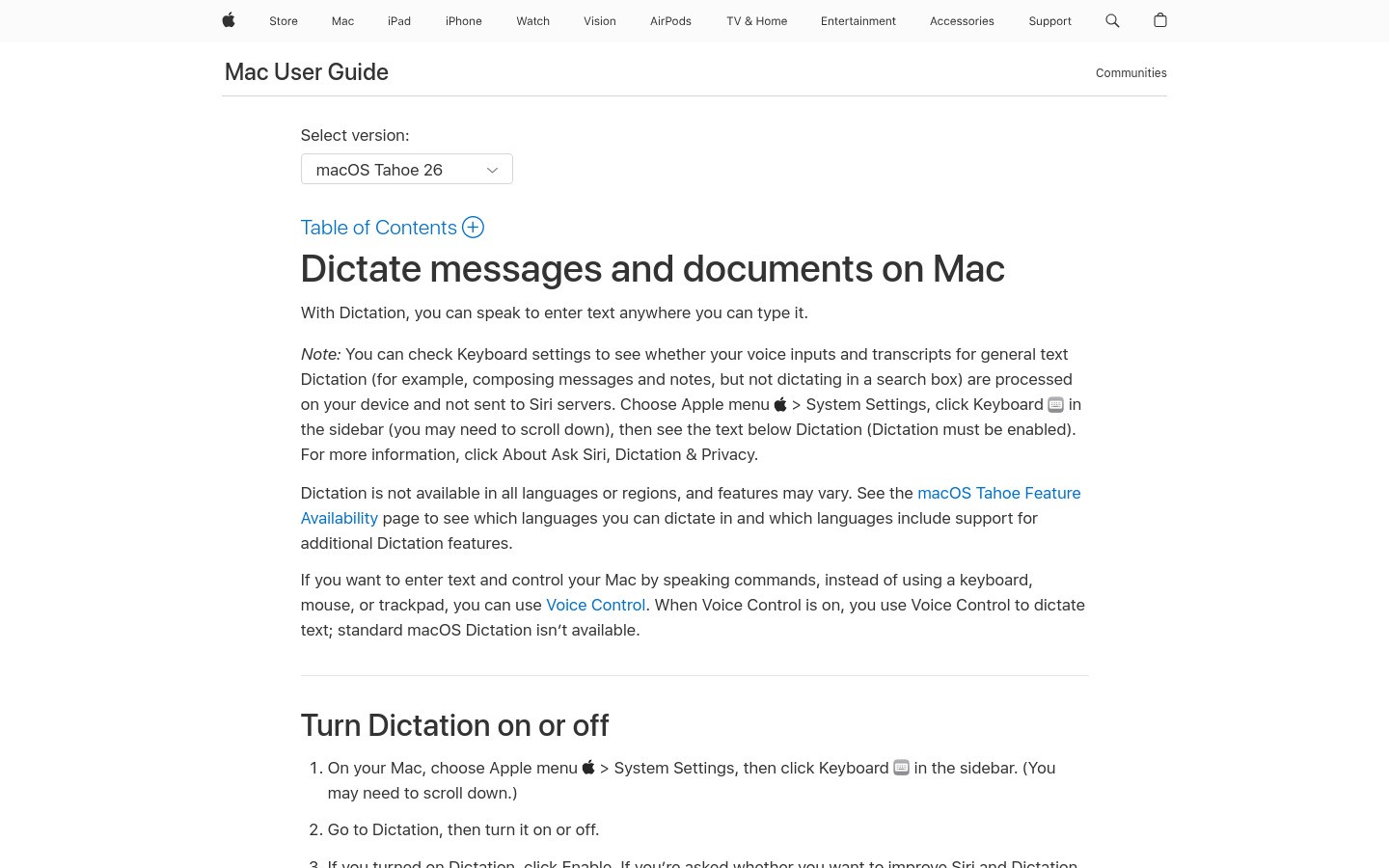
Apple Dictation is the easiest no-cost option if you already use a MacBook for school. No sign-up, no subscription, no decision fatigue. That is a real advantage during finals week.
It is good for short notes, response posts, basic drafting, and quick study summaries. It is less convincing once you want longer-form writing with cleaner phrasing across many tools. Still, for a built-in feature, it is a strong first stop.
Best for: Mac students who want the fastest free setup.
What stands out:
Already on the device
Good for quick academic writing tasks
Very low friction for testing dictation
Limits: Basic compared with dedicated dictation tools, especially for longer papers and multi-app workflows.
Internal link: Mac users can also read speech to text on Mac OS.
4. Microsoft Word Dictate, best for Word-first campuses
Some departments still live inside Microsoft 365. If your university loves Word templates, tracked changes, and .docx submissions, Word Dictate is the safest built-in choice.
It works well for term papers, lab writeups, and long documents where you are already staying in Word anyway. The downside is that it solves the Word part of the problem, not the whole student workflow.
Best for: Students who write most serious assignments in Word.
What stands out:
Built into a tool many universities already provide
Good fit for long-form academic documents
No extra software decision required
Limits: Less flexible once you move outside Microsoft apps.
5. Wispr Flow, best for polished voice writing on laptop and phone
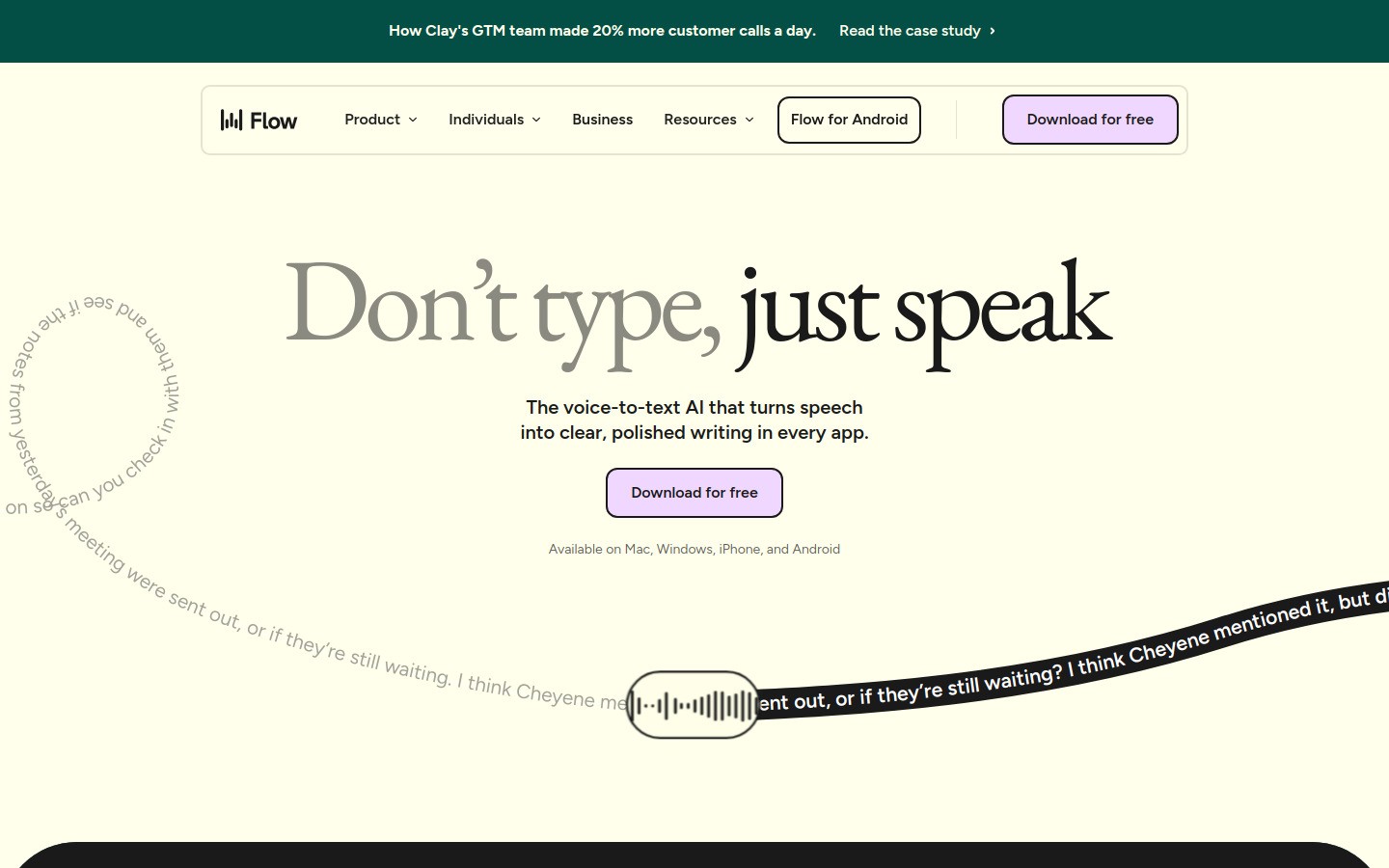
Wispr Flow is a good fit for students who care a lot about how the final text sounds. Its pitch is less about raw transcription and more about speaking naturally, then getting cleaner writing back.
That can be useful for cover letters, scholarship essays, discussion posts, and messages you do not want to sound too rough. I would not call it the automatic best student pick because free options are easier to justify first. Still, it is a serious option if you value polish and switch between desktop and mobile.
Best for: Students who want dictation to double as cleanup help.
What stands out:
Cleaner sounding text than many basic tools
Useful if you work on both computer and phone
Good fit for writing that needs polish fast
Limits: Harder to justify than free built-in tools if your needs are simple.
6. Dragon, best for intensive or accessibility-driven dictation
Dragon is still the heavyweight name in dictation. For most students, it is probably too much tool. For students with major accessibility needs, injury, or very high daily dictation volume, it can still be worth a serious look.
The tradeoff is price and complexity. Dragon tends to make more sense when dictation is central to how you work, not just a productivity upgrade for rough essay drafts.
Best for: Students who rely heavily on dictation and want deeper control.
What stands out:
Strong long-term reputation for serious dictation
Can make sense for accessibility-heavy use
Better suited to power users than casual campus writing
Limits: More setup, more cost, and more commitment than most students need.
Quick comparison table
Tool | Best for | Main drawback |
|---|---|---|
Free essay drafting in Docs | Mostly limited to Google Docs | |
Cross-app student writing | Paid after free trial, cloud-based | |
Simple Mac setup | Basic for longer writing | |
Word-based assignments | Less useful outside Microsoft apps | |
Polished cross-device writing | Harder to justify on a student budget | |
Heavy accessibility or power use | High setup and cost |
Which dictation software should university students choose?
Here is the simple version.
Start with Google Docs Voice Typing if you want the cheapest path and already write most papers in Docs.
Pick Apple Dictation or Word Dictate if your laptop and campus workflow already push you in that direction.
Pick Voicy if your writing spills across docs, browsers, AI tools, and note apps every day.
Pick Wispr Flow if you care more about polished output than absolute lowest cost.
Pick Dragon if dictation is not optional for you and you need a more serious setup.
Final take
The best dictation software for university students is the one that makes writing less intimidating and less tiring. That usually means starting simple, then upgrading only when the free option starts getting in your way.
For most students, Google Docs Voice Typing is the smartest first test. For students with a more scattered digital life, Voicy is the stronger all-around workflow tool because it keeps working when your paper turns into notes, prompts, emails, and browser forms.
If you want more ideas for voice-first study workflows, start with our guide to voice typing apps.


