




12 Best Tools for Remote Workers in 2026 (Tested & Ranked)
🎯 TL;DR: Best Remote Work Tools 2026
💬 Communication: Slack keeps teams connected, Zoom handles video calls
🎯 Productivity: Voicy for voice typing, Notion for project management
⏰ Time Management: Toggl Track for hours, Focus Keeper for concentration
☁️ File Storage: Google Drive for collaboration, Dropbox for backup
🔒 Security: 1Password for passwords, NordLayer for VPN protection
📊 Analytics: RescueTime tracks productivity patterns automatically
Remote work isn't just a trend anymore—it's the new normal. But working from home comes with unique challenges. Distractions are everywhere, communication gets tricky, and staying productive requires the right digital toolkit.
After testing dozens of apps and talking to hundreds of remote workers, we've found the 12 essential tools that actually make a difference. These aren't just "nice to have" apps—they're the ones that separate successful remote workers from those struggling to adapt.
The 12 Best Tools for Remote Workers in 2026
1. Voicy – AI-Powered Voice Typing 🥇
Category: Productivity & Writing
Price: $8.49/month, $82/year, $260 lifetime
Best for: Fast, accurate dictation across all devices
Voicy tops our list because it solves one of remote work's biggest productivity killers: slow typing. This speech-to-text Chrome extension works on every website and supports 50+ languages.
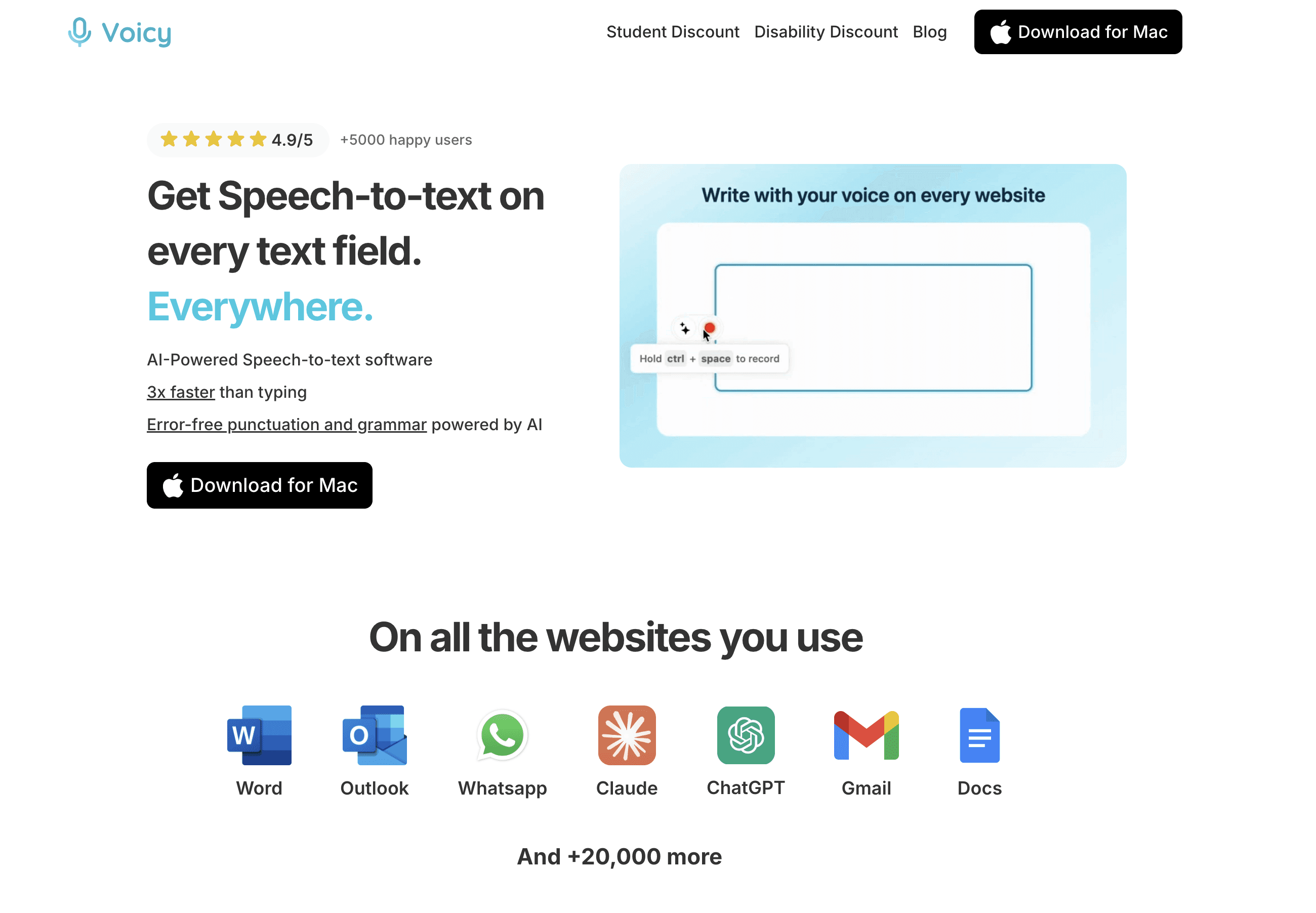
Why it's essential: Remote workers type constantly—emails, documents, chat messages, reports. Voicy lets you speak 3x faster than typing, reducing wrist strain and boosting daily output by hours.
Key features:
Works on Gmail, Google Docs, Slack, and 1000+ sites
Offline mode for sensitive documents
Custom vocabulary for industry terms
Mac, Windows, and browser extension versions
The downside: Takes a few days to train the AI on your voice patterns for maximum accuracy.
Free trial: Yes, with unlimited usage during trial period
2. Slack – Team Communication Hub
Category: Communication
Price: Free to $15/user/month
Best for: Organized team messaging and file sharing
Slack revolutionized how remote teams communicate. Instead of endless email chains, conversations happen in organized channels by topic, project, or team.
Why it works: Email kills productivity with constant interruptions. Slack lets you batch communication, mute non-urgent channels, and keep work organized.
Key features:
Channel-based messaging system
File sharing and screen capture tools
Integration with 2,000+ apps
Voice and video calling
The downside: Can become overwhelming with notification overload if not configured properly.
3. Zoom – Video Conferencing Standard
Category: Video Communication
Price: Free to $19.99/user/month
Best for: Reliable video meetings and webinars
Zoom became synonymous with remote work during 2020 and remains the gold standard for video calls.
Why it's reliable: Works consistently across all devices, handles poor internet connections gracefully, and offers features like breakout rooms and screen sharing that make virtual meetings productive.
Key features:
HD video and audio quality
Breakout rooms for team activities
Recording and transcription
Virtual backgrounds and touch-up filters
The downside: Security concerns emerged in early adoption, though most have been addressed.
4. Notion – All-in-One Workspace
Category: Project Management
Price: Free to $12/user/month
Best for: Flexible documentation and project tracking
Notion combines notes, databases, kanban boards, and wikis into one flexible platform. It's particularly powerful when enhanced with voice typing capabilities for rapid content creation.
Why remote teams love it: Everything lives in one place. Meeting notes, project timelines, company wikis, and personal task lists all sync across devices.
Key features:
Block-based editing system
Database and relationship features
Template library for common workflows
Real-time collaboration
The downside: Learning curve can be steep for non-technical users.
5. Toggl Track – Time Tracking Made Simple
Category: Time Management
Price: Free to $18/user/month
Best for: Accurate time tracking and productivity insights
Toggl Track helps remote workers understand where their time actually goes. Essential for freelancers billing clients and employees wanting to optimize their workday.
Why it matters: Remote work makes it hard to separate work time from personal time. Toggl provides clear boundaries and reveals productivity patterns.
Key features:
One-click time tracking
Project and client organization
Detailed reporting and analytics
Integrations with 100+ tools
The downside: Requires discipline to remember starting and stopping timers.
6. Google Drive – Cloud Storage and Collaboration
Category: File Storage & Collaboration
Price: Free (15GB) to $18/user/month
Best for: Real-time document collaboration
Google Drive isn't just storage—it's a collaboration platform. Google Docs, Sheets, and Slides let multiple people edit simultaneously from anywhere.
Why it's essential: Remote work requires constant file sharing and collaboration. Google Drive makes this instant and version-control automatic.
Key features:
Real-time collaborative editing
Automatic version history
Comment and suggestion system
Offline access to recent files
The downside: Advanced formatting options lag behind Microsoft Office.
7. Asana – Project Management for Teams
Category: Project Management
Price: Free to $24.99/user/month
Best for: Task assignment and project tracking
Asana keeps remote teams aligned on deadlines, responsibilities, and project progress. Particularly effective when combined with voice-to-text tools for rapid task creation.
Why teams choose it: Clear task ownership, deadline tracking, and progress visualization prevent remote work chaos.
Key features:
Task assignment and deadline management
Multiple project views (list, board, timeline)
Goal tracking and reporting
Integration with communication tools
The downside: Can become complex with large projects and many team members.
8. Focus Keeper – Pomodoro Technique Timer
Category: Focus & Productivity
Price: Free to $2.99
Best for: Maintaining concentration during long work sessions
Focus Keeper implements the proven Pomodoro Technique—25 minutes of focused work followed by 5-minute breaks.
Why it works: Home distractions kill remote productivity. Structured work sessions with enforced breaks maintain energy and focus throughout the day.
Key features:
Customizable work and break intervals
Progress tracking and statistics
Multiple task timers
Notification and sound options
The downside: Rigid timing doesn't suit all work styles or meeting-heavy days.
9. 1Password – Password Management
Category: Security
Price: $2.99/month to $19.95/month
Best for: Secure password storage and sharing
1Password generates and stores unique passwords for every account, critical for remote workers accessing multiple tools and client systems.
Why security matters more now: Remote work increases cybersecurity risks. One compromised password can expose client data and personal information.
Key features:
Password generation and autofill
Secure document storage
Team password sharing
Two-factor authentication support
The downside: Monthly subscription cost adds up, though security breaches cost much more.
10. RescueTime – Automatic Productivity Tracking
Category: Analytics & Insights
Price: Free to $12/month
Best for: Understanding digital habits and time allocation
RescueTime runs invisibly in the background, tracking which websites and applications consume your time. Eye-opening data for remote workers.
Why awareness drives change: Most people drastically underestimate time spent on distracting websites. RescueTime provides objective data to guide behavior changes.
Key features:
Automatic time tracking across devices
Productivity scoring system
Detailed reports and trends
Goal setting and alerts
The downside: Can feel invasive for privacy-conscious users.
11. Dropbox – File Backup and Sync
Category: File Storage & Backup
Price: Free (2GB) to $26.99/month
Best for: Reliable file backup and cross-device sync
Dropbox pioneered cloud storage and remains excellent for backup and file sharing. Essential insurance for remote workers' digital assets.
Why backup matters: Remote work increases reliance on personal devices. Hardware failures, theft, or corruption can destroy months of work without proper backup.
Key features:
Automatic file synchronization
Version history and recovery
Selective sync for limited storage
Advanced sharing controls
The downside: Limited free storage compared to competitors like Google Drive.
12. NordLayer – Business VPN Protection
Category: Security & Privacy
Price: $7/user/month
Best for: Secure remote access to company networks
NordLayer provides enterprise-grade VPN protection for remote teams accessing sensitive company data from home networks.
Why VPNs are crucial: Home Wi-Fi networks lack enterprise security. VPNs encrypt all traffic, protecting against data interception and providing secure access to company resources.
Key features:
Site-to-site connectivity
Advanced threat protection
Cloud firewall features
User access monitoring
The downside: Can slow internet speeds and occasionally interfere with certain websites or services.
Quick Comparison: Remote Work Tools at a Glance
Tool | Category | Free Option | Best for | Platform |
|---|---|---|---|---|
Voicy | Productivity | Free trial | Voice typing everywhere | Mac, Windows, Browser |
Slack | Communication | Yes | Team messaging | All platforms |
Zoom | Video calls | Yes (40 min limit) | Video meetings | All platforms |
Notion | Project management | Yes | Flexible workspace | All platforms |
Toggl Track | Time tracking | Yes | Time management | All platforms |
Google Drive | File storage | Yes (15GB) | Document collaboration | All platforms |
Building Your Remote Work Toolkit
Don't try to implement all 12 tools at once. Start with the basics:
Week 1: Set up communication (Slack) and video calling (Zoom)
Week 2: Add productivity tools (Voicy, Notion)
Week 3: Implement time tracking (Toggl Track) and security (1Password)
Week 4: Fine-tune with focus tools and analytics
The key is choosing tools that integrate well together. Many of these apps connect directly, creating workflows that boost productivity without added complexity.
For content creators and knowledge workers, we especially recommend checking out comprehensive guides on work from home productivity tools that dive deeper into specific use cases and workflows.
Frequently Asked Questions
What's the most important tool for new remote workers?
Communication tools like Slack come first—remote work fails without clear team communication. But productivity tools like Voicy for voice typing have the biggest daily impact on output and efficiency.
How much should I budget for remote work tools?
Expect $50-150 per month for a comprehensive toolkit. Start with free tiers and upgrade as you identify which tools provide the most value for your specific workflow and role.
Do I need different tools for different types of remote work?
Yes. Creative professionals need design and collaboration tools, while developers need code repositories and testing environments. The core communication and productivity tools remain consistent across roles.
How do I avoid tool overload?
Limit yourself to 5-7 core tools maximum. Each tool should serve a specific purpose that can't be handled well by another tool in your stack. Regularly audit and eliminate redundant applications.
What about security when working from home?
Security is critical. Use a password manager (1Password), VPN for sensitive work (NordLayer), and keep software updated. Avoid public Wi-Fi for work activities, and use two-factor authentication everywhere possible.
How do I stay productive with so many distractions at home?
Focus tools like Focus Keeper help structure your day. Time tracking with RescueTime reveals where distractions occur. Most importantly, establish a dedicated workspace and clear boundaries with household members.
Can free tools provide everything I need?
Free tiers cover basic needs but often limit team size, storage, or features. For serious remote work, investing in paid tools typically pays for itself through increased productivity and professional capabilities.
What if my team uses different tools than I prefer?
Prioritize team alignment over personal preference for communication and collaboration tools. Use personal productivity tools (like voice typing or time tracking) alongside team-required platforms.
How often should I evaluate and change my tool stack?
Review quarterly. Technology evolves quickly, and your needs change as you master remote work. But avoid constant switching—tool mastery takes time and frequent changes reduce productivity.
What's the biggest mistake new remote workers make with tools?
Trying to use too many tools at once. Start with basics, master them, then gradually add specialized tools. Also, failing to invest in quality paid tools that save hours of time daily.
The Future of Remote Work Tools
Remote work technology continues evolving rapidly. AI integration, better mobile experiences, and virtual reality meetings are reshaping how we work from anywhere. The tools that survive focus on simplicity, integration, and solving real daily problems—not just adding features.
The most successful remote workers aren't those with the most tools, but those who choose the right tools and use them consistently. Start with this essential toolkit, adapt it to your needs, and focus on mastering each tool rather than constantly seeking new options.
Ready to transform your remote work productivity? Try Voicy's free trial and experience the power of voice typing across all your favorite work applications.


