




How to Type After Surgery: Voice Typing Guide for Recovery (2026)
TL;DR - Quick Answers
Best solution: Voice typing with Voicy - works in Word, Google Docs, email, and everywhere else on your computer.
Shoulder/rotator cuff surgery: You can use a computer almost right away, but typing with your arm raised hurts. Keep the keyboard in your lap and use voice typing for the heavy lifting.
Wrist surgery: Most people can't type at all for 2–6 weeks. Voice typing is the only option during that window.
Hand/finger surgery: One-handed typing is possible but slow and painful. Voice typing is faster and safer.
Carpal tunnel surgery: Expect 1–2 weeks of no typing, then a gradual return. Voice typing helps you heal faster by resting the wrist.
Broken arm/wrist: You'll be in a cast for 4–8 weeks. Voice typing is your primary keyboard during this time.
Voicy costs: $8.49/month or $82/year. Free trial available. Works on Mac, Windows, and as a Chrome extension.
You Just Had Surgery. You Still Have to Work.
That's a rough combination. Your arm is in a sling, your wrist is wrapped, your hand is swollen — and your boss just emailed you about a deadline.
Most people don't know how much they rely on their hands until they can't use them. Typing feels impossible. Even opening a laptop is a challenge. But with the right setup, you can get through your recovery without falling hopelessly behind.
This guide is for anyone recovering from arm, wrist, hand, or shoulder surgery who needs to keep working. We'll cover what to expect from recovery, how to set up voice typing, and what other tools actually help.
Recovery Timelines by Surgery Type
Every surgery is different. Your doctor's advice always comes first. But here are general timelines so you know what to plan for.
Shoulder and Rotator Cuff Surgery
Rotator cuff surgery typically means 4–6 months of full recovery. But you can usually use a computer within the first week — as long as you're careful about how.
The problem isn't the computer. It's the position. Reaching your arm out to a desk, holding it up to type — that strains the repaired tissue. Surgeons often say: keep the keyboard in your lap so your arm stays at your side and your shoulder stays relaxed.
Even with that setup, typing for hours is exhausting and painful. Voice typing lets you do most of the work without moving your arm at all. You talk; the software types. Your shoulder stays still.
Most rotator cuff patients can start light typing after 2–4 weeks, but sustained typing (an hour or more) may take 2–3 months.
Wrist Surgery
Wrist surgery — whether for a fracture, ligament repair, or TFCC tear — usually means a splint or cast for 2–6 weeks. During that time, typing is off the table entirely. Even pressing a single key can disrupt the healing.
After the cast comes off, there's physical therapy to regain range of motion. You might be able to type lightly after 6–8 weeks, but returning to full typing speed can take 3–6 months.
For wrist surgery patients, voice typing isn't a workaround — it's the only way to keep working for those first critical weeks. See our guide on relieving wrist pain from typing for what to do once you start typing again.
Hand and Finger Surgery
Hand surgery covers a wide range: trigger finger, Dupuytren's contracture, tendon repairs, fractures. Depending on which fingers are involved, you might be able to type with some fingers but not others.
One-handed typing is possible and some people get quite good at it. But it's slow, awkward, and puts extra strain on the hand you're using. Voice typing is faster and keeps both hands resting.
Recovery for hand surgery varies widely — from 2 weeks for minor procedures to 4–6 months for complex repairs. Your occupational therapist can tell you when it's safe to start using your hands again.
Carpal Tunnel Surgery
Carpal tunnel release is one of the most common surgeries. Most people feel dramatic relief within days. But the hand itself needs time to heal.
Typing too soon after carpal tunnel surgery can cause inflammation and slow healing. Most surgeons recommend waiting 1–2 weeks before any typing, and even then, keeping sessions short at first.
The irony: the reason you had surgery was probably because typing caused you pain. Rushing back to heavy typing right after the operation defeats the point. Voice typing during recovery protects your investment. Read more in our speech-to-text guide for carpal tunnel.
Broken Arm or Wrist
A cast means no typing on that side — full stop. Casts for broken wrists typically last 4–8 weeks. For more complex fractures, you might be in a cast or brace for 3 months.
If your dominant hand is in the cast, you're in a tough spot. Non-dominant one-handed typing is painfully slow. Voice typing becomes your primary input method. Most people find they can dictate surprisingly fast with a little practice — faster than hunting and pecking with the wrong hand.
If your non-dominant arm is broken, you have more options — but voice typing still saves your dominant hand from overuse strain.
Voice Typing: Your Best Option During Recovery
Voice typing — also called speech-to-text or dictation — converts your spoken words into text on the screen. You talk normally, and the software types for you.
It works in any app where you'd normally type. Email, Google Docs, Microsoft Word, Slack, your browser — anywhere. You don't need to switch apps or use special software for every program.
Modern voice typing is accurate. We're not talking about the clunky dictation software of 15 years ago. Today's tools get 95–99% accuracy with a decent microphone. Most people find they can dictate almost as fast as they type once they spend a few days adjusting.
Why Voicy Works Well for Recovery
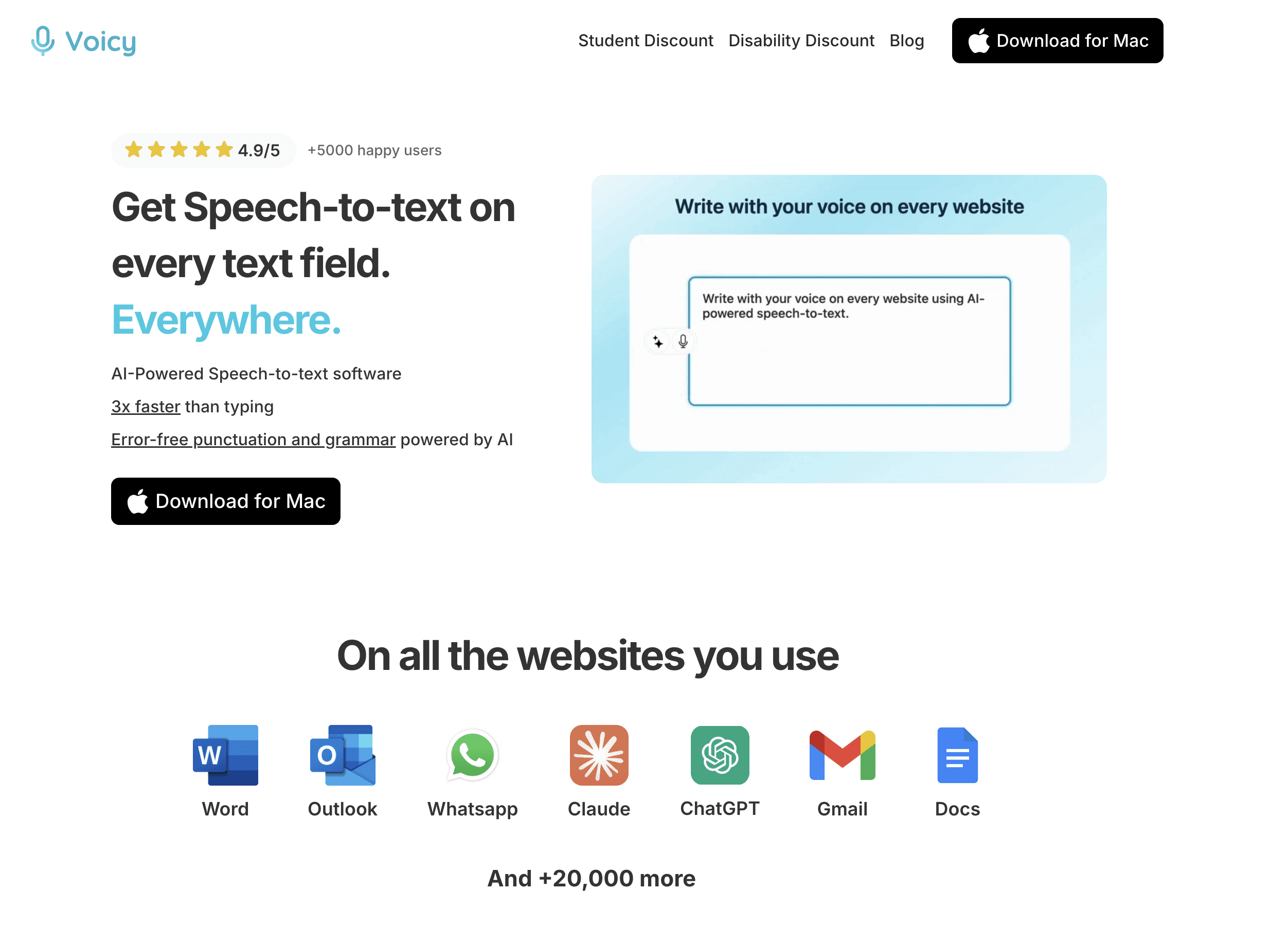
Voicy is a dedicated dictation app for Mac, Windows, and Chrome. It uses cloud-based transcription for 99%+ accuracy across 50+ languages.
The key advantage for recovery: it works system-wide. You activate it, speak, and the text appears wherever your cursor is — in Word, in Gmail, in Slack, anywhere. You don't have to think about which app you're using.
Setup takes about 5 minutes. There's a free trial so you can test it before committing. After that, it's $8.49/month or $82/year (or a one-time $260 lifetime purchase).
You can check out how it compares to other options in our best dictation software guide.
How to Set Up Voicy for Hands-Free Work
Here's how to get Voicy running on each platform. You'll be dictating within a few minutes.
On Mac
Download Voicy from usevoicy.com. Install it like any Mac app — drag to Applications.
Grant microphone access when prompted. Go to System Settings → Privacy & Security → Microphone if you need to enable it manually.
Set a hotkey. The default is usually a double-tap of a function key. You can change it in Voicy settings. With one working hand, pick something easy — like double-pressing the spacebar or a single key.
Start dictating. Click where you want the text to appear, press your hotkey, and speak. Voicy types as you talk. Press the hotkey again to stop.
Tip for shoulder surgery: Use a Bluetooth headset or a microphone on a stand so you don't have to hold anything. Your arm stays at your side the whole time.
On Windows
Download the Windows version of Voicy from usevoicy.com.
Run the installer and follow the prompts. Windows may ask about microphone permissions — click Allow.
Configure your hotkey in the Voicy settings panel. A single-key shortcut is easiest when you're recovering.
Dictate anywhere. Voicy works in Word, Outlook, Teams, Chrome, Edge — wherever your cursor is.
See our detailed walkthrough on how to dictate in Microsoft Word if that's your main work app.
As a Chrome Extension
Install the Voicy Chrome extension from the Chrome Web Store (search "Voicy" or visit usevoicy.com for the direct link).
Sign in to your Voicy account.
Click the Voicy icon in your toolbar whenever you want to dictate. It works in any text field in your browser — Gmail, Google Docs, web forms, everything.
The Chrome extension is great if most of your work happens in a browser. Check our list of voice-to-text Chrome extensions for more options.
For Google Docs specifically, see our guide on speech-to-text in Google Docs.
Other Adaptations That Help
Voice typing does most of the work, but a few other tools can fill the gaps.
One-Handed Keyboards
If you need to type but can only use one hand, a one-handed keyboard can help. The most popular option is the Matias Half-QWERTY keyboard, which lets you type full QWERTY by mirroring the layout. There's also the FrogPad and various chording keyboards.
These have a learning curve — expect a week or two to get comfortable. But for people who need to type one-handed long-term, they're worth it. For most short-term recovery situations, voice typing is easier.
Trackball Mice
A regular mouse requires wrist movement. A trackball doesn't — you move the ball with your fingers while your wrist stays still. The Kensington Expert Trackball and Logitech MX Ergo are popular with post-surgery workers.
If your shoulder is the issue, a trackball placed close to your body means less arm reach. If your wrist is the problem, look for a large-ball trackball where you use your fingers, not your wrist.
Voice Control for Mouse and Navigation
Voicy handles typing. But what about clicking, scrolling, and navigating? Your operating system has built-in voice control for that:
Mac: System Settings → Accessibility → Voice Control. This lets you say things like "click File" or "scroll down" to control your computer without touching the mouse.
Windows: Settings → Accessibility → Speech. Windows Voice Access works similarly.
Combined with voice typing for text, full voice control means you can use your computer while barely moving your hands at all.
Free Alternatives to Voicy
We want to be honest: free options exist. They're not as polished, but they work.
Apple Dictation (Mac): Built into every Mac. Go to System Settings → Keyboard → Dictation and turn it on. Accuracy is decent. Doesn't require internet for basic use (enhanced mode does). Great for light use.
Windows Voice Typing (Windows): Press Win + H to activate. Works in most apps. Accuracy has improved a lot in recent Windows versions.
Google Docs Voice Typing: Go to Tools → Voice Typing in Google Docs. Free, accurate, and works well — but only inside Google Docs.
Dragon by Nuance: The professional choice. Very accurate, highly customizable. Costs $150+ and has a learning curve, but it's the industry standard for medical and legal professionals.
If you just need dictation for a few weeks of recovery, the free built-in options may be enough. If you do a lot of writing professionally or need accuracy across many apps, Voicy or Dragon is worth the cost. See our full comparison in the best talk-to-text apps roundup.
Microphone Matters
All voice typing is only as good as what the microphone picks up. Your laptop's built-in mic is usually fine in a quiet room. But if you're getting lots of errors, a better microphone will help more than switching apps.
For recovery use, a Bluetooth headset (like AirPods or any wireless earbuds) is very convenient — no wires to deal with, no need to hold anything. A USB desktop microphone also works well. See our guide on the best microphones for dictation for recommendations.
Tips for Working During Recovery
Beyond the tools, here's practical advice for getting through the work week while you heal.
Tell Your Employer or Clients Early
Don't wait until you miss a deadline to explain the situation. Let people know upfront. Most employers are understanding when given a heads-up. You can say something like: "I had surgery on my right hand. I'll be using voice dictation for the next few weeks and may be slightly slower on some tasks."
That one message prevents a lot of awkward follow-up conversations.
Use Voice Typing for the Heavy Lifting
Voice typing is great for emails, long documents, and reports — the stuff that requires a lot of text. For short things (clicking a button, typing a quick URL), it might be faster to just type it one-handed or with your non-dominant hand.
Don't feel like you have to dictate everything. Use it where it saves you the most pain and effort.
Set Up an Ergonomic Recovery Workstation
Position matters a lot during recovery. A few setup tips:
Shoulder surgery: Keep your keyboard in your lap or on a low surface so your arm stays at your side. Don't reach up or out to type.
Wrist surgery: If you're typing one-handed, a keyboard tray at the right height prevents your non-operated wrist from overworking.
Elbow surgery: Avoid resting your elbow on a hard desk edge. A padded armrest or folded towel helps.
General: A laptop stand that raises the screen to eye level reduces neck strain when you're already compensating with your body.
Take Breaks — More Than Usual
Your body is healing. It needs more rest than normal. Even if you feel okay, recovery takes energy. Every hour or so, step away from the screen entirely.
Voice typing is physically easier than typing, but speaking for extended periods can tire your voice too. Drink water. Pause. Take real breaks.
Don't Rush Back to Typing
This is the hardest advice to follow. You feel better, the cast is off, you want to be normal again. But returning to heavy typing too soon is one of the most common ways people extend their recovery or cause reinjury.
When your doctor clears you to type, start slowly. 15–20 minutes at a time. Increase gradually over weeks, not days. Keep using voice typing for the bulk of your work even after you can type again.
Frequently Asked Questions
When can I type after rotator cuff surgery?
Most people can do very light typing within the first week after rotator cuff surgery — but only if the keyboard is in their lap and their arm stays at their side. Sustained typing (more than 20–30 minutes) is usually not comfortable for 6–12 weeks. Heavy computer use may take 3–6 months depending on the size of the repair. Ask your surgeon for specific guidance based on your procedure.
Can I use a computer after shoulder surgery?
Yes, usually. The computer itself isn't the problem. The position is. Keeping your arm raised and reaching forward to type can strain a repaired shoulder. Set your keyboard in your lap, use a large monitor at eye level, and keep your arm relaxed at your side. Voice typing makes computer use much easier in the first few months.
What's the best voice typing software for surgery recovery?
It depends on your needs. For most people recovering from surgery, Voicy is a strong choice — it works across all apps on Mac and Windows, has 99%+ accuracy, and has a free trial. If you only need it in Google Docs, the free built-in Google Docs voice typing is solid. If you're a heavy professional user who needs it long-term, Dragon by Nuance is the most powerful option.
How do I type with one hand?
Typing with one hand is slow at first but gets faster with practice. A few tips: use keyboard shortcuts to reduce typing (Ctrl+C, Ctrl+V, etc.), consider a one-handed keyboard layout (search for DVORAK one-handed layout — it's free to set up on any computer), and use autocomplete/autocorrect aggressively. For most people, voice typing is faster and less frustrating than one-handed typing, especially during the first weeks of recovery.
Is voice typing accurate enough for work?
Yes. Modern dictation software is accurate enough for professional work. With a decent microphone in a quiet room, you can expect 95–99% accuracy — which means maybe 1–5 words wrong per 100. You'll still want to proofread (as you would with typing), but voice typing is genuinely usable for emails, reports, and documents. Accuracy improves as the software learns your voice and vocabulary.
Can I use voice typing in Microsoft Word?
Yes. There are two main ways. First, Word has its own built-in Dictate feature — look for the microphone icon in the Home tab. Second, you can use a system-wide tool like Voicy, which works in Word just like it works anywhere else. The Voicy approach is more flexible because the same hotkey works in every app, not just Word. See our full guide on dictating in Microsoft Word.
How long until I can type normally after wrist surgery?
This varies a lot based on the type of surgery. After carpal tunnel release, most people can type lightly within 2–4 weeks and return to normal typing in 4–8 weeks. After wrist fracture repair or ligament surgery, it can take 3–6 months to return to full typing comfort. Your physical therapist is the best person to give you a realistic timeline for your specific case.
Does insurance cover dictation software?
Sometimes. If your doctor prescribes voice software as part of your recovery or disability accommodation, some insurance plans cover it — especially Dragon, which is popular in medical settings. Ask your doctor for a letter of medical necessity and check with your insurer. If your employer has accessibility or accommodation programs, they may also cover the cost. For most people, though, paying out of pocket is more straightforward, especially for lower-cost options like Voicy.
Can I use voice typing on my phone after surgery?
Yes. Every smartphone has built-in voice-to-text in the keyboard. Tap the microphone icon on your iPhone or Android keyboard and speak. This works in messages, emails, notes, and most apps. It's not as powerful as a desktop dictation app, but it works well for short messages. For longer work on your phone, try Google's Gboard keyboard — its voice typing feature is accurate and free.
What if my job requires heavy typing?
Talk to your employer about temporary accommodations. In many countries, employers are legally required to provide reasonable accommodations for medical recovery. This could mean adjusted duties, a temporary reduction in typing-heavy tasks, or permission to use dictation software. Be specific: "I can do X, Y, and Z with voice typing, but I can't do sustained keyboard work for 6 weeks." Most reasonable employers will work with you if you give them a clear picture of what you can and can't do.
Does voice typing work for programming or coding?
It's trickier for code than for prose. Some developers use tools like Talon Voice or Codeium with voice commands designed for coding. Voice typing for natural language (emails, docs, messages) works great. For code specifically, you'll likely need specialized tools. But if coding is only part of your job, you can voice-type everything else and hand-type only the code — which reduces the total strain significantly.
How long does it take to get used to voice typing?
Most people feel comfortable with dictation after 2–5 days of regular use. The first few hours feel awkward — speaking out loud instead of typing, figuring out punctuation commands, dealing with errors. But it clicks quickly. By day 3 or 4, most people find they can dictate at a comfortable pace. By day 7–10, it feels natural. Give yourself a week before you decide whether it works for you.


