
Summary
Best overall talk to text app: Voicy - cross-app AI dictation for Mac, Windows, browser fields, iOS, Android, and uploaded audio files.
Best free Office option: Microsoft Word Dictate - good if you already write inside Word, Outlook, or PowerPoint.
Best specialist tool: Dragon Professional - expensive, but still useful for legal, medical, and high-volume Windows dictation.
Best meeting transcription app: Otter.ai - built for calls, speaker labels, summaries, and searchable transcripts.
Best polished AI alternative: Wispr Flow - strong modern dictation app with team and cross-device appeal.
Best free browser option: Google Docs Voice Typing - fast, free, and useful inside Google Docs.
Best free Apple option: Apple Dictation - built into Mac, iPhone, and iPad.
Best free Windows option: Windows Voice Access - free Windows 11 voice typing and computer control.
Best no-signup web app: Speechnotes - simple browser dictation when you need a quick notepad.
Best multilingual transcription pick: Notta - good for multilingual meetings, recordings, and transcripts.
The best talk to text app for most daily writing is Voicy, because it works where you already type: desktop apps, browser fields, documents, email, chat, iOS, Android, and uploaded audio files. If you only need a free tool, start with Apple Dictation, Windows Voice Access, or Google Docs Voice Typing.
The real choice is not "free vs paid" in a vacuum. Free talk to text software is fine for short notes and occasional drafts. Paid AI dictation is worth it when voice writing becomes part of your workday and you want cleaner text, fewer app limits, custom vocabulary, and less editing.
Top Picks At A Glance
| Tool | Best for | Free or paid | Platforms | Main limit |
|---|---|---|---|---|
| Voicy | Best overall talk to text app | Free trial, then $8.49/month | Mac, Windows, browser extension, iOS, Android | Cloud-based, not offline-only |
| Microsoft Word Dictate | Office documents and emails | Included with Microsoft 365 | Word, Outlook, PowerPoint, web, mobile | Best inside Microsoft apps |
| Dragon Professional | Legal, medical, and specialist work | Paid premium software | Windows, mobile editions | Expensive and heavier to learn |
| Otter.ai | Meetings and interviews | Free tier, then paid | Web, iOS, Android | Not a daily writing app |
| Wispr Flow | Polished AI dictation | Free tier, then $15/month | Mac, Windows, iOS, Android | Higher price than Voicy |
| Google Docs Voice Typing | Free Google Docs writing | Free | Browser | Only works in Google Docs |
| Apple Dictation | Free Mac and iPhone dictation | Free | Mac, iPhone, iPad | Apple devices only |
| Windows Voice Access | Free Windows voice typing | Free | Windows 11 | Windows only |
| Speechnotes | Quick browser notes | Free with premium option | Web, Android | Simple, not work-wide |
| Notta | Multilingual transcription | Free tier, then paid | Web, iOS, Android | Meeting and transcript focused |
Key Takeaways
Text speaking software, talk-to-text software, speech recognition software, voice-to-text software, and dictation software overlap. Most searchers want the same thing: speak naturally and get editable text.
Free tools are enough for short notes, basic messages, one-off Google Docs writing, and first tests.
Paid tools are worth it when you dictate daily, switch between apps, need file transcription, or want cleaner output with less correction.
Meeting transcription is a different job. Otter and Notta are great for calls, but they are not the best tools for writing inside Gmail, Word, Notion, Slack, or browser forms.
Privacy depends on the tool. Some apps run locally, some are cloud-based, and some mix both. Voicy is cloud-based, so do not treat it as local-only dictation.
Watch: Best Dictation Apps In Action
This video shows the difference between basic voice typing and a modern dictation workflow. Watch it if you want to see how AI dictation fits into everyday writing instead of just recording a transcript.
What Is Talk To Text Software?
Talk to text software turns your spoken words into written text. You speak into a microphone, and the app types the words into a document, email, note, browser field, chat box, or transcript.
People use a messy set of names for this category:
Talk to text app
Text speaking software
Text speaking app
Voice to text software
Speech to text app
Speech recognition software
Voice typing app
Dictation software
For most buyers, those phrases mean the same practical job: you want to write faster by speaking. The important question is where the tool works. A one-app tool is fine if you only dictate in Google Docs. A cross-app tool is better if you write in Gmail, Word, Notion, Slack, ChatGPT, browser forms, support tickets, and notes.
Best Free Talk To Text Apps: When Free Tools Are Enough
Free talk to text apps are worth trying first if you only dictate occasionally. They are built in, quick to test, and good enough for short notes, simple drafts, and casual messages.
| Free tool | Best use | What breaks first |
|---|---|---|
| Apple Dictation | Short dictation on Mac, iPhone, and iPad | Longer work, formatting control, custom vocabulary |
| Windows Voice Access | Free Windows 11 dictation and hands-free control | Specialist vocabulary, cleaner AI writing, cross-platform use |
| Google Docs Voice Typing | Free writing inside Google Docs | It does not work across Gmail, Notion, Slack, or desktop apps |
| Speechnotes | Quick browser notepad with no signup | Professional workflows, app coverage, polish |
| Phone keyboard dictation | Quick mobile messages and notes | Desktop writing, long documents, file transcription |
Upgrade to a paid tool when you start dictating daily, when your cleanup time becomes annoying, when you need one shortcut across many apps, or when you want live dictation and uploaded audio transcription in one place.
How We Chose These Talk To Text Apps
We judged the apps by real writing work, not demo-page claims. A good talk to text app should still feel useful after a week of emails, documents, forms, AI prompts, notes, and calls.
The criteria:
Accuracy: Can it handle normal speech, names, punctuation, and quick thoughts?
App coverage: Does it work across your day, or only inside one editor?
Speed: Does text appear quickly enough to keep your train of thought?
Free vs paid value: Is the free tier useful, and does the paid plan earn its price?
Platform support: Does it work on Mac, Windows, browser, iOS, Android, or only one device?
Privacy fit: Is it cloud-based, local, offline, or mixed?
Review signals: What do real users praise, and what do they complain about?
The 10 Best Talk To Text Apps In 2026
1. Voicy: Best Overall Talk To Text App
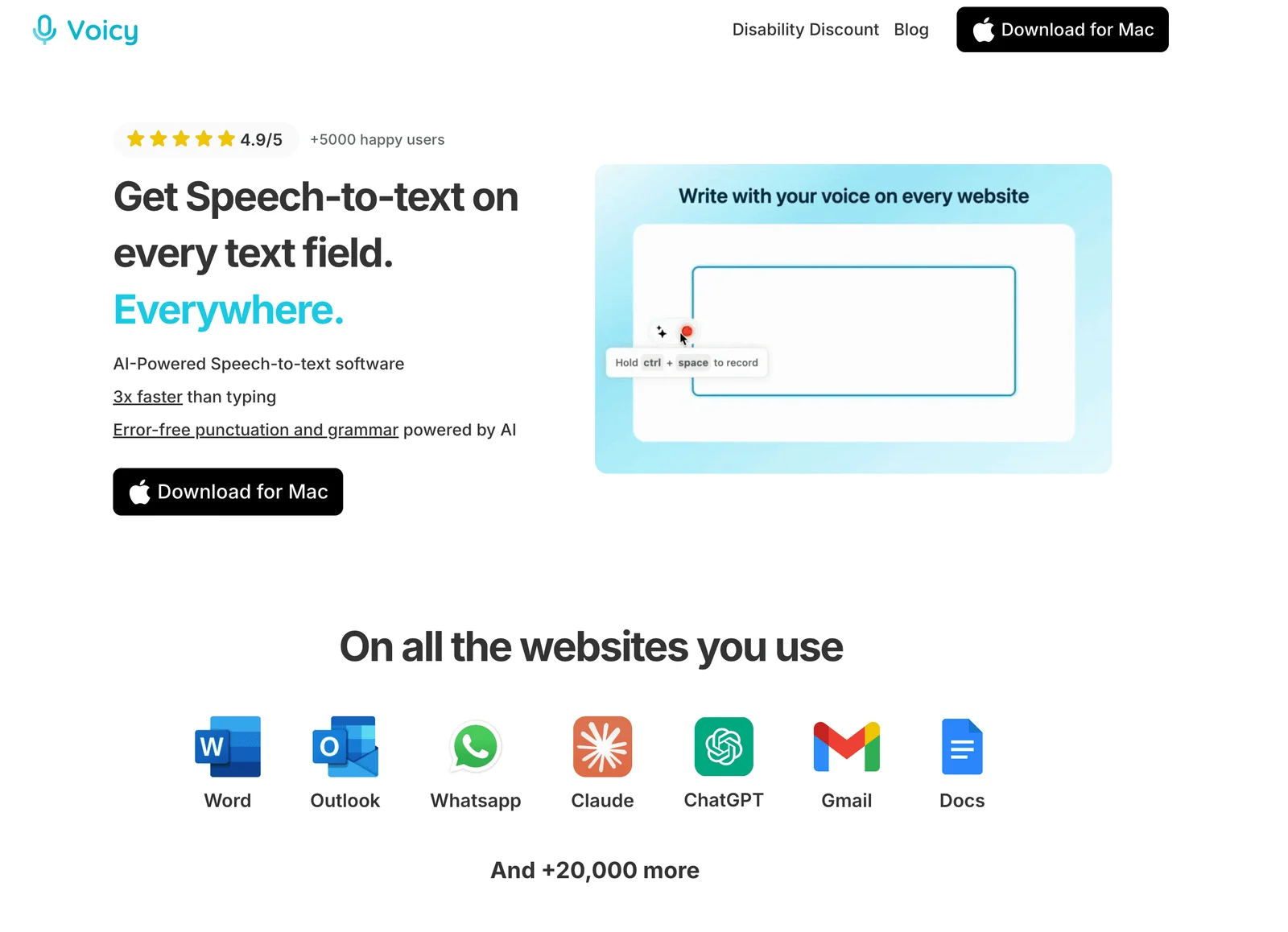
Voicy is the best talk to text app for people who want one tool for everyday writing. It works across Mac, Windows, browser fields, iOS, Android, and uploaded audio files, so you do not have to move your writing into a special dictation editor.
Key Features
Live AI dictation across desktop apps and websites.
Mac, Windows, browser extension, iOS, and Android support.
Uploaded audio file transcription.
Automatic punctuation and cleanup.
Custom vocabulary for names, product terms, jargon, and repeated words.
Free trial before paid plans.
Pros
Works across everyday writing surfaces.
Good fit for emails, docs, notes, browser forms, and AI prompts.
Live dictation and file transcription in one workflow.
Simple enough for normal professionals, not just power users.
Lower monthly price than several modern AI dictation competitors.
Cons
Cloud-based, so it is not for people who need local-only or offline-only dictation.
Not fully free after the trial.
Specialist medical or legal command workflows may still need Dragon.
Pricing
Voicy has a free trial, then paid plans at $8.49/month, $82/year, or $260 lifetime.
User Reviews
Reviews: Voicy reviews on the Chrome Web Store.
Users tend to praise Voicy for speed, convenience, and cleaner text than basic voice typing. The clearest fit is daily cross-app writing. The privacy note is important: Voicy uses cloud-based transcription, so highly sensitive workflows should review the privacy fit before dictating.
Best For
People who write across many apps.
Daily emails, docs, messages, notes, and AI prompts.
Users who want live dictation plus uploaded audio transcription.
Teams or individuals who want speed without learning a complex command system.
2. Microsoft Word Dictate: Best Free Option For Office Users
Microsoft Word Dictate is the best free choice if your writing already lives inside Microsoft Word, Outlook, or PowerPoint. It is built into Microsoft 365 and has become much better since Microsoft bought Nuance.
Key Features
Dictation inside Word, Outlook, PowerPoint, and Microsoft 365 apps.
Auto-punctuation and basic formatting commands.
Works on Windows, Mac, web, iOS, and Android inside supported Microsoft apps.
Included with Microsoft 365.
Pros
Strong free option if you already pay for Microsoft 365.
Good accuracy for normal document writing.
Simple setup inside Word and Outlook.
Useful formatting commands for Office documents.
Cons
Not system-wide.
Less useful if your writing happens in Gmail, Notion, Slack, browser forms, or non-Microsoft apps.
Requires internet for cloud dictation.
Pricing
Included with Microsoft 365. Availability and features can vary by app and account type.
User Reviews
Review link: Microsoft Word Dictate support and feedback.
Users like that it is already inside Word and easy to start. Complaints usually come from people who expect it to work everywhere on the computer. For that, a cross-app tool like Voicy is a better fit. For setup details, see our guide to voice typing in Microsoft Word.
3. Dragon Professional: Best Talk To Text Software For Specialists
Dragon Professional is still the serious Windows option for people who dictate all day in specialist fields. It is not casual software. It is expensive, deeper, and more command-heavy than most modern AI dictation apps.
Key Features
Professional Windows dictation with command workflows.
Specialist editions and vocabulary support for medical, legal, and enterprise use cases.
Custom words, voice profiles, and formatting commands.
Offline/local desktop workflows depending on edition.
Pros
Strong for legal, medical, and specialist vocabulary.
Deep command support.
Can be worth it for high-volume Windows dictation.
Long track record in professional speech recognition.
Cons
Expensive compared with modern AI dictation apps.
Windows-first and less friendly for Mac, browser, and mobile workflows.
More setup and learning curve.
Overkill for casual emails and notes.
Pricing
Dragon pricing varies by edition, region, and enterprise setup. Expect it to cost far more than lightweight talk to text apps. Check current Nuance pricing before buying.
User Reviews
Reviews: Dragon reviews on G2.
Reviewers usually praise Dragon for professional accuracy, custom vocabulary, and command power. Complaints often mention cost, setup time, dated UX, and friction compared with newer AI tools. If you want alternatives, read our best Dragon alternatives.
4. Otter.ai: Best For Meeting Transcription
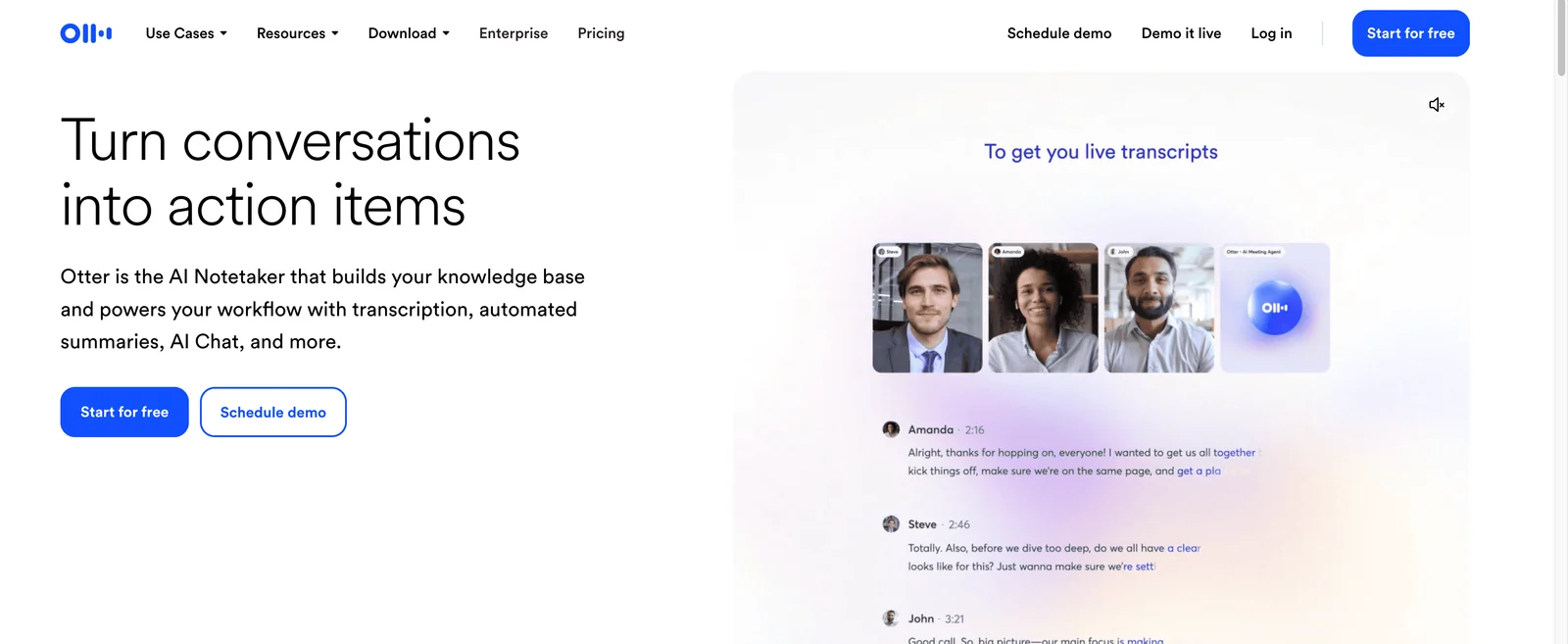
Otter.ai is excellent if "talk to text" means capturing meetings, interviews, lectures, and calls. It is not the best daily writing tool, but it is one of the strongest meeting transcript apps.
Key Features
Live meeting transcription.
Speaker labels, summaries, and searchable transcripts.
Zoom, Google Meet, Microsoft Teams, and calendar workflows.
Web, iOS, and Android apps.
Pros
Very useful for meetings and interviews.
Speaker labels and summaries save review time.
Good collaboration features for teams.
Free tier is enough to test the workflow.
Cons
Not built for writing inside documents, email, or browser fields.
Cloud-based.
Can struggle with background noise and overlapping speakers.
May feel too meeting-focused if you only want dictation.
Pricing
Otter has a free tier and paid plans. Current paid plans are usually subscription-based, so verify the latest limits and minutes before choosing.
User Reviews
Reviews: Otter.ai reviews on G2.
Users praise Otter for searchable meeting notes, speaker labels, and summaries. The most common complaints are about accuracy in noisy calls, pricing/limits, and the fact that it is not a clean replacement for a writing dictation app.
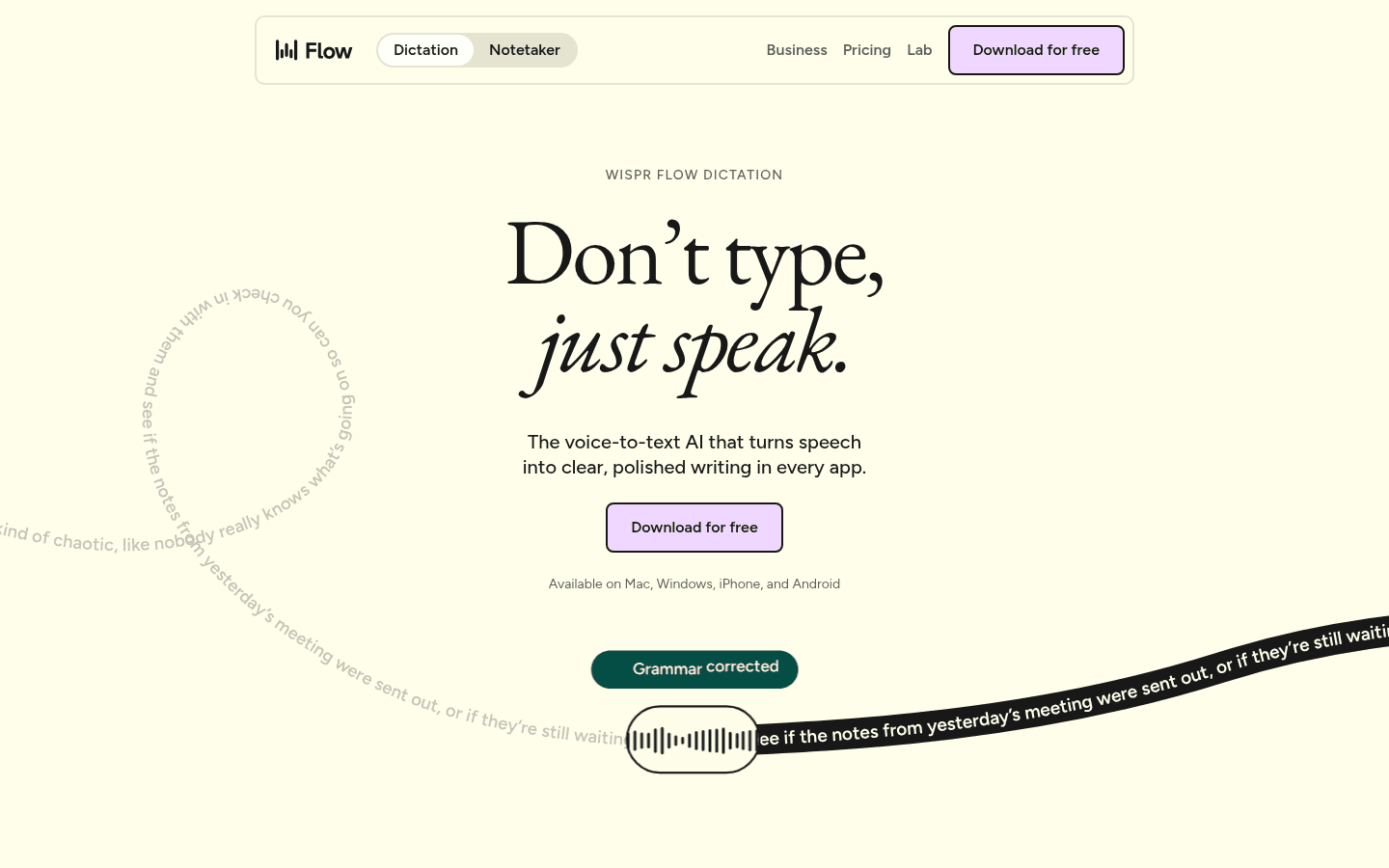
5. Wispr Flow: Best Polished AI Dictation Alternative
Wispr Flow is one of the best-known modern AI dictation apps. It is polished, fast, and aimed at people who want a voice keyboard across apps and devices.
Key Features
AI dictation across desktop and mobile devices.
Context-aware cleanup and rewriting.
Team plans and cross-device workflows.
Good fit for people comparing newer AI dictation apps.
Pros
Polished user experience.
Strong AI cleanup for natural speech.
Good option for teams and cross-device users.
Easy to compare against Voicy, Superwhisper, and other modern tools.
Cons
$15/month is higher than Voicy's $8.49/month plan.
Some users report activation or first-word issues.
Cloud-based, so it is not for local-only workflows.
Pricing
Wispr Flow offers a free tier and a paid Pro plan around $15/month. Check current pricing and platform support before buying.
User Reviews
Reviews: Wispr Flow reviews on Product Hunt.
Users tend to praise Flow for speed, polish, and the feeling of speaking naturally. Complaints often focus on price, activation friction, and reliability edge cases. If you are comparing it directly with Voicy, see our Wispr Flow alternative guide.
6. Google Docs Voice Typing: Best Free Browser-Based Option
Google Docs Voice Typing is the easiest free browser option if your writing happens inside Google Docs. It is not a full talk to text app for the whole computer, but it is very useful for simple drafts.
Key Features
Free dictation inside Google Docs.
Works from the Tools menu in supported browsers.
Basic punctuation and voice commands.
No separate app install if you already use Google Docs.
Pros
Completely free.
Fast to start.
Good enough for basic document drafts.
Useful for students and casual writers.
Cons
Only works inside Google Docs.
Not a solution for Gmail, Slack, Notion, Word, desktop apps, or most websites.
Cloud-based.
Formatting and commands are limited outside basic use.
Pricing
Free with Google Docs.
User Reviews
Review link: Google Docs Voice Typing support page.
User feedback is scattered across Google support forums and Docs communities. People like that it is free and easy. The usual complaint is the app boundary: it stops being helpful once your writing moves outside Google Docs. For setup, see our Google Docs speech-to-text guide.
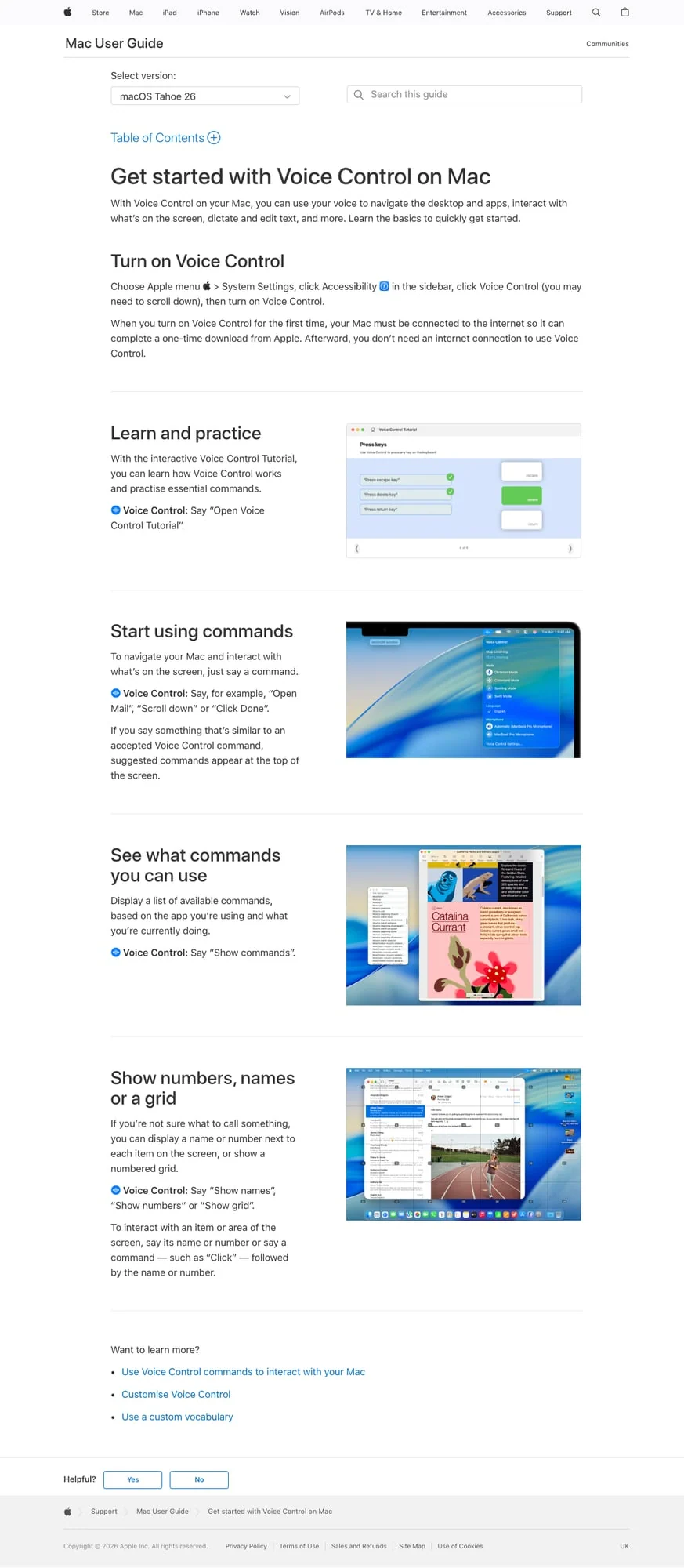
7. Apple Dictation: Best Free Talk To Text App For Mac And iPhone
Apple Dictation is the easiest starting point if you use a Mac, iPhone, or iPad. It is already installed, and it works well enough for short notes, messages, and basic drafts.
Key Features
Built into macOS, iOS, and iPadOS.
Works from the keyboard microphone or Dictation settings.
Good for quick notes, texts, and short document drafts.
Voice Control provides deeper accessibility features.
Pros
Free and already installed.
Very easy to try.
Good for short Apple-device dictation.
Useful privacy posture compared with many cloud apps, depending on device and settings.
Cons
Apple devices only.
Less polished for long professional writing.
Limited custom vocabulary and AI cleanup.
Not ideal if your work spans Windows, browser, and mobile platforms.
Pricing
Free with Apple devices.
User Reviews
Review link: Apple Dictation support page.
Users like that Apple Dictation is free, fast, and built in. Complaints usually mention inconsistent formatting, weaker long-session performance, and limited control compared with dedicated dictation apps. Mac users can compare more options in our Mac speech-to-text app guide.
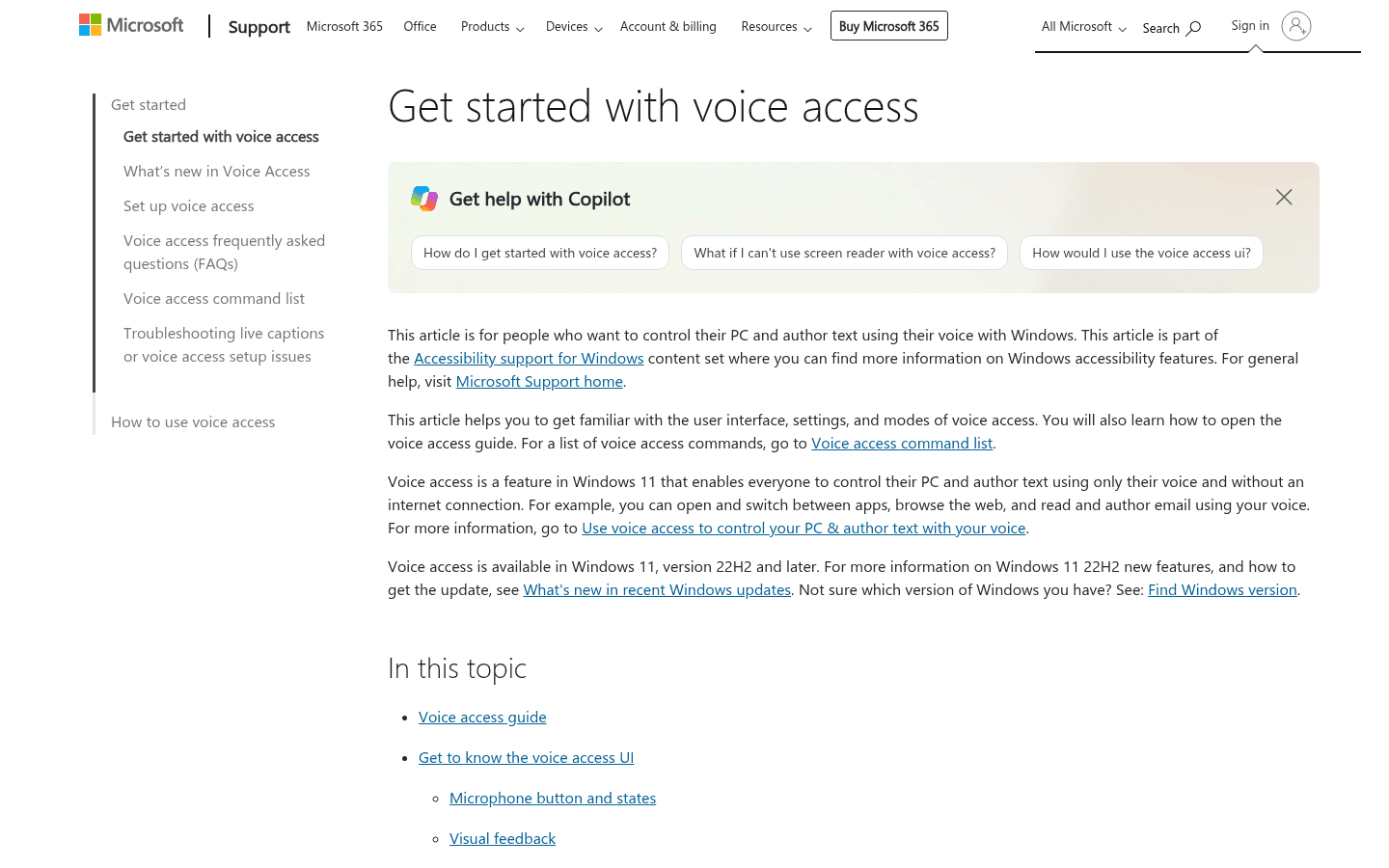
8. Windows Voice Access: Best Free Talk To Text App For Windows
Windows Voice Access is the best free starting point for Windows 11 users. It handles dictation and voice control, so it is useful for accessibility as well as basic writing.
Key Features
Built into Windows 11.
Voice typing across Windows text fields.
Hands-free computer control with commands.
Useful accessibility workflow.
Pros
Free for Windows users.
Works beyond one document editor.
Can control the computer, not just type text.
Good first test before paying for Dragon or Voicy.
Cons
Windows only.
Less polished than paid AI dictation for long writing.
Custom vocabulary and cleanup are limited.
Accuracy depends heavily on mic quality and environment.
Pricing
Free with Windows 11.
User Reviews
Review link: Windows Voice Access support page.
Users value that it is free and integrated into Windows. Complaints usually focus on uneven accuracy, setup quirks, and the gap between accessibility control and polished writing output. For more Windows options, read our Windows speech-to-text guide.
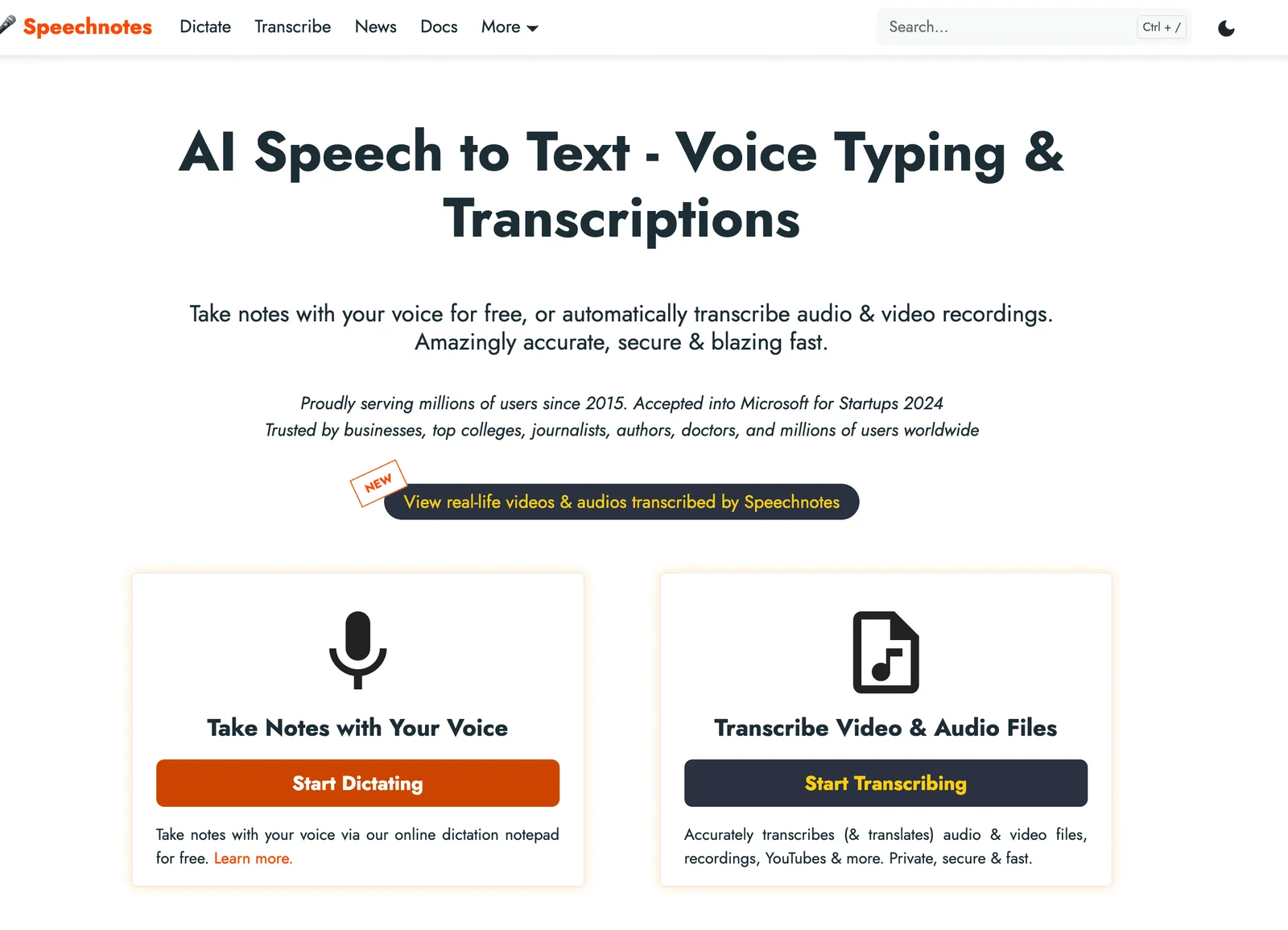
9. Speechnotes: Best Simple No-Signup Web App
Speechnotes is the fastest option when you just want a browser notepad that listens. It is not trying to be a full work app, and that simplicity is the point.
Key Features
Browser-based dictation pad.
No account required for basic use.
Auto-save in the browser.
Export and copy text into other apps.
Android app available.
Pros
Very quick to start.
No signup friction for basic notes.
Good for short drafts and temporary notes.
Free option available.
Cons
Browser-only for most workflows.
Free version includes ads.
Not ideal for writing directly inside work apps.
Limited AI cleanup, custom vocabulary, and platform depth.
Pricing
Free with ads. Speechnotes also offers paid upgrades and related apps, so check current pricing before buying.
User Reviews
Reviews: Speechnotes reviews on Google Play.
Users like the simple interface and quick note-taking. Complaints tend to mention ads, browser/app limitations, and occasional recognition issues. It is a good scratchpad, not a full replacement for cross-app dictation.
10. Notta: Best For Multilingual Transcription
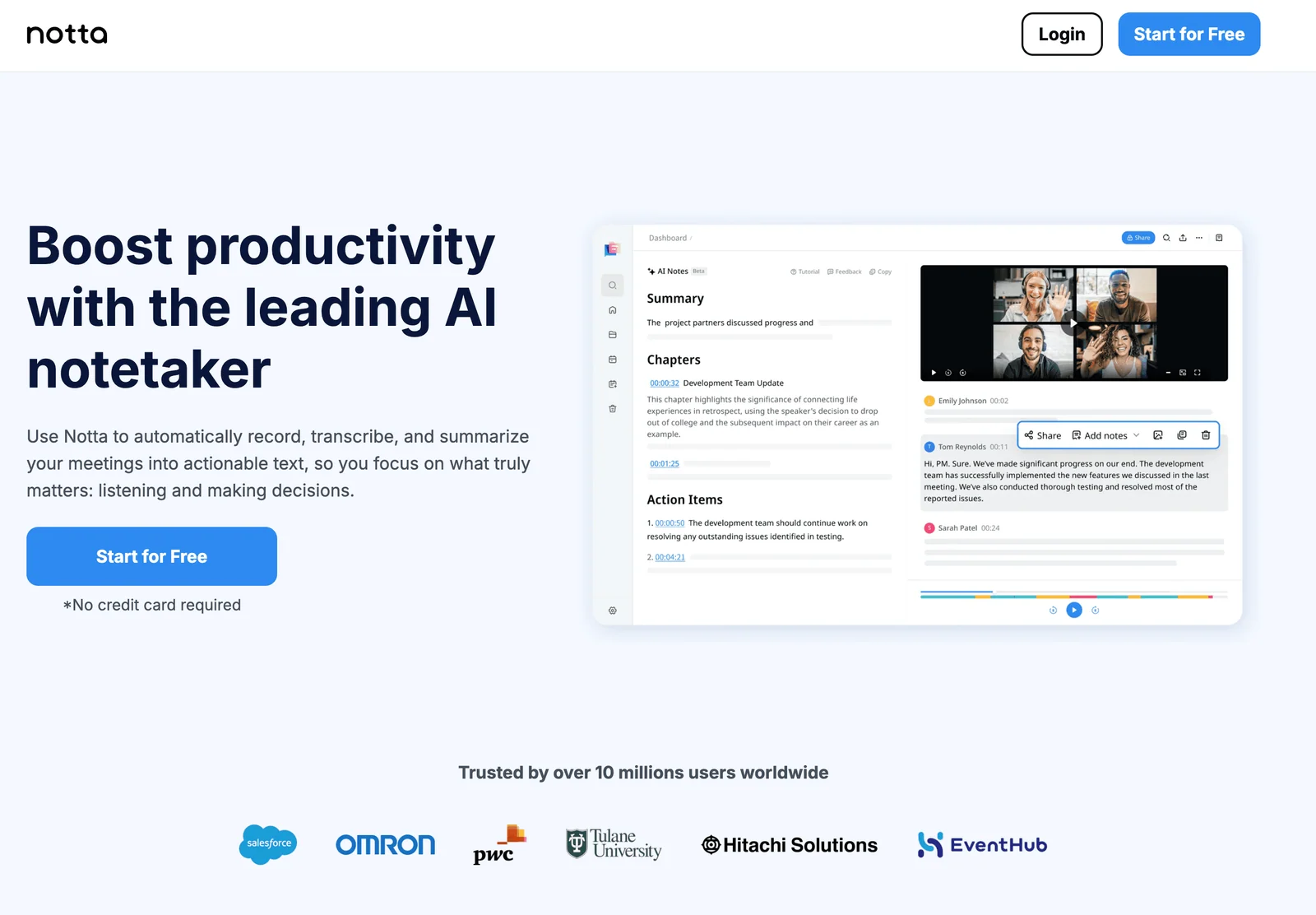
Notta is strongest when your "talk to text" need is multilingual transcription, meetings, recordings, or files. It can help with live notes, but it is closer to Otter than to a daily writing app.
Key Features
Multilingual transcription for meetings and recordings.
Speaker identification and summaries.
Audio and video file transcription.
Web, iOS, and Android apps.
Translation-oriented workflows.
Pros
Good fit for multilingual meetings and recordings.
Supports audio and video files.
Useful summaries and speaker features.
Mobile and web access.
Cons
More transcription-focused than writing-focused.
Cloud-based.
Free tier has limits.
Not the best choice for typing directly into every app.
Pricing
Notta has a free tier and paid plans. Check current minutes, export limits, and team pricing before choosing a plan.
User Reviews
Reviews: Notta reviews on G2.
Users praise Notta for multilingual transcription, file support, and meeting notes. Common complaints involve plan limits, accuracy variation by audio quality/language, and the fact that it is not as natural for everyday writing as a dedicated dictation app.
Talk To Text Software Comparison Table
| App | Best for | Free plan | Paid price | Works across apps? | Uploaded files? | Privacy model |
|---|---|---|---|---|---|---|
| Voicy | Everyday cross-app writing | Free trial | $8.49/mo, $82/yr, $260 lifetime | Yes | Yes | Cloud-based |
| Microsoft Word Dictate | Office documents | Included with Microsoft 365 | Microsoft 365 pricing | No, mainly Microsoft apps | No | Cloud-based |
| Dragon Professional | Specialist Windows dictation | No | Varies by edition | Yes on Windows | Edition dependent | Local/offline options |
| Otter.ai | Meetings | Yes | Paid tiers | No | Yes | Cloud-based |
| Wispr Flow | Modern AI dictation | Yes | About $15/mo Pro | Yes | Check current plan | Cloud-based |
| Google Docs Voice Typing | Google Docs drafts | Yes | Free | No | No | Cloud-based |
| Apple Dictation | Apple users | Yes | Free | Yes on Apple devices | No | Device/settings dependent |
| Windows Voice Access | Windows voice typing | Yes | Free | Yes on Windows | No | Device/settings dependent |
| Speechnotes | Quick browser notes | Yes | Low-cost upgrades | No | No | Browser/cloud dependent |
| Notta | Multilingual transcription | Yes | Paid tiers | No | Yes | Cloud-based |
How To Choose The Right Talk To Text App
Choose based on free vs paid use
If you dictate once in a while, start free. Apple Dictation, Windows Voice Access, Google Docs Voice Typing, and Speechnotes cover the basics.
If you dictate every day, go paid. A paid tool like Voicy makes more sense when you care about writing in many apps, custom words, file transcription, and less cleanup.
Choose based on platform
Mac users should test Apple Dictation first, then compare Voicy, Wispr Flow, and local Mac tools if daily dictation matters. Windows users should test Windows Voice Access, then compare Voicy and Dragon depending on whether they need everyday writing or specialist command workflows.
Browser-first users can start with Google Docs Voice Typing. If they need speech-to-text across websites, forms, Gmail, Notion, ChatGPT, or Slack, they should move to a cross-app or browser-extension workflow.
Choose based on privacy requirements
If you need local-only or offline-only processing, shortlist Dragon, Apple Dictation, Windows Voice Access, or local Whisper-based tools and verify the exact settings. If cloud processing is acceptable, Voicy, Wispr Flow, Google Docs Voice Typing, Otter, and Notta are easier to use across modern workflows.
Voicy is cloud-based. That is good for convenience and AI quality, but it is not the right claim if your buyer requirement is fully local dictation.
Choose based on use case
Daily writing: Choose Voicy.
Microsoft Word: Try Word Dictate, then compare Voicy for Microsoft Word if you need a broader workflow.
Google Docs: Try Google Docs Voice Typing, then compare Voicy for Google Docs if you need cross-app support.
Gmail and email: Use a cross-app tool like Voicy. See our guide to dictation for Gmail.
Meetings: Choose Otter or Notta.
Medical/legal dictation: Compare Dragon first, then consider modern AI tools for lighter writing.
Hand pain or accessibility: Start with built-in tools, then upgrade if cleanup time becomes the new pain point.
Tips For Better Talk To Text Results
Use a decent microphone. Built-in laptop mics are fine for testing, but a headset usually improves accuracy. Our microphone guide for dictation covers the easy upgrades.
Speak in full thoughts. Modern AI dictation handles natural speech better than choppy word-by-word speech.
Review names and numbers. Names, dates, prices, and specialist terms are still the first things to check.
Give it a week. Dictation feels odd at first. Most people improve once they stop composing every sentence with their fingers.
Keep a fallback. No talk to text app is perfect. Use typing for passwords, code syntax, and tiny corrections.
FAQ
What is the best talk to text app in 2026?
Voicy is the best talk to text app for most people who want to dictate across Mac, Windows, browser fields, iOS, Android, and uploaded audio files. Free tools like Apple Dictation, Windows Voice Access, and Google Docs Voice Typing are good for occasional use.
What is text speaking software?
Text speaking software is another way people describe speech-to-text, talk-to-text, voice-to-text, or dictation software. The goal is the same: you speak, and the app turns your words into editable text.
Is there a free talk to text app?
Yes. Apple Dictation, Windows Voice Access, Google Docs Voice Typing, Speechnotes, and mobile keyboard dictation are all free ways to start. They are best for short notes, simple drafts, and casual dictation.
When is a paid talk to text app worth it?
A paid talk to text app is worth it when you dictate every day, write in many apps, need cleaner punctuation, use custom vocabulary, or want file transcription. Free tools are usually enough for light use.
What is the difference between talk to text software and transcription software?
Talk to text software turns live speech into text while you write. Transcription software turns recorded audio or video into text later. Some tools, including Voicy, support both live dictation and uploaded audio transcription.
What is the best talk to text software for Windows?
Voicy is a strong paid choice for Windows users who want cross-app dictation and file transcription. Windows Voice Access is the best free built-in option, and Dragon Professional is best for specialist Windows workflows.
What is the best talk to text app for Mac?
Voicy is a strong paid Mac choice for daily writing across apps and uploaded files. Apple Dictation is the best free built-in option. Wispr Flow and Superwhisper are also worth comparing for Mac-focused workflows.
Does talk to text work offline?
Some tools can work offline or locally, including Apple Dictation, Windows Voice Access, Dragon Professional, and some local Whisper-based tools. Cloud-based tools like Voicy, Wispr Flow, Google Docs Voice Typing, Otter, and Notta need an internet connection.
Is talk to text accurate enough for work?
Yes, modern talk to text apps can be accurate enough for emails, notes, documents, reports, and prompts. You should still proofread important work, especially names, numbers, and technical terms.
What talk to text app works on any website?
Voicy works across browsers and desktop apps, so it is a strong choice for dictating on websites, forms, and web apps. Browser-only options like Google Docs Voice Typing are more limited because they only work in specific places.
Is talk to text the same as speech recognition software?
Usually, yes. Talk to text is the casual phrase for dictating words into text. Speech recognition software is broader and can include dictation, voice commands, accessibility controls, meeting transcription, and custom vocabulary.
Is talking faster than typing?
Yes. Most people speak around 125 to 150 words per minute and type closer to 40 words per minute. Even after proofreading, talk to text can be much faster for first drafts, emails, notes, and long thoughts.
Is my voice data private when using talk to text?
It depends on the app. Some tools process locally or offline. Others send audio to cloud services for transcription. Voicy is cloud-based, so check your privacy requirements before using it for sensitive material.
Bottom Line
The best talk to text app depends on what you mean by "talk to text." If you want to write faster across apps, choose Voicy. If you want free short notes, start with Apple Dictation, Windows Voice Access, or Google Docs Voice Typing. If you want meeting transcripts, choose Otter or Notta. If you work in legal or medical dictation all day on Windows, Dragon is still worth comparing.
For most people, the upgrade point is simple: when free voice typing starts costing you time in cleanup, app switching, or missing vocabulary, it is time to move to a dedicated talk to text app.
Ready to try talk to text software for daily writing? See the Voicy dictation app and compare the free trial, platforms, and pricing.Looking for a broader desktop guide? Read our best dictation software comparison. Need one specific workflow? Try speech-to-text for Google Docs, voice typing in Microsoft Word, or dictation for Gmail.