




Summary of the article
Voicy is the best voice to text app for people who want fast dictation across desktop, browser, and mobile, plus file upload transcription.
Wispr Flow is best for polished AI dictation if you like its writing style and do not mind subscription pricing. See our Wispr Flow pricing guide for the current cost and Voicy comparison.
Willow Voice is best for people who want an AI dictation app that learns their style across emails, messages, and work apps.
Aqua Voice is best for fast technical dictation, especially if you write code, prompts, or jargon-heavy notes.
Dragon Professional is best for Windows power users who want deep custom commands and classic dictation controls.
Superwhisper is best for Apple users who want a local or hybrid Whisper-based workflow.
MacWhisper is best for Mac users who mainly transcribe audio files, meetings, and videos.
Otter.ai is best for meeting notes and searchable transcripts, not daily system-wide dictation.
Google Docs Voice Typing is best if you only need free dictation inside Docs or Slides.
Apple Dictation is best as a built-in starting point before you pay for a dedicated app.
The best voice to text app in 2026 depends on where you write. If you want one tool that works across your computer, browser, phone, emails, docs, and notes, Voicy is the strongest all-around pick. If you only need voice typing inside one app, built-in tools like Google Docs Voice Typing, Apple Dictation, or Windows Voice Typing may be enough.
Most people do not need the most complicated speech recognition tool. They need the one that fits the place where they actually type.
That is the difference between a voice to text app you test once and a voice to text app you use every day. A great app should open quickly, understand natural speech, clean up rough wording, and place the text where you need it.
This guide compares the best voice to text apps for everyday writing, work messages, documents, meetings, and long-form transcription.
How we chose the best voice to text apps
We looked for tools that solve real writing problems, not just apps that can turn audio into words.
The best options had to do at least one thing very well:
Work across many apps, not only inside one editor
Handle natural speech without forcing awkward commands
Clean up filler words and rough phrasing
Support common work platforms like Gmail, Google Docs, Slack, Word, Notion, and ChatGPT
Offer a clear reason to choose them over built-in dictation
Be honest about privacy, pricing, platform support, and limits
We also separated live dictation from file transcription. They sound similar, but they are not the same job. Live dictation helps you write in the moment. File transcription turns recordings into text after the fact.
Best voice to text apps compared
App | Best for | Platforms | Pricing style | Main tradeoff |
|---|---|---|---|---|
Voicy | System-wide dictation plus file transcription | Mac, Windows, browser, iOS, Android | $8.49/month, $82/year, lifetime option | Cloud processing is not for local-only users |
Wispr Flow | Polished AI dictation | Mac, Windows, iPhone, Android | Free tier, Pro subscription | Higher subscription cost than some rivals |
Willow Voice | Personal writing style and work messages | Mac, Windows, iPhone | Free tier, paid plans | Subscription-only for heavy use |
Aqua Voice | Fast technical dictation | Mac, Windows, iOS | Trial plus paid plans | Cloud-first workflow |
Dragon Professional | Classic Windows power dictation | Windows, with related mobile/cloud products | Premium licensing | Heavier setup and weaker modern Mac fit |
Superwhisper | Apple-focused local or hybrid dictation | Mac, iPhone, Apple Watch | Free and paid plans | Less universal if you use Windows or Android |
MacWhisper | Mac file transcription | Mac | Free and one-time Pro option | Better for files than live system-wide dictation |
Otter.ai | Meetings and transcripts | Web, iOS, Android | Free and paid plans | Not built for typing into every app |
Google Docs Voice Typing | Free dictation inside Google Docs | Docs in supported browsers | Included with Google Docs | Works mainly inside Docs and Slides |
Apple Dictation | Basic built-in voice typing | macOS, iOS | Included with the operating system | Less AI cleanup and workflow control |
1. Voicy, best voice to text app for everyday work
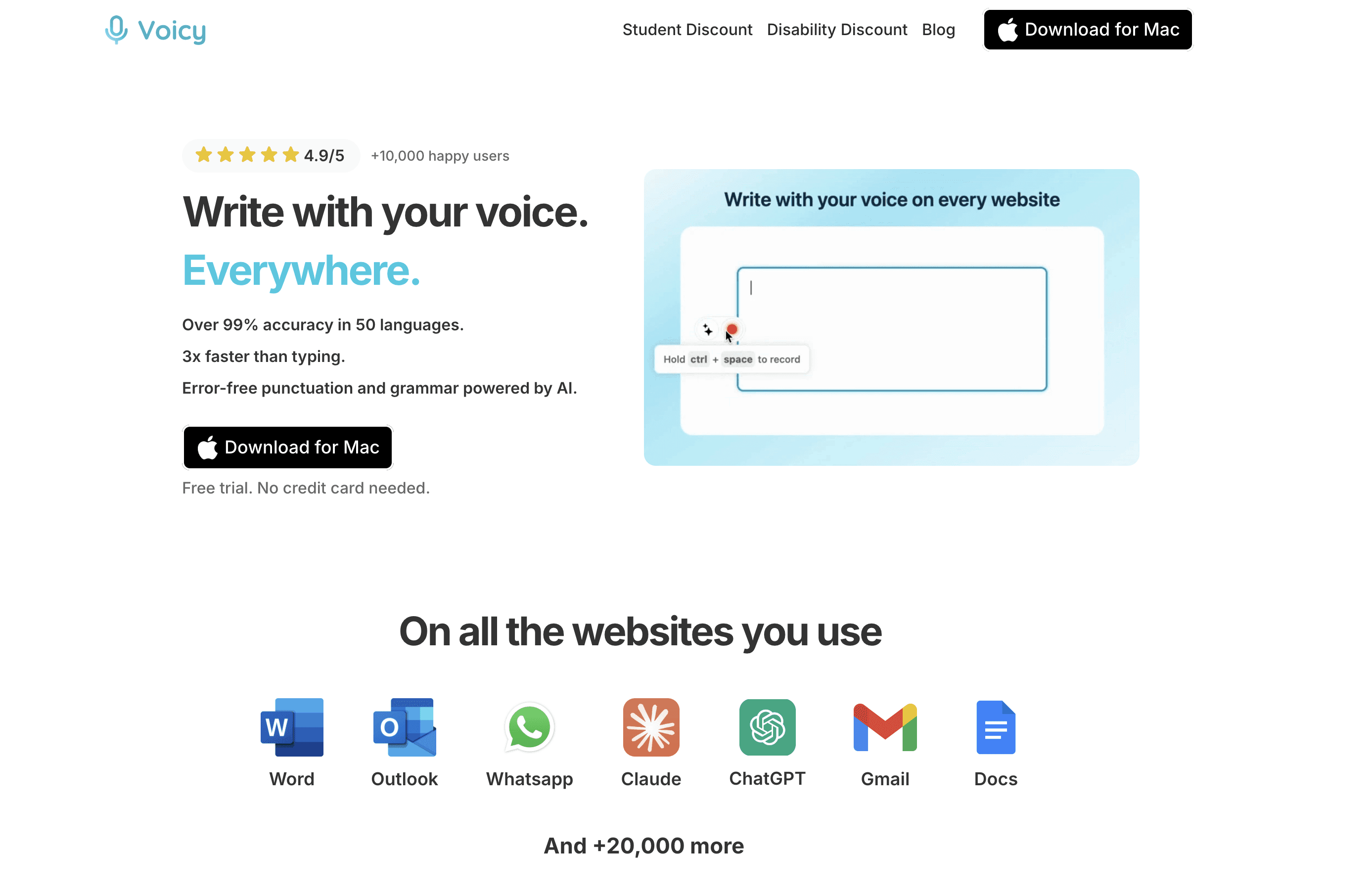
Voicy is the best voice to text app for people who want one tool for daily writing across many apps. It works for live dictation and file upload transcription, so it covers more than quick notes.
That matters if your writing is spread across Gmail, Google Docs, Slack, Microsoft Word, Notion, ChatGPT, and browser forms. You do not want a voice app that only works in one text box.
Best for: professionals, students, writers, founders, and anyone who wants to write faster across apps
Key strengths: system-wide dictation, file transcription, 50+ languages, Mac, Windows, browser extension, iOS, and Android support
Pricing: $8.49/month, $82/year, or $260 lifetime
Tradeoff: Voicy uses cloud processing, so people who require fully local transcription may prefer Superwhisper or MacWhisper
Voicy is a strong fit if you want voice typing to become part of your normal workday. It is also useful if you sometimes need to transcribe a voice memo, meeting recording, or audio file.
If you are comparing app-specific workflows, see our guides to speech to text in Google Docs, speech to text on Windows, and dictation for Mac.
2. Wispr Flow, best for polished AI dictation
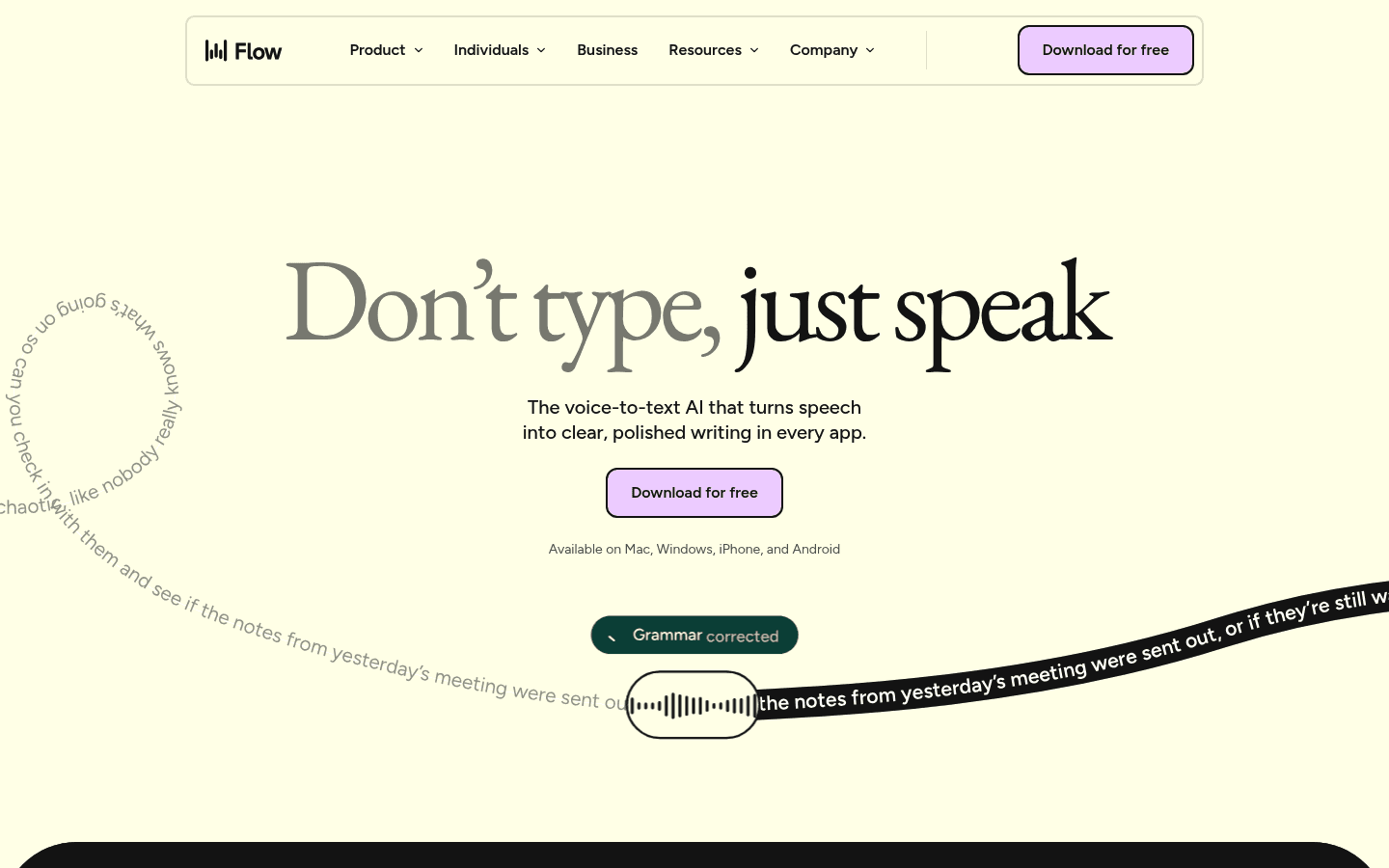
Wispr Flow is one of the best-known AI dictation apps. It is built around natural speech, clean output, and writing that sounds more polished than a raw transcript.
Its iPhone App Store listing shows Pro monthly and annual in-app purchases, plus student plans. The same listing says Flow works inside apps like Slack, Messages, Email, WhatsApp, ChatGPT, and Docs.
Best for: people who want AI-polished writing from natural speech
Key strengths: polished output, whisper-style dictation, app-aware writing, mobile keyboard workflow
Pricing: free tier plus Pro subscription; App Store listing shows $15/month and $143.99/year options
Tradeoff: it can be expensive if you only dictate a few short notes per week
Choose Wispr Flow if you like the way it rewrites your speech. Compare it with Voicy in our Wispr Flow alternative guide.
3. Willow Voice, best for personal writing style
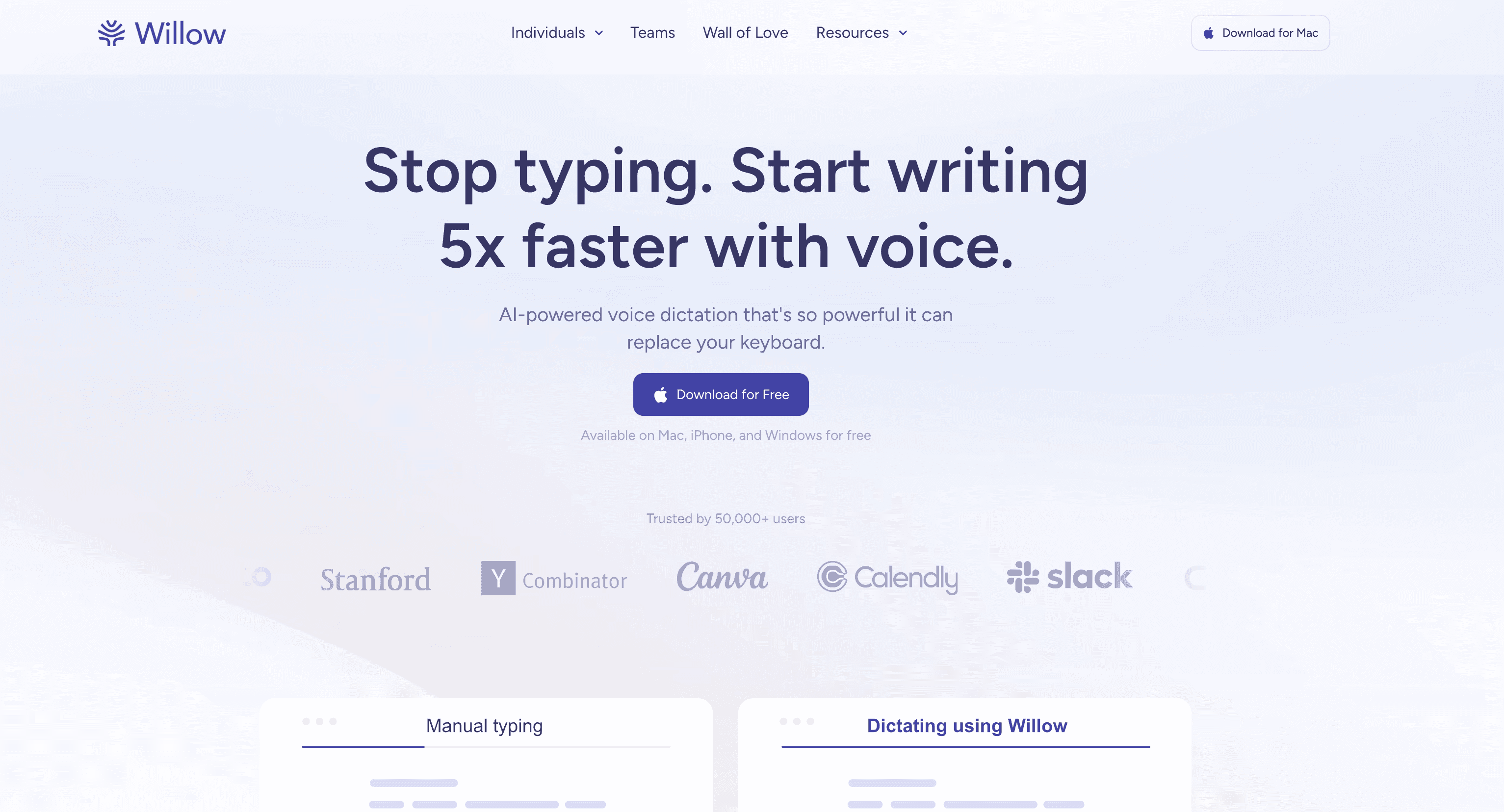
Willow Voice is a voice to text app for people who want dictation that adapts to their writing style. It is especially aimed at emails, DMs, Slack messages, documents, and AI prompts.
Willow's pricing page lists a free tier with 2,000 words per week, plus an Individual plan billed annually. It also highlights custom vocabulary, context-aware suggestions, and personalization across apps.
Best for: people who write lots of short work messages
Key strengths: style memory, smart formatting, custom vocabulary, Mac, Windows, and iPhone support
Pricing: free tier; Individual plan listed at $12/month billed annually
Tradeoff: heavy users need a paid subscription, and local-only users should check the privacy settings carefully
Willow is worth testing if you care more about tone and style than raw transcript control. For a direct comparison, read our Willow Voice alternatives guide.
4. Aqua Voice, best for fast technical dictation
Aqua Voice is a strong pick if your speech includes technical words, code terms, or product jargon. It focuses on speed, accuracy, and context-aware dictation.
Aqua's FAQ says new accounts get 1,000 words to try the product. It also lists desktop and iOS support, plus a student discount for annual plans.
Best for: developers, technical writers, and people who dictate prompts or code notes
Key strengths: fast transcription, technical vocabulary, Mac, Windows, and iOS support
Pricing: trial allowance plus paid plans; check Aqua's live plan page before buying
Tradeoff: cloud-first processing may not fit sensitive or offline workflows
Aqua is a good shortlist tool if accuracy on technical language is your biggest pain point. See our Aqua Voice alternatives post for a deeper breakdown.
5. Dragon Professional, best for Windows power users
Dragon Professional is the classic name in dictation software. It is still relevant for Windows users who want custom vocabulary, voice commands, and deeper control.
Nuance's Dragon Professional v16 data sheet describes it as speech recognition for Windows 11 and 10. It also highlights custom words, transcription, and voice commands for repetitive workflows.
Best for: Windows power users, legal workflows, enterprise users, and people with custom vocabulary needs
Key strengths: custom words, commands, Windows support, professional dictation history
Pricing: premium licensing, often much higher than modern subscription apps
Tradeoff: setup is heavier, and it is not the cleanest modern choice for Mac users
Dragon makes sense if you need classic desktop control more than a lightweight AI writing assistant. If price is the main concern, compare it with our best Dragon alternatives guide.
6. Superwhisper, best local-first option for Apple users
Superwhisper is a strong voice to text app for Apple users who want more control over models, modes, and local processing.
It is a better fit for people who like configuring their tools. If you just want to press a button and write in every app with minimal setup, Voicy or Wispr Flow may feel simpler.
Best for: Mac and iPhone users who care about local or hybrid workflows
Key strengths: Whisper-based transcription, custom modes, Apple ecosystem fit
Pricing: free and paid plans
Tradeoff: less useful if your work spans Windows, Android, and browser-heavy workflows
Superwhisper is one of the strongest options for local-first Apple users. For more options in that category, read our Superwhisper alternatives guide.
7. MacWhisper, best for Mac file transcription
MacWhisper is excellent if your main need is turning recordings into text on a Mac. It is built for audio files, meetings, YouTube videos, and local transcripts.
Its site says transcription runs on your Mac and supports 100+ languages. That makes it a good fit for people who care about local files and privacy.
Best for: journalists, researchers, podcasters, students, and Mac users with recordings
Key strengths: local transcription, file import, YouTube transcription, speaker recognition in Pro workflows
Pricing: free option and one-time Pro pricing
Tradeoff: it is not mainly a system-wide live dictation app
Pick MacWhisper when you already have audio to process. Pick Voicy, Wispr Flow, or Willow when you want to speak directly into apps.
8. Otter.ai, best for meetings and searchable transcripts
Otter.ai is best when the job is meeting capture, not daily writing. It records conversations, creates transcripts, and helps teams search what was said.
That is useful for calls, interviews, team meetings, and lectures. But it is not the smoothest tool if you want to dictate inside Gmail, Word, Notion, or ChatGPT all day.
Best for: meetings, interviews, lectures, and shared transcripts
Key strengths: meeting notes, summaries, speaker labels, searchable transcripts
Pricing: free and paid plans
Tradeoff: it solves meetings better than system-wide typing
Otter is the right choice when your problem is "what did we say in that meeting?" It is not the right choice if your problem is "how do I stop typing emails?"
9. Google Docs Voice Typing, best free option inside Docs
Google Docs Voice Typing is the easiest free option if you mainly write in Google Docs. Google says voice typing works in Docs and speaker notes in Slides through supported browsers.
It is simple: open a document, choose Tools, select Voice typing, and click the microphone. For a free tool, it is surprisingly useful.
Best for: students, teachers, and anyone drafting in Google Docs
Key strengths: included with Docs, easy to start, supports many languages
Pricing: included with Google Docs
Tradeoff: it is not a system-wide voice to text app
Use it if you only need Docs. Use a dedicated tool if you want the same voice workflow in emails, forms, chat apps, and desktop software.
10. Apple Dictation, best built-in starting point for Apple users
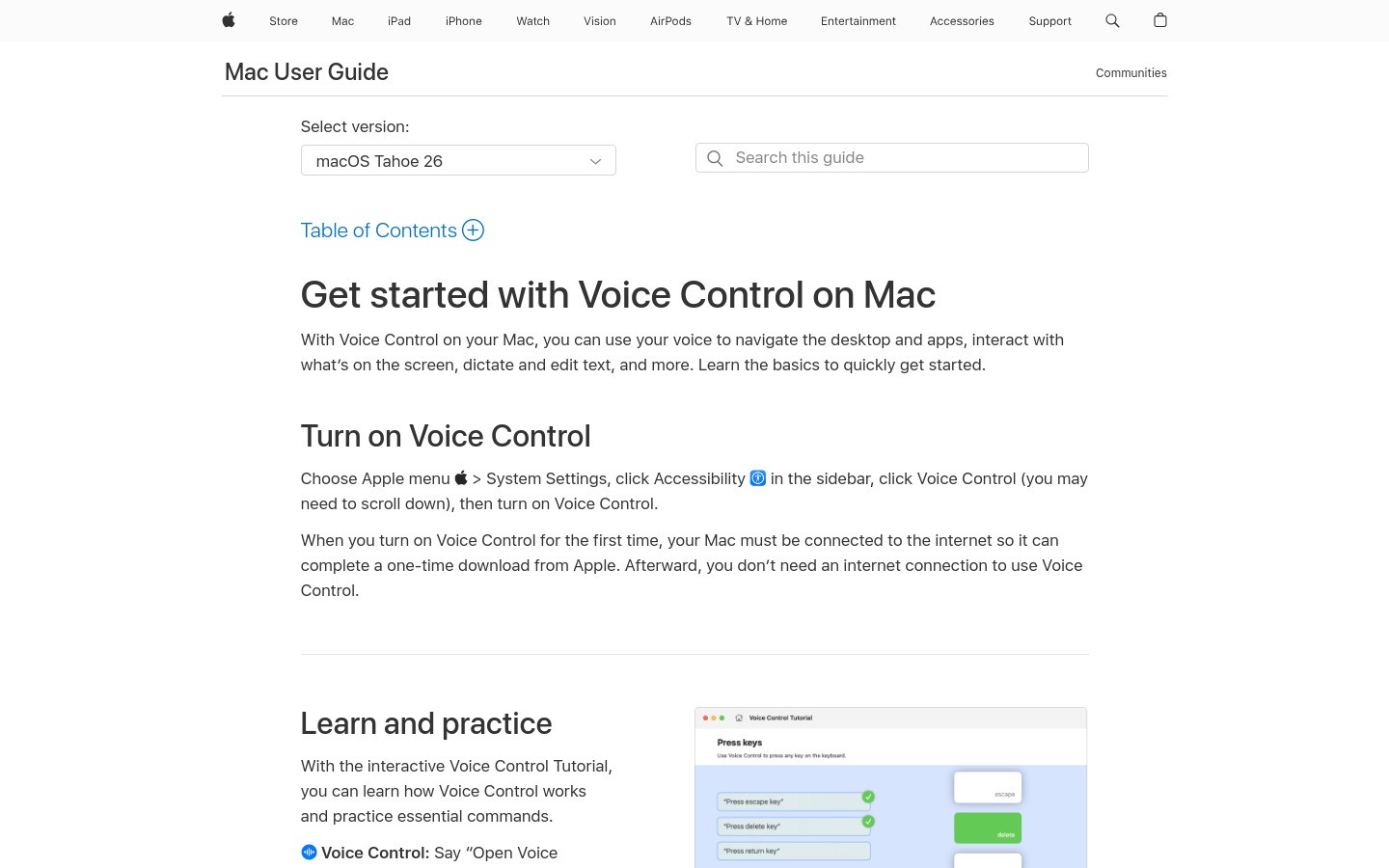
Apple Dictation is the first tool many Apple users should try. It is built into the operating system, so there is no extra app to install.
They work well for short notes and simple text. The limits show up when you want better cleanup, app-specific formatting, file transcription, history, or a more reliable work setup.
Best for: casual users who want to test voice typing before paying
Key strengths: built in, easy to access, no new account needed
Pricing: included with macOS and iOS
Tradeoff: less advanced than dedicated AI dictation apps
If built-in dictation already solves your problem, stay there. If you keep editing messy output or switching apps, a dedicated voice to text app will likely save more time.
Which voice to text app should you choose?
If you want one simple answer, choose Voicy for everyday cross-app dictation and file transcription. It has the best balance for people who write in many places.
Choose Wispr Flow or Willow if you mostly want AI-polished writing. Choose Aqua if technical vocabulary is the hard part. Choose Dragon if you want classic Windows power controls. Choose MacWhisper or Superwhisper if local Apple workflows matter most.
If you are not ready to pay, start with Google Docs Voice Typing, Apple Dictation, or Windows Voice Typing. Microsoft has a separate Windows Voice Typing support guide if you want the Windows built-in route. Then upgrade only when the built-in tool slows you down.
FAQ
What is the best voice to text app in 2026?
Voicy is the best voice to text app for most people because it works across desktop, browser, and mobile, and it supports both live dictation and file transcription. Wispr Flow, Willow, Aqua Voice, Dragon, Superwhisper, and MacWhisper are better for specific needs.
What is the best free voice to text app?
The best free options are Google Docs Voice Typing, Apple Dictation, and Windows Voice Typing. They are good starting points, but they do not offer the same cross-app AI cleanup and workflow features as dedicated tools.
Is voice to text the same as transcription?
Not exactly. Voice to text usually means live dictation while you speak. Transcription usually means converting a recorded audio or video file into text after the fact.
Which voice to text app works in every app?
Voicy, Wispr Flow, Willow, Aqua Voice, Dragon, and Superwhisper are built for broader app coverage. Google Docs Voice Typing is mainly for Docs and Slides, while Otter is mainly for meetings.
Which voice to text app is best for Mac?
Voicy is best if you want Mac dictation plus browser, Windows, and mobile support. Superwhisper is strong for local Apple workflows. MacWhisper is best if your main need is file transcription on a Mac.
Which voice to text app is best for Windows?
Voicy is the best all-around Windows choice for modern cross-app dictation. Dragon Professional is stronger for classic power-user workflows with custom commands. Windows Voice Typing is the best built-in option.
Is Dragon still worth it?
Dragon can still be worth it for Windows users who need custom vocabulary, commands, and professional dictation controls. For lighter everyday writing, modern apps like Voicy, Wispr Flow, Willow, and Aqua Voice are easier to test.
Can I use voice to text for emails and documents?
Yes. A good voice to text app can help you draft emails, documents, notes, messages, and prompts. Voicy is useful here because it works across many writing apps instead of locking you inside one editor.
Final verdict
The best voice to text app is the one that fits where you write. If you write everywhere, use a system-wide tool. If you write only in Google Docs, a built-in option may be enough.
For most people, Voicy is the best place to start because it covers daily dictation, file transcription, desktop work, browser writing, and mobile workflows in one product. Try the free trial, dictate a real email or document, and compare that against your current typing workflow.


